
Word to PDF Without Uploading
Convert DOCX to PDF privately — in your browser. Multi-file, page options, and merge into one PDF.
- 100% Private
- No Upload
- Multi-file
- Free
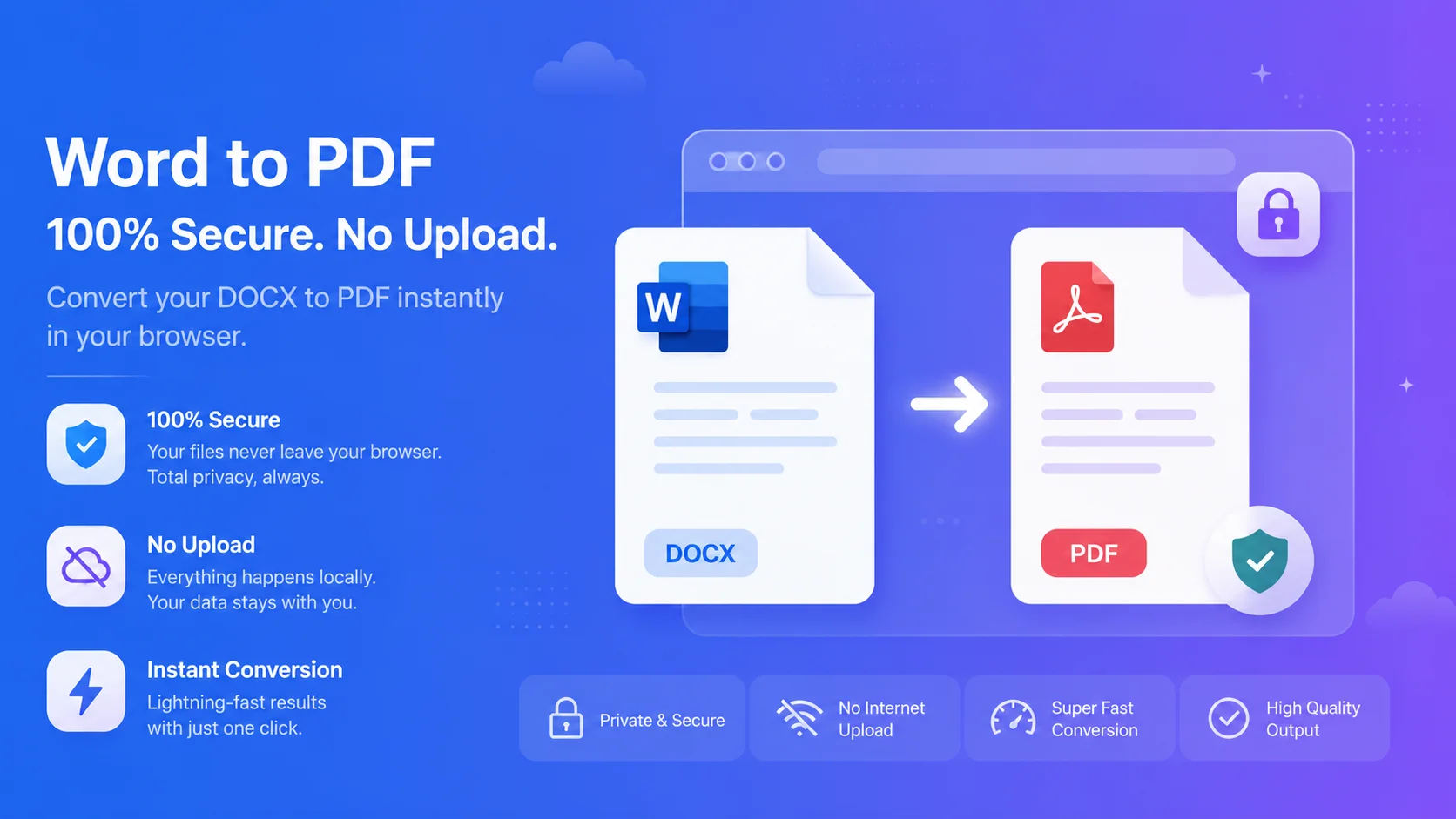
Word to PDF Without Uploading - Free Private DOCX to PDF
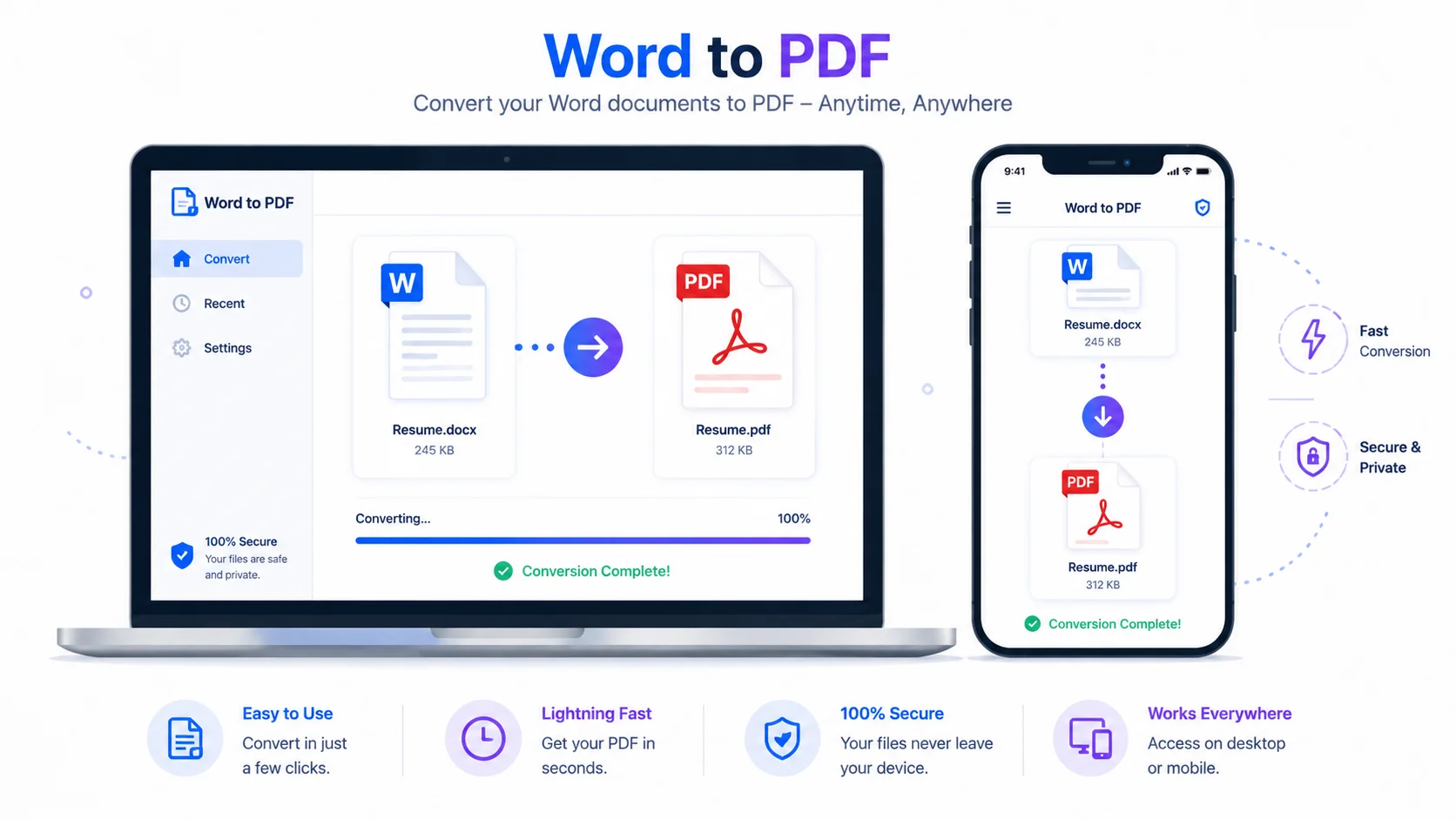
This free tool converts Word to PDF without uploading – your DOCX is processed right in your browser, so it never leaves your device. It’s the private way to turn a Word file into a share-ready PDF.
No signup, no watermark, and nothing sent to a server.
Why convert Word to PDF without uploading
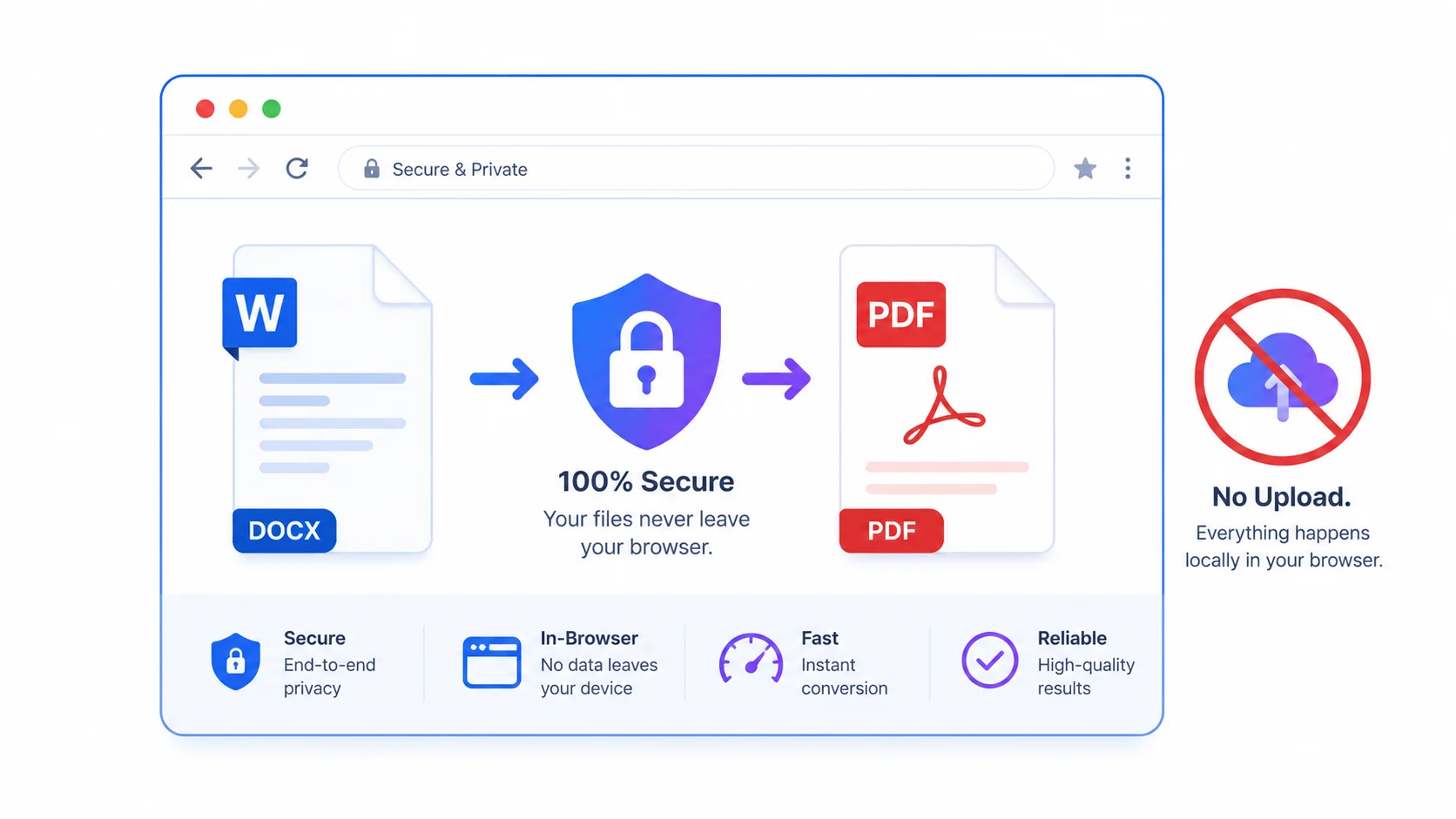
1. 100% private. Resumes, contracts, and forms stay on your device – nothing is uploaded.
2. Free and simple. No signup, no email, no watermark.
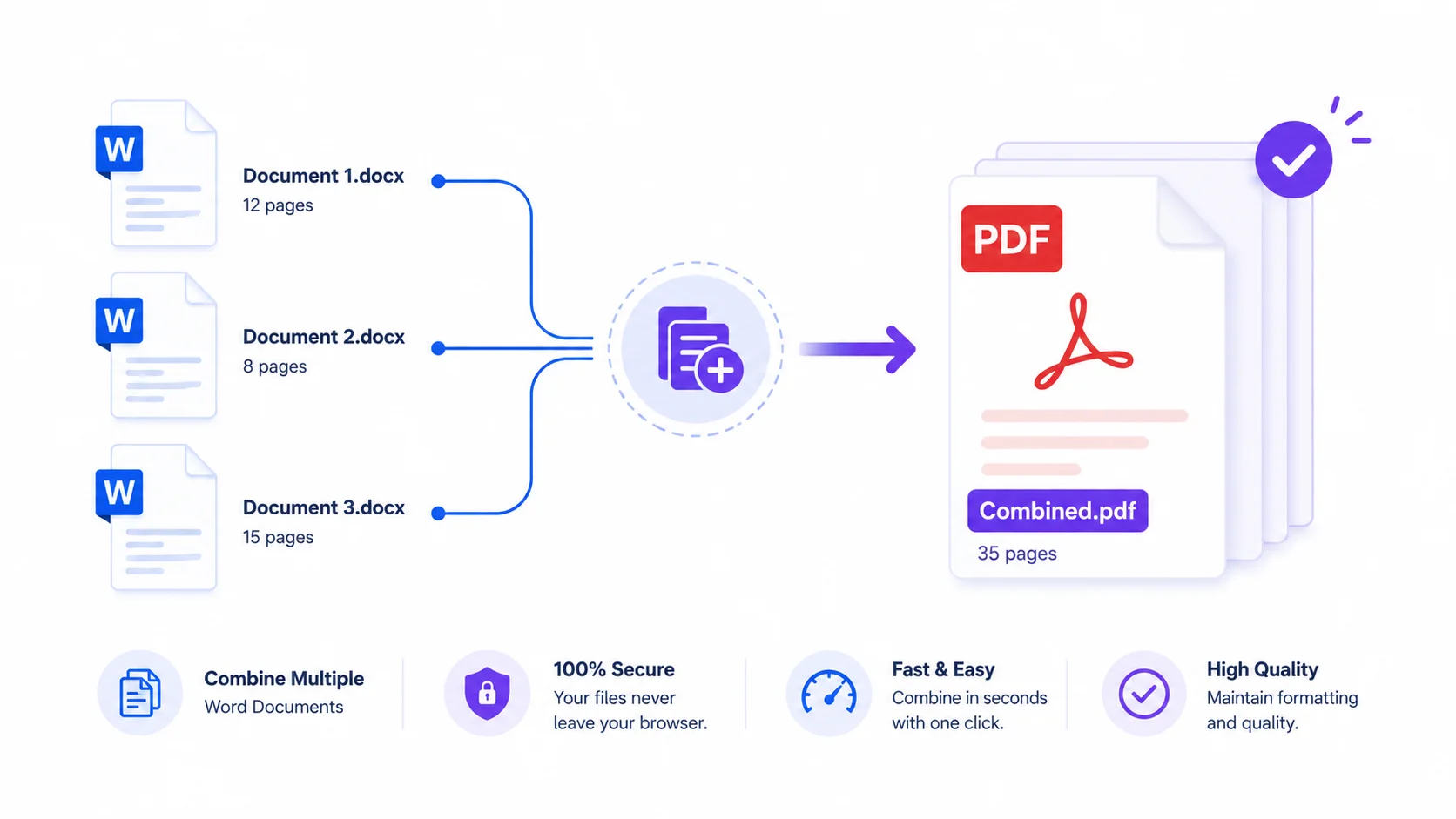
3. Multi-file + merge. Convert several DOCX files at once, or merge them into a single PDF.
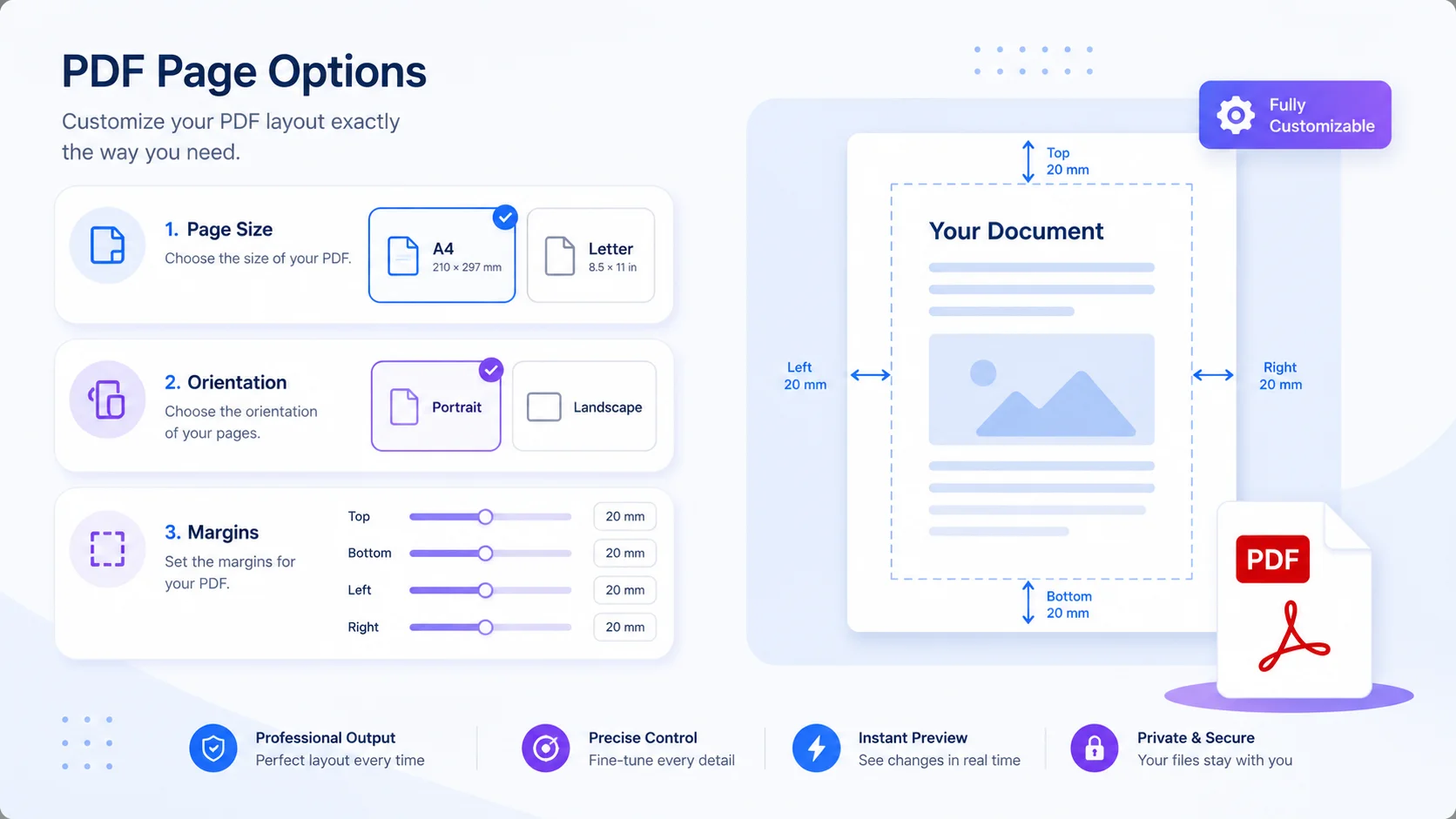
4. Full control. Choose page size, orientation, margins, and quality before you download.
How it works (be informed)
The tool reads your DOCX in the browser, rebuilds it as a page, and saves that page as a PDF.
It’s best-effort: simple documents convert cleanly, but very complex Word layouts (headers/footers, exact fonts, multi-column pages) may shift.
Because the PDF is created from a rendered page, the text in it is captured as an image – great for sharing and printing, but not selectable for re-editing. For that, keep your original DOCX.
Who uses it (India + global)
- Students & jobseekers (India + global): turn a resume or assignment DOCX into a PDF for uploads and email.
- Office & business (global + India): convert reports or letters to PDF for sharing.
- Anyone combining files: merge several Word documents into one clean PDF.
How to convert Word to PDF (step by step)
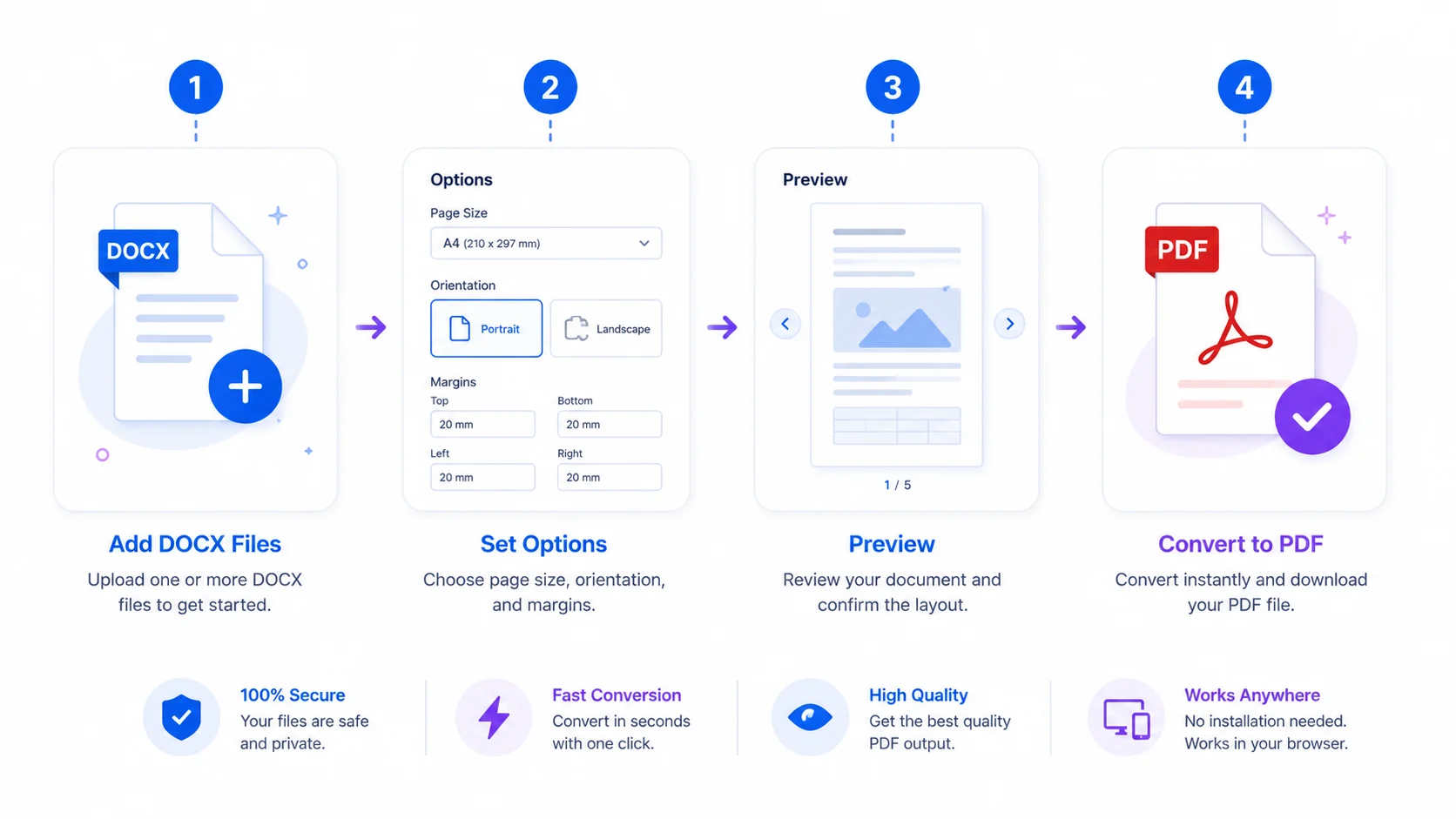
Step 1 — Add your DOCX files. Drag them onto the box or click “Browse.” (.DOC must be saved as .DOCX first.)
Step 2 — Set options (optional). Page size, orientation, margins, and quality.
Step 3 — Preview (optional). Open a file to see how it will look.
Step 4 — Convert. Download each PDF, “Download all,” or “Merge into one PDF.” Your file downloads when done.
Quick reference
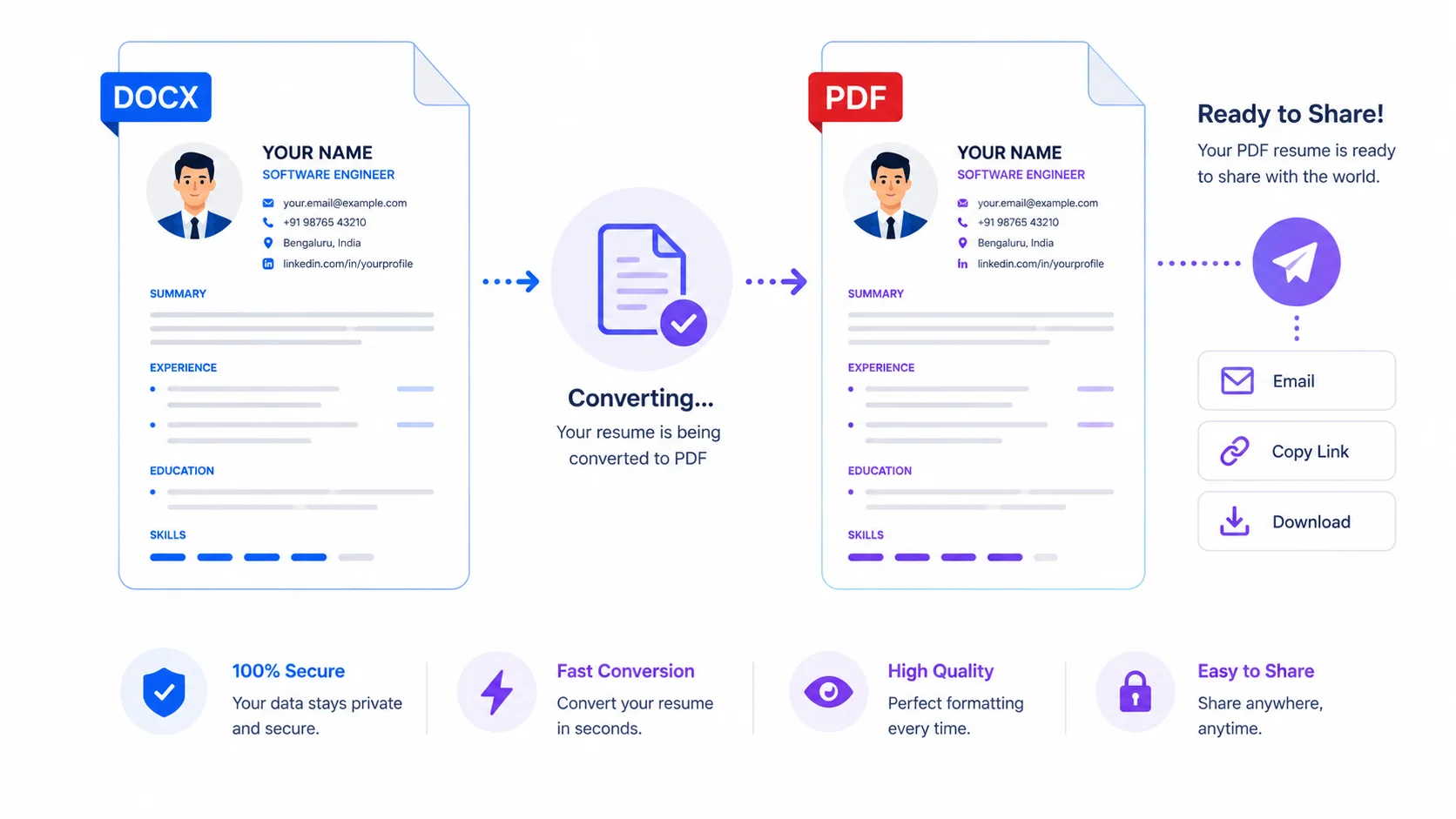
- Supported: .DOCX (modern Word).
- Not supported: .DOC – open it in Word and “Save As” .DOCX.
- Output: a PDF that looks like your document (text captured as image).
- Privacy: nothing is uploaded; it all runs locally.
Tips for the best result
- For clean results, keep formatting simple (standard fonts, basic tables).
- Use higher quality for image-heavy documents.
- To combine files, add them in the order you want, then choose Merge.
- Keep the original DOCX if you’ll need to edit later.
Frequently Asked Questions
Q: Is this Word to PDF converter free? Yes – completely free, with no signup and no watermark.
Q: Is my Word file uploaded to a server? No. You convert Word to PDF without uploading – it’s processed in your browser, so your file never leaves your device.
Q: Does it keep the exact formatting? It’s best-effort. Simple documents convert cleanly; very complex layouts may shift slightly. Preview before you download.
Q: Can I convert .DOC files? Not directly. Open the .DOC in Word and save it as .DOCX first, then convert.
Q: Can I merge several Word files into one PDF? Yes – add your files, then choose “Merge into one PDF.”
Q: Is the text in the PDF selectable? The PDF is created from a rendered page, so text is captured as an image. It’s ideal for sharing and printing; keep your DOCX for editing.
Q: Does it work on mobile? Yes – though large files convert faster on a computer.
When you need a share-ready PDF but want to keep it private, this tool lets you convert Word to PDF without uploading – free, in your browser, with multi-file and merge. Add your DOCX above, set your options, and download your PDF.
External reference (DoFollow): link “PDF (Portable Document Format)” to Wikipedia (https://en.wikipedia.org/wiki/PDF).