Image Color Picker — Get HEX & RGB From Any Image
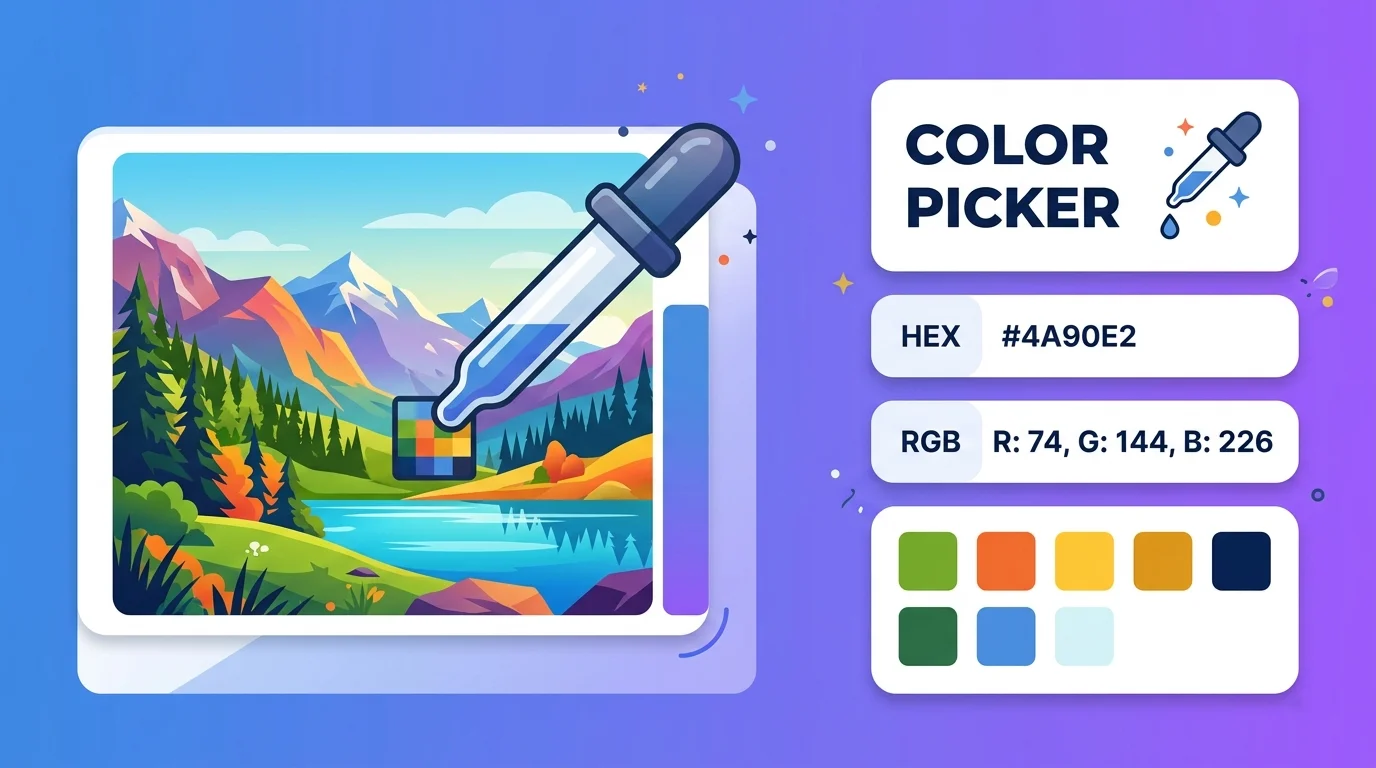
This free image color picker lets you grab the exact color from any photo, screenshot, or logo in one click. Click anywhere on your image to instantly see its HEX and RGB code, ready to copy into your design or code.
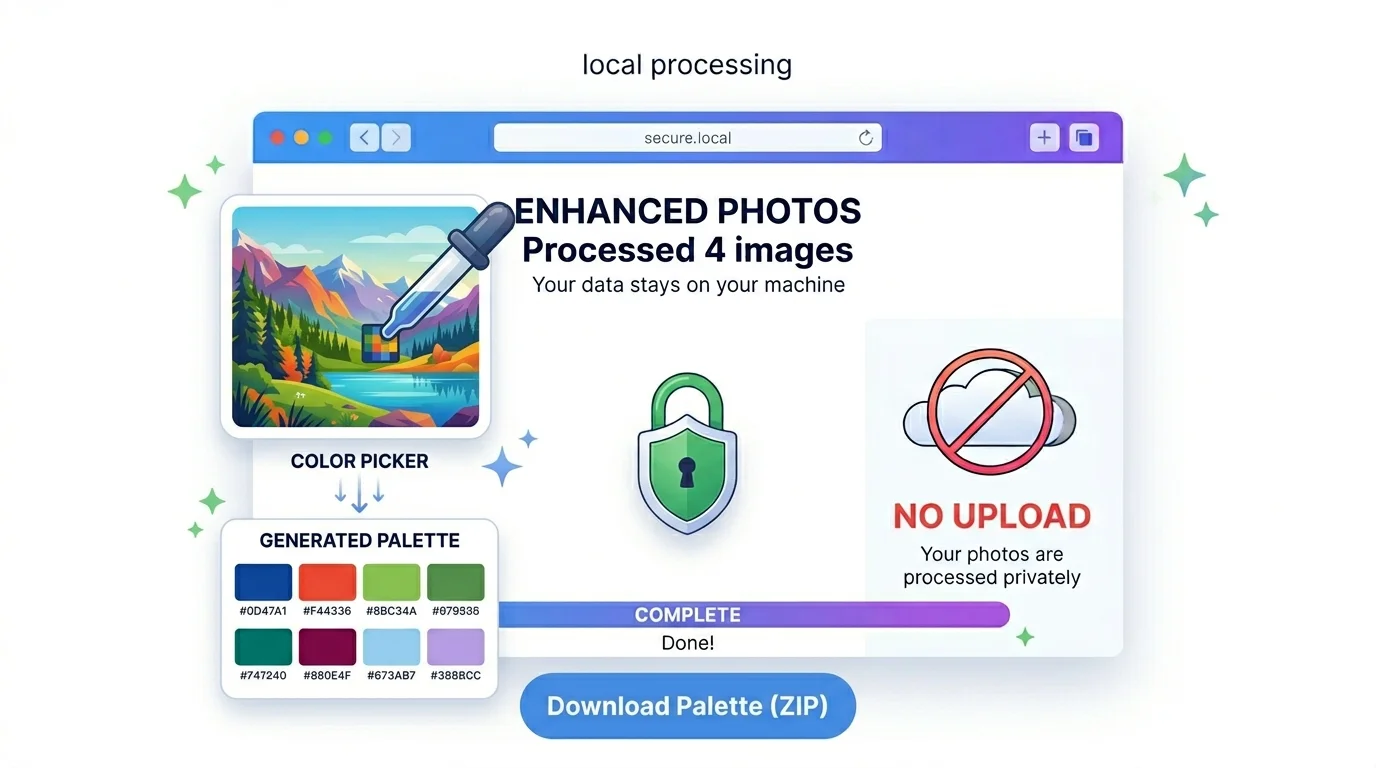
Everything runs in your browser, so your images are never uploaded to a server – your work stays private.
What is an image color picker?
An image color picker is a tool that reads the exact color of any pixel in an image and gives you its color code (HEX and RGB). Instead of guessing a shade, you click the spot and copy the precise value.
It is the fastest way to match a color you can see but don’t have the code for – a logo, a website, a photo, or a screenshot.
Why use this color picker
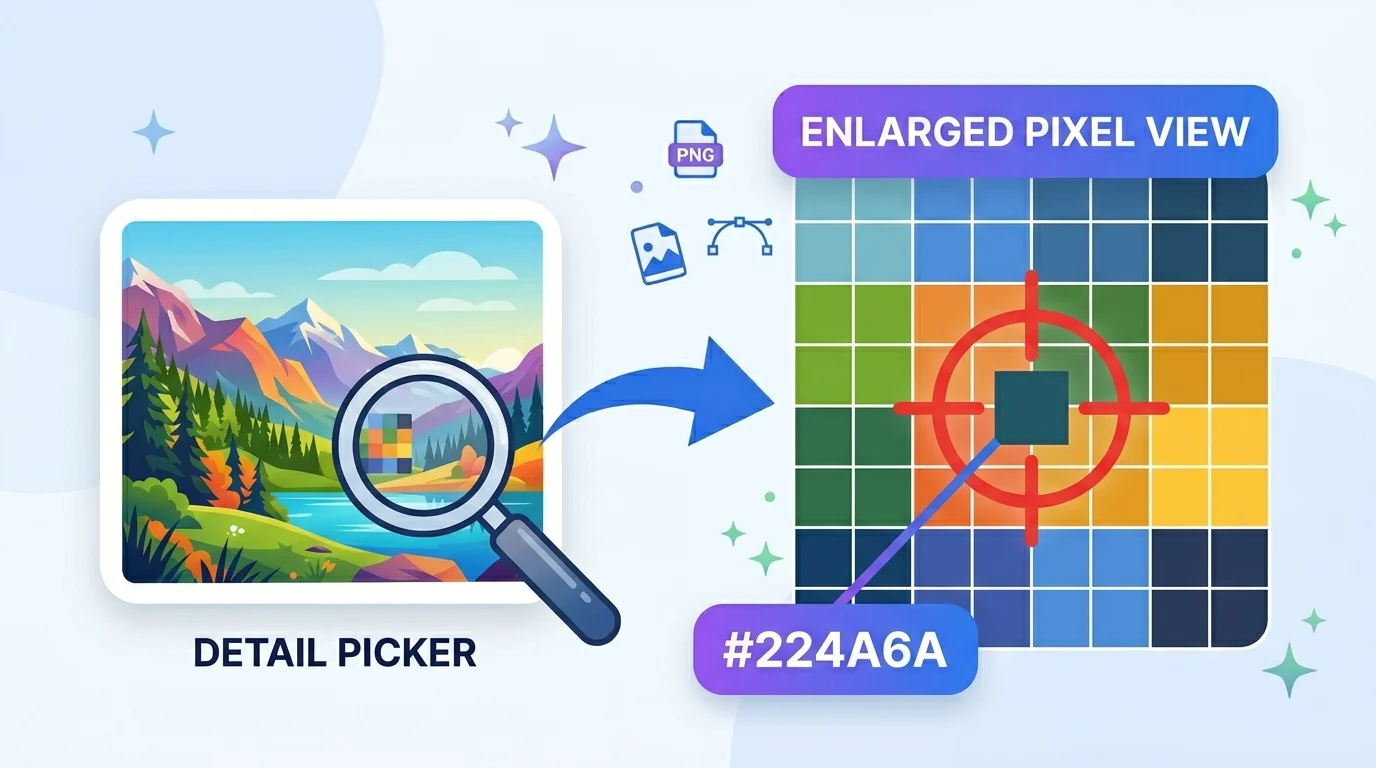
1. Pixel-precise. A built-in zoom loupe shows individual pixels, so you select the exact shade — not a neighbouring one.
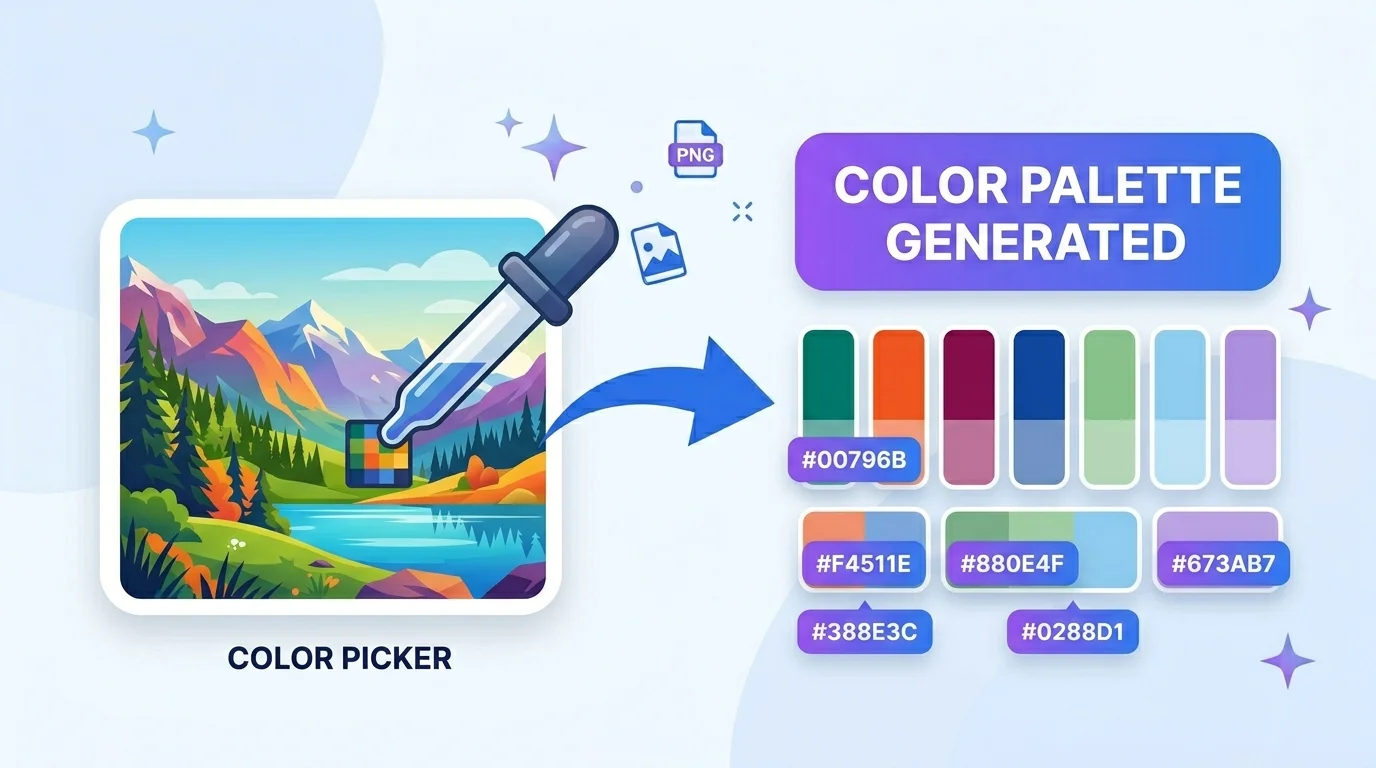
2. Instant palette. It auto-extracts a dominant color palette from your image, so you get a whole scheme, not just one color.
3. Private & free. No signup, no watermark, and nothing is uploaded — the picking happens locally in your browser.
4. Copy in one tap. HEX and RGB each have a copy button, and your recent colors are saved for quick reuse.
Who uses an image color picker (India + global)
- Web designers & developers (global + India): pull exact HEX/RGB from a mockup or website to use in CSS.
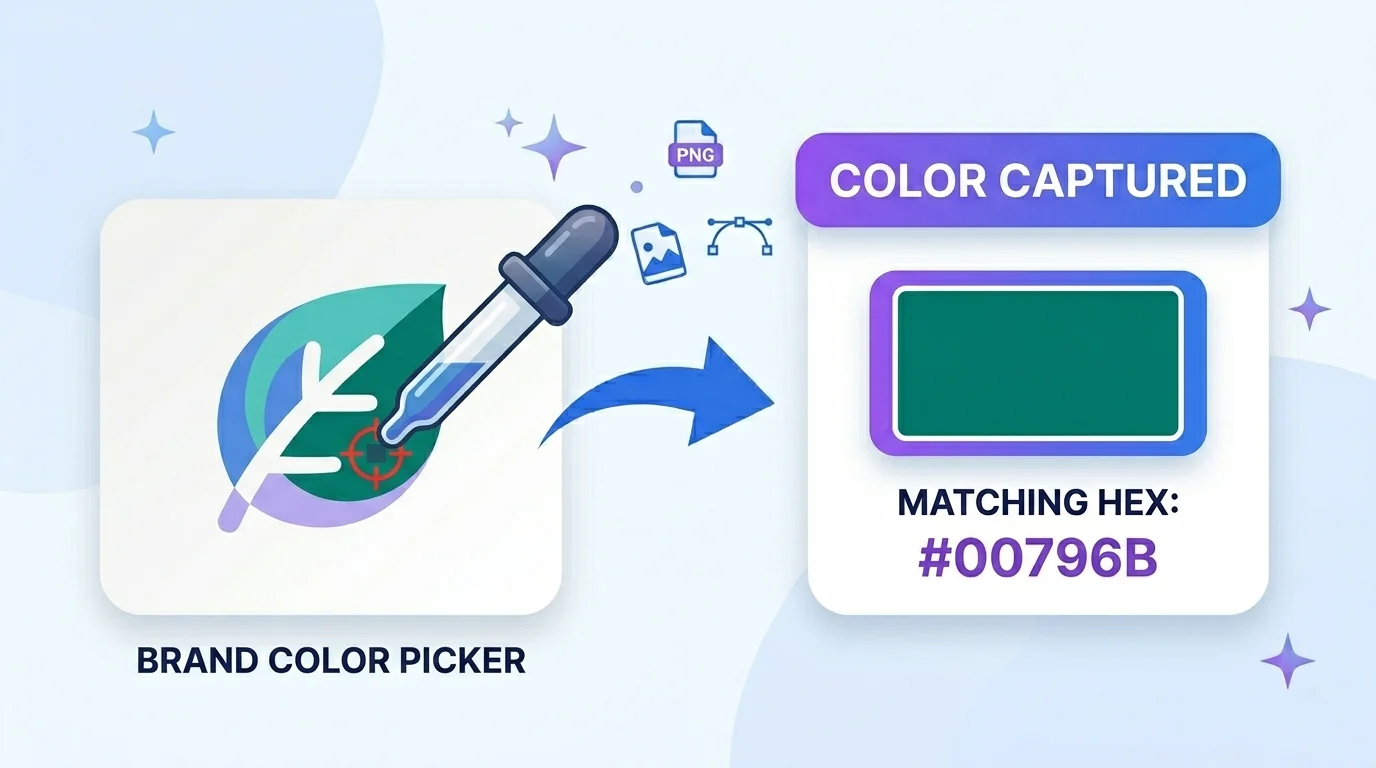
- Brand & logo work: grab a brand’s exact color from its logo to stay consistent.
- Presentations & documents: match colors for PowerPoint, Google Slides, or Canva designs.
- Digital artists & students: sample colors from reference photos.
- Marketers: match social-post graphics to brand colors.
How to use the image color picker (step by step)
Step 1 — Add your image. Click “Upload New Image” and choose a JPG, PNG, or WebP from your device.
Step 2 — Zoom to the spot. Move your cursor over the image; the magnifier shows a pixel grid so you can aim precisely.
Step 3 — Click to pick. Click the pixel — the HEX and RGB codes appear instantly in the sidebar.
Step 4 — Copy. Tap the copy icon next to HEX or RGB. Your recent colors are saved below for reuse.
Step 5 — Use the palette. Check the auto-generated palette for a full scheme, and export it as a .txt file if you need it.
Quick reference — HEX vs RGB
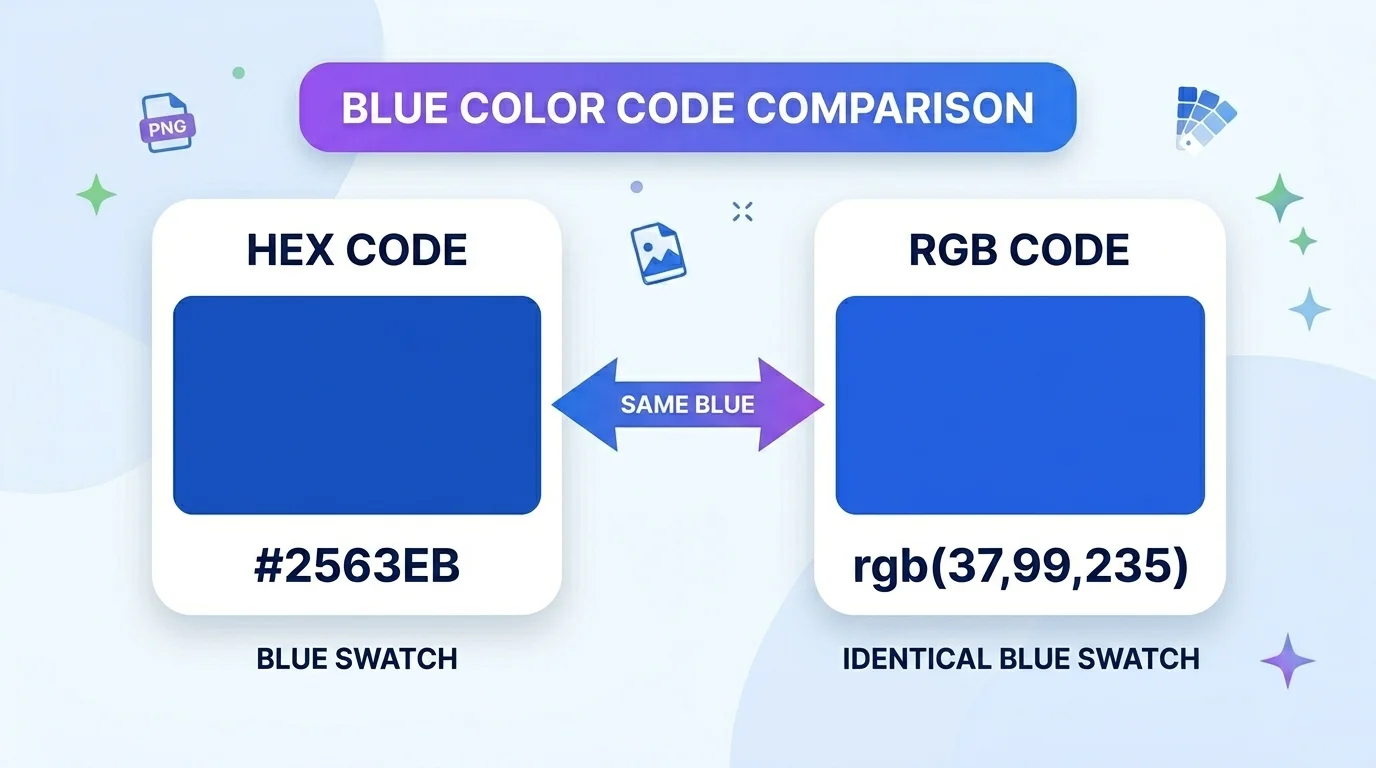
- HEX (e.g.
#2563EB): best for websites and CSS. - RGB (e.g. rgb(37, 99, 235)): best for design apps, screens, and code that expects numeric channels. Both describe the same color — pick whichever your tool needs.
Tips for accurate color picking
- Use the zoom loupe for small or detailed areas — don’t pick blind.
- Start from a clear, high-quality image; heavy compression shifts colors slightly.
- For a logo, pick from a flat area of the color, not an edge or shadow.
- Picking from a screenshot of a website is a quick way to match its colors.
Frequently Asked Questions
Q: Is this image color picker free? Yes — completely free, with no signup and no watermark.
Q: Are my images uploaded anywhere? No. The tool reads colors directly in your browser, so your images never leave your device.
Q: What color codes do I get? HEX and RGB for any pixel you click, plus an auto-generated palette you can export.
Q: Can I pick a color from a screenshot or logo? Yes. Upload the screenshot or logo and click the exact spot to get its code.
Q: Why does my picked color look slightly different from the original? Highly compressed images can shift colors a little. Use the best-quality version of your image for the most accurate result.
Q: Does it work on mobile? Yes — tap on the image to pick a color. The pixel-zoom magnifier is best on a desktop with a mouse.
Q: Can I get a full palette, not just one color? Yes. The tool extracts a dominant palette from your image and lets you export it.
Closing
Whether you’re matching a brand color, building a website, or designing a slide, this image color picker gives you the exact HEX and RGB in one click – free and private. Upload an image above and start picking.
External reference : link the phrase “HEX color codes” to the MDN page on <color> values (https://developer.mozilla.org/en-US/docs/Web/CSS/color_value).
Explore More Tools:-