
PDF to PowerPoint Without Uploading
Turn each PDF page into a PPTX slide — privately, in your browser. 16:9 or 4:3, combine into one deck.
- 100% Private
- No Upload
- Page → Slide
- Free
Export options
Password required
This PDF is password-protected. Enter the password to load preview and convert.
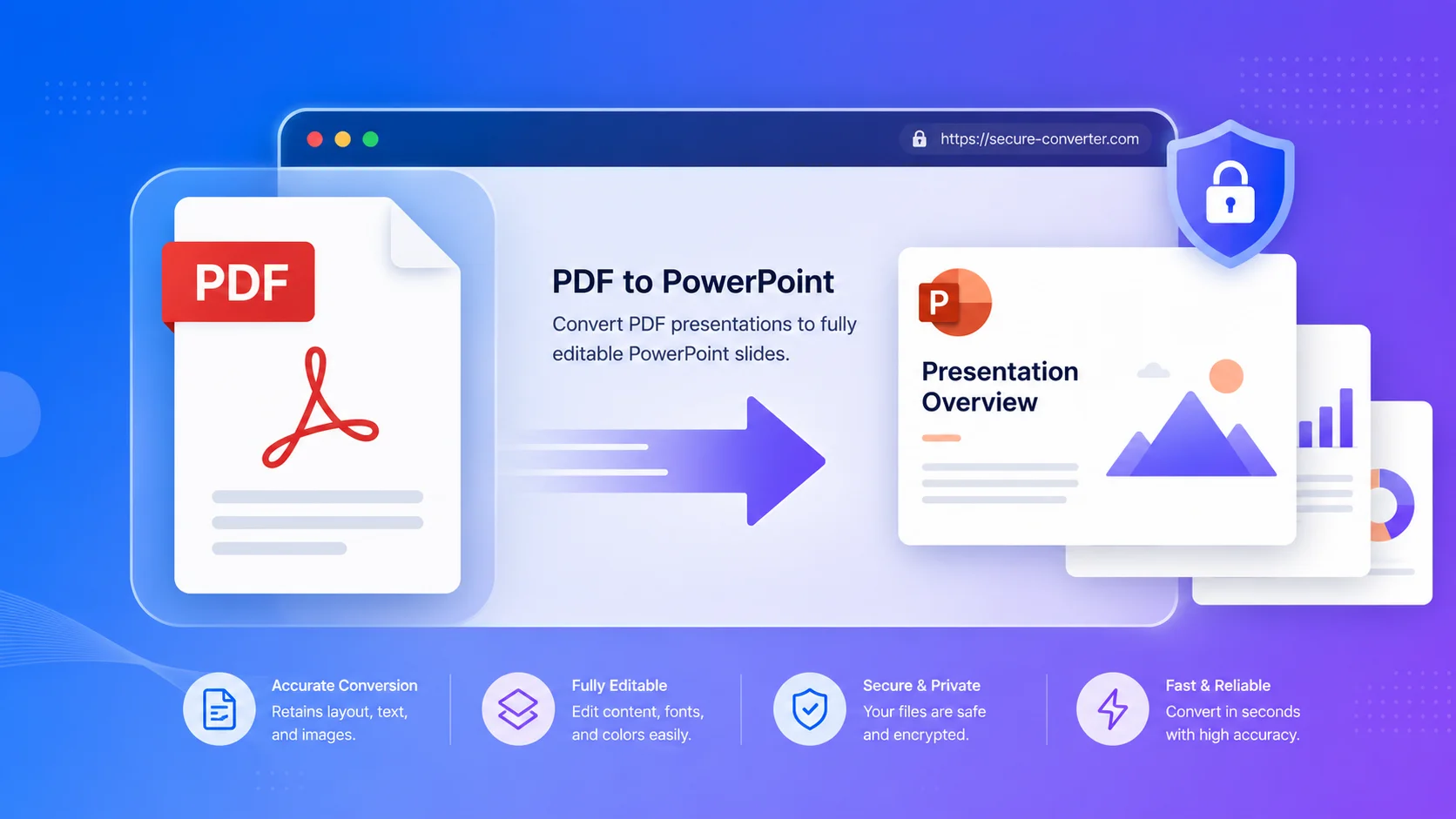
PDF to PowerPoint Without Uploading - Free Private PDF to PPTX
This free tool converts PDF to PowerPoint without uploading – your file is processed right in your browser, so it never leaves your device. It turns each PDF page into a PowerPoint (PPTX) slide.
No signup, no watermark, and nothing sent to a server.
Why convert PDF to PowerPoint without uploading
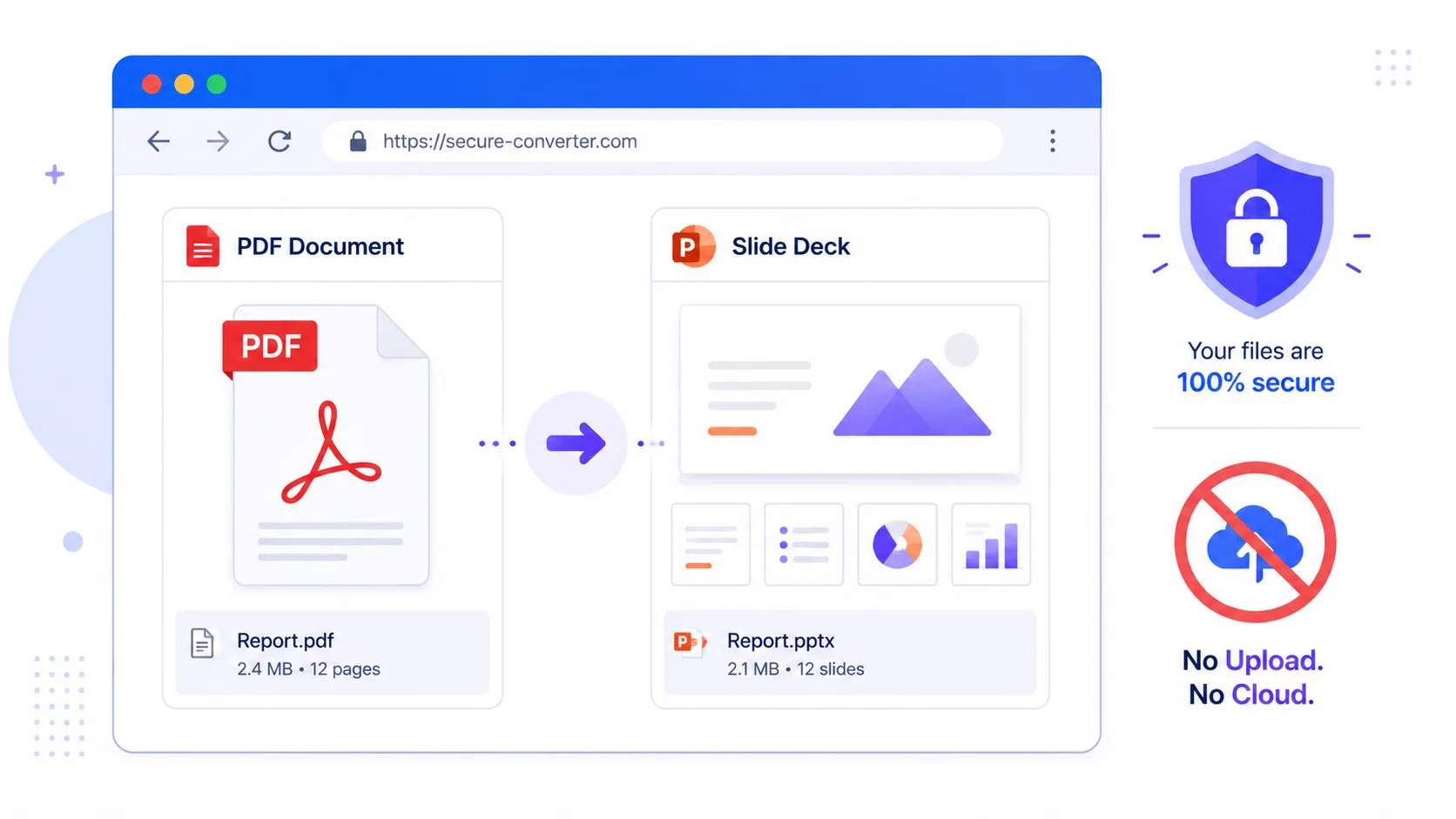
1. 100% private. Decks, reports, and handouts stay on your device – nothing is uploaded.
2. Free and simple. No signup, no email, no watermark.
3. Any PDF. Because each page is rendered as an image, even scanned PDFs turn into slides.
4. Control. Pick pages, choose a slide size (16:9 or 4:3), set quality, and combine files into one deck.
What you get (be informed)
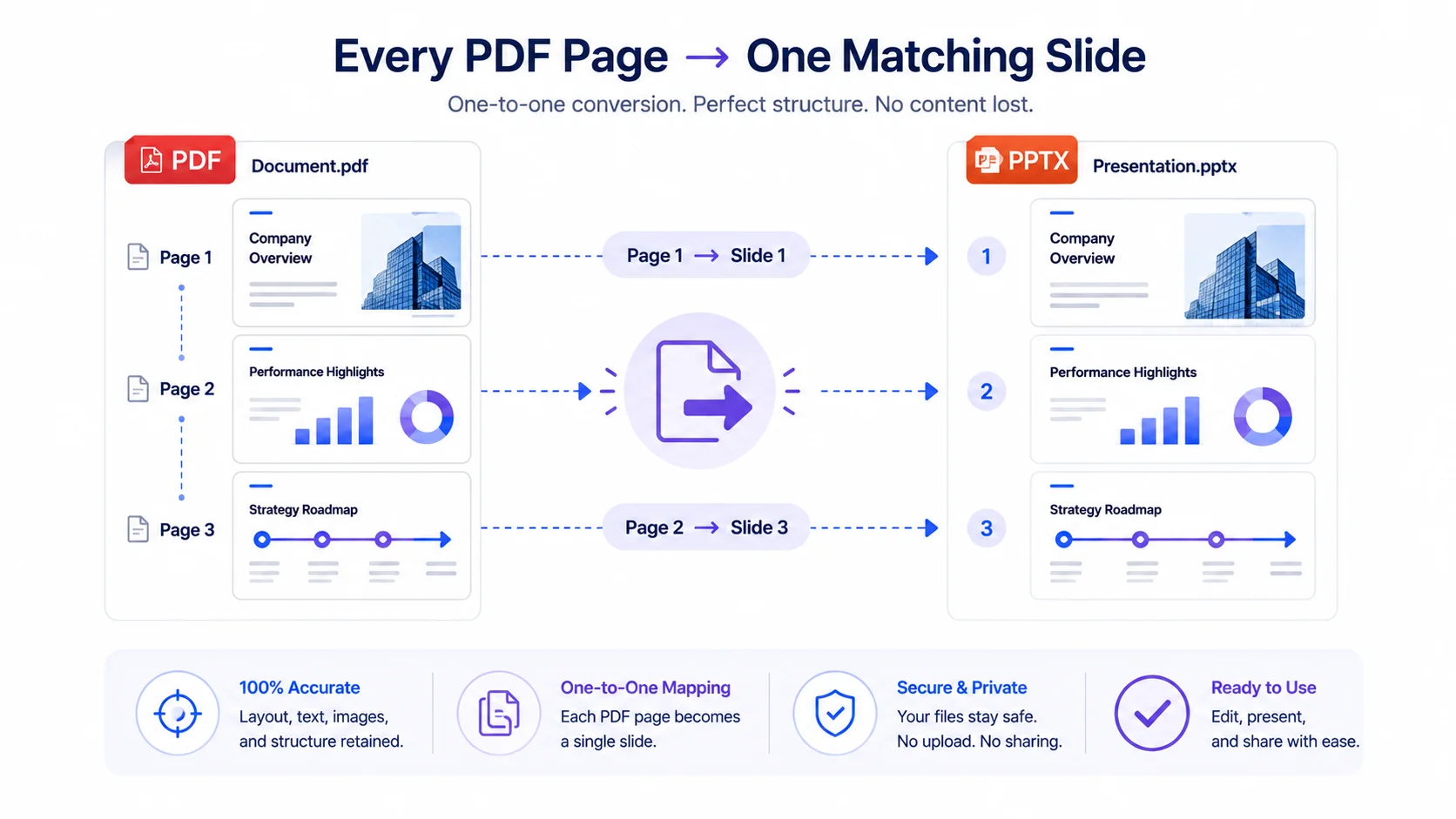
Each PDF page becomes a full-slide image in the PowerPoint file. It looks exactly like your PDF, so it’s ideal for presenting and sharing.
Because each slide is an image, the text on the slides isn’t editable in PowerPoint – you can add your own text boxes on top, but you can’t edit the PDF’s original text. If you need editable text, keep the source or use a text-based workflow.
Who uses it (India + global)
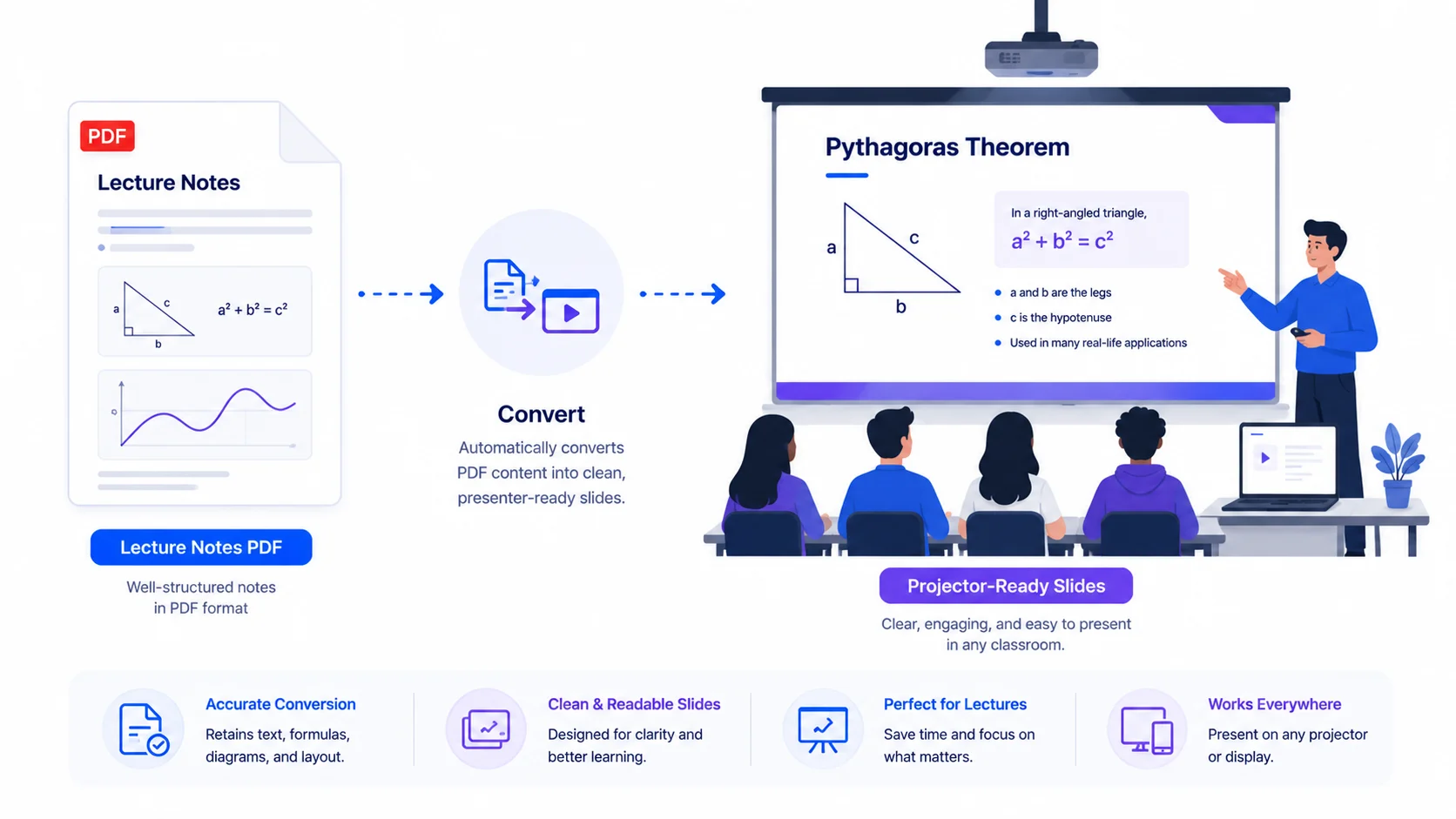
- Students & teachers (India + global): turn lecture notes or a handout PDF into slides to present.
- Office & business: drop a report or one-pager into a deck for a meeting.
- Anyone presenting a PDF: show a PDF full-screen as slides without extra software.
How to convert PDF to PowerPoint (step by step)
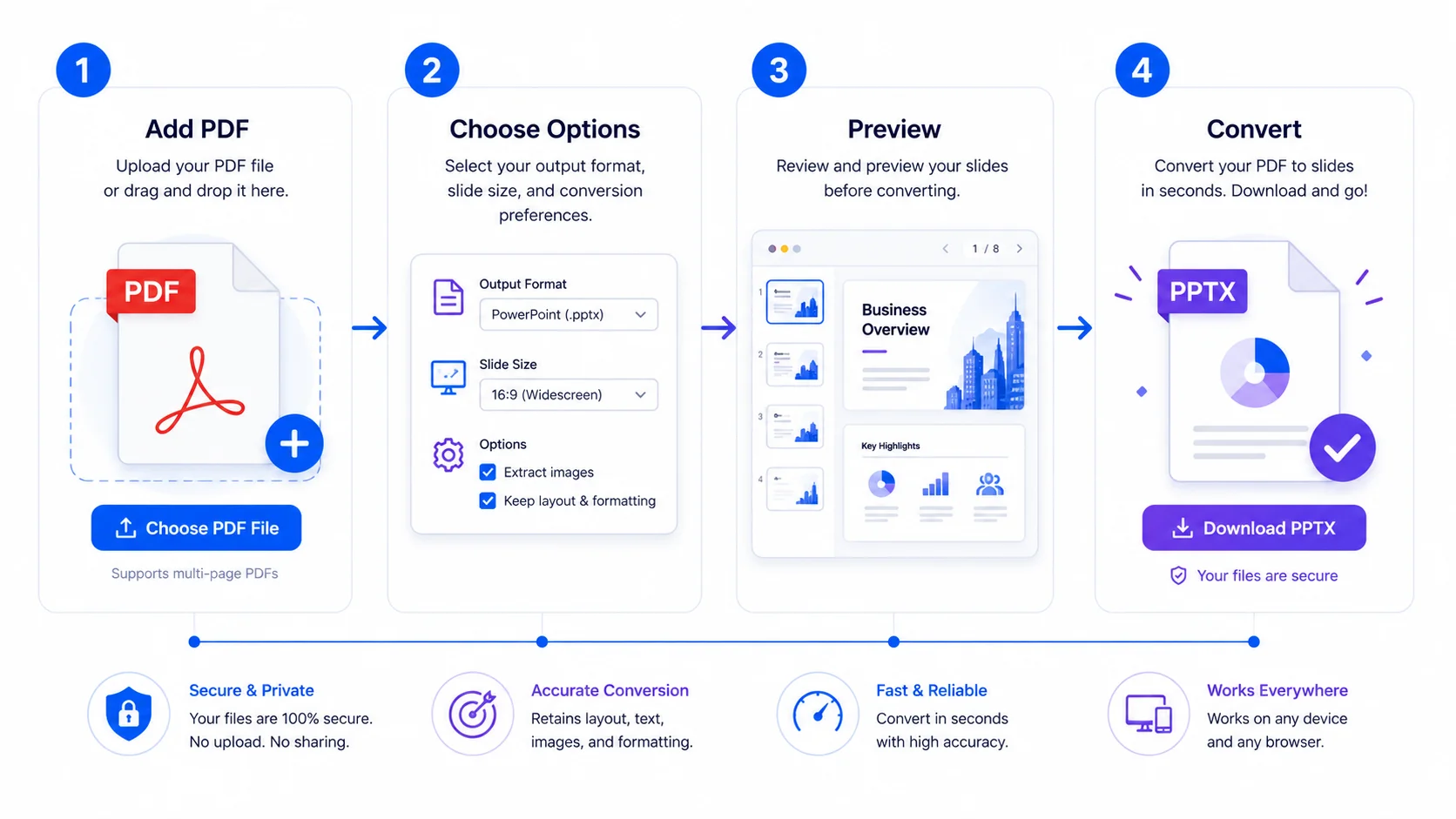
Step 1 — Add your PDFs. Drag them onto the box or click “Browse.”
Step 2 — Choose options. Page range, slide size (16:9 or 4:3), and image quality.
Step 3 — Preview. Check the first page before converting.
Step 4 — Convert. Convert one file, convert all, or combine everything into a single deck. Your PPTX downloads when done.
Quick reference
- Output: PPTX with one slide per PDF page (as an image).
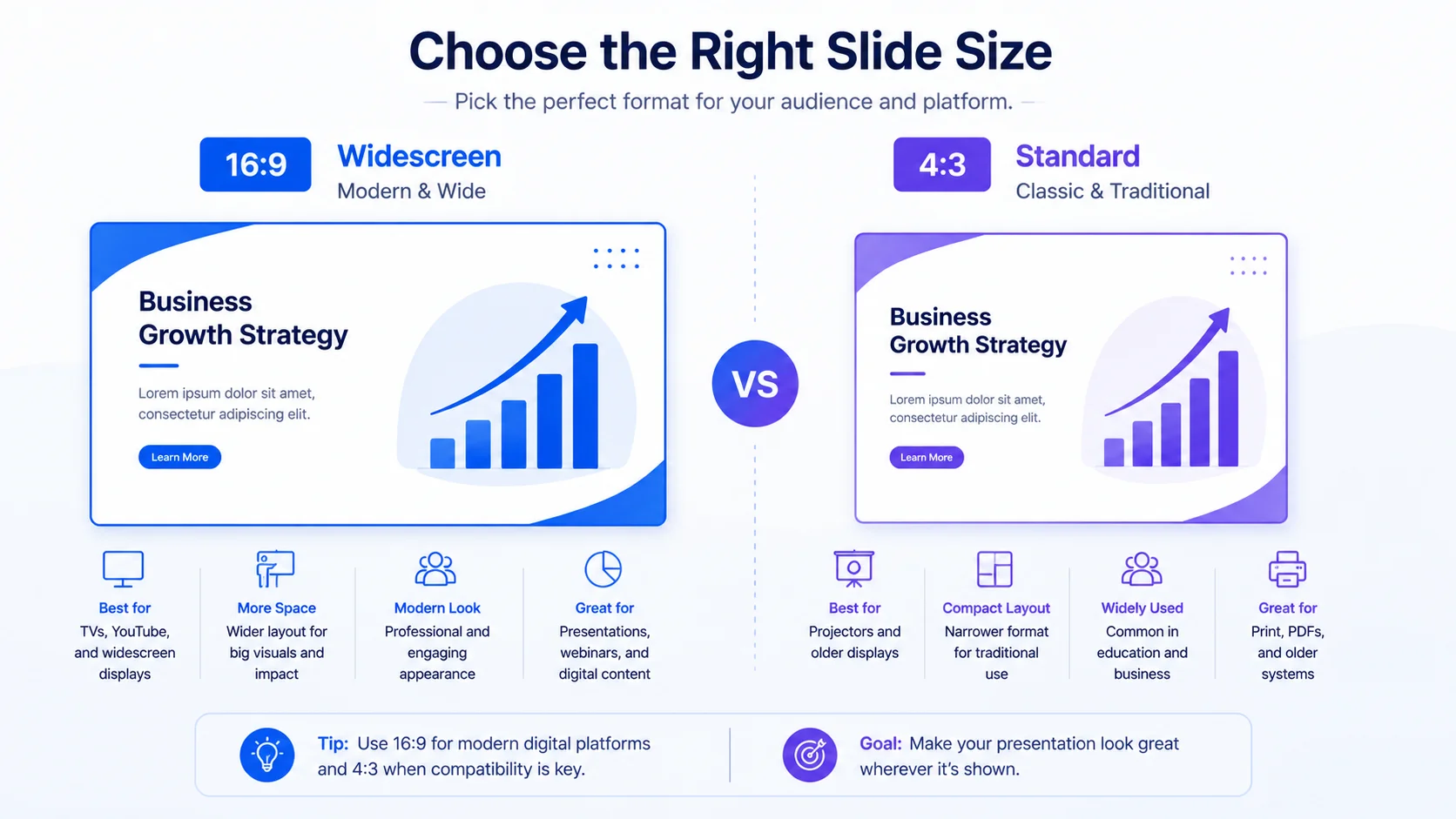
- Slide size: 16:9 (widescreen) or 4:3 (standard).
- Editable text: no – slides are images (add your own text boxes on top).
- Privacy: nothing is uploaded; it all runs locally.
Tips for the best result
- Use higher quality for text-heavy pages so they stay crisp.
- Match the slide size to your screen (16:9 for most projectors).
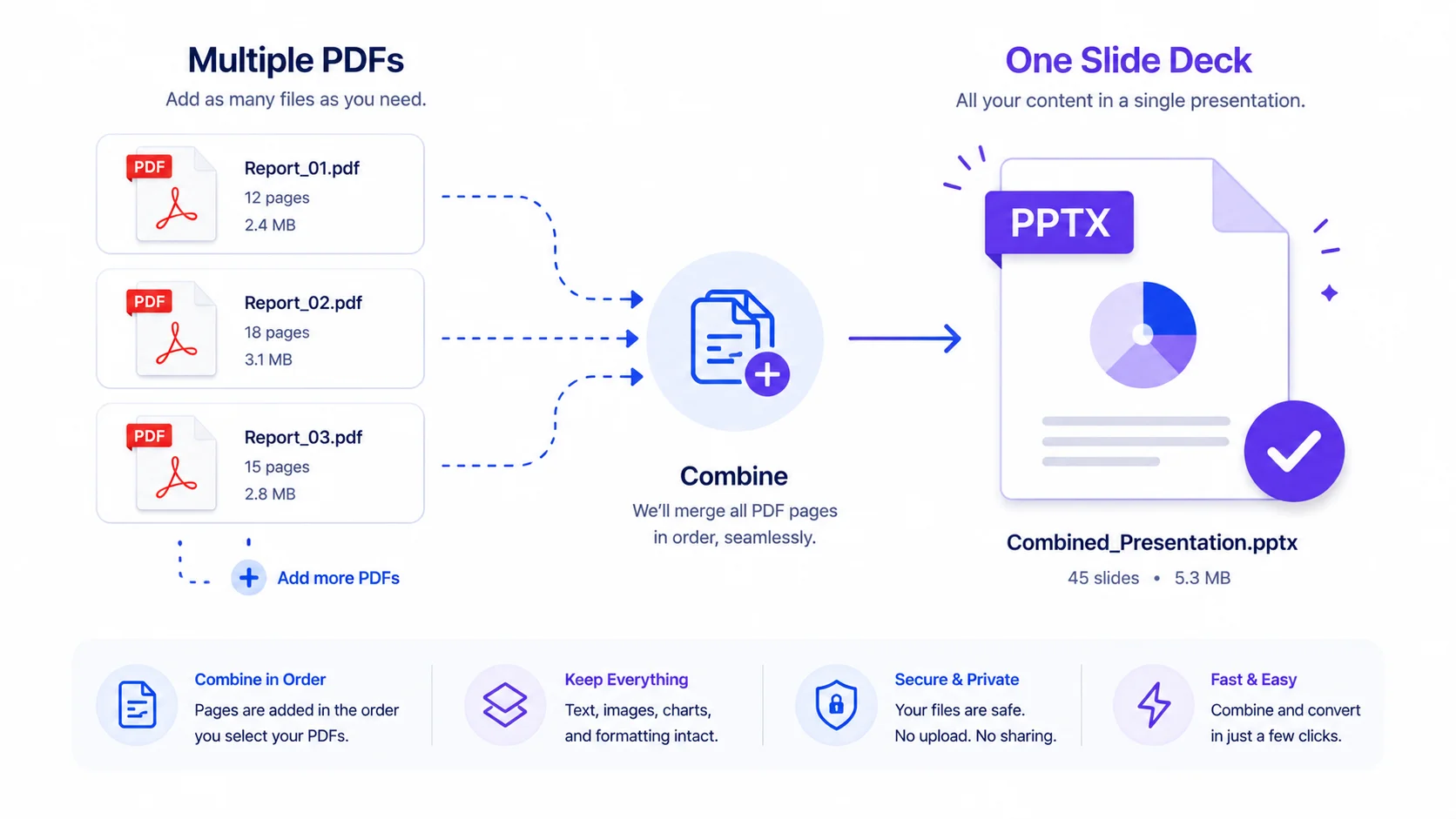
- Combine several PDFs into one deck to present them together.
- Keep the source PDF if you’ll need the original text.
Frequently Asked Questions
Q: Is this PDF to PowerPoint converter free? Yes – completely free, with no signup and no watermark.
Q: Is my PDF uploaded to a server? No. You convert PDF to PowerPoint without uploading it’s processed in your browser, so your file never leaves your device.
Q: Are the slides editable text? No. Each PDF page becomes a slide image, so the original text isn’t editable. You can add your own text boxes on top in PowerPoint.
Q: Does it work on scanned PDFs? Yes – because pages are rendered as images, scanned PDFs convert to slides too.
Q: Can I choose the slide size? Yes – 16:9 (widescreen) or 4:3 (standard).
Q: Can I combine several PDFs into one deck? Yes – convert all into a single PPTX, or one deck per file.
Q: Does it work on mobile? Yes – though large PDFs convert faster on a computer.
When you need to present a PDF as slides but want to keep it private, this tool lets you convert PDF to PowerPoint without uploading — free, in your browser, one slide per page. Add your PDF above, pick a slide size, and download your PPTX.
External reference (DoFollow): link “Office Open XML (PPTX)” to Wikipedia (https://en.wikipedia.org/wiki/Office_Open_XML).