
Compress PDF in Your Browser
Reduce PDF file size privately — no upload. Works best on scanned & image-heavy PDFs.
- 100% Private
- No Upload
- Free & Unlimited
- Mobile-Friendly
Compress PDF Without Uploading - Free Private PDF Compressor
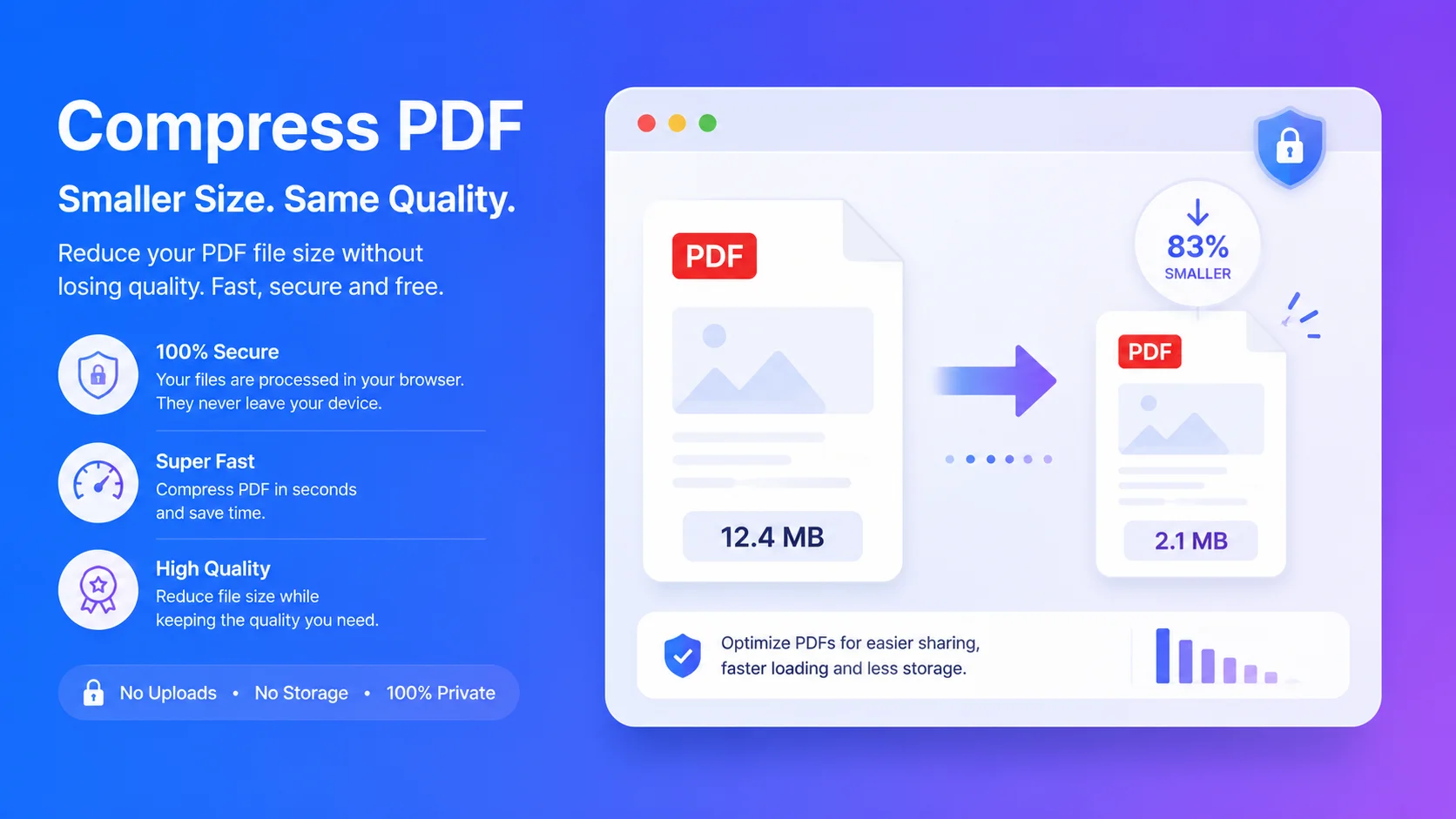
This free tool lets you compress PDF without uploading – your file is processed right in your browser, so it never leaves your device. It’s the private way to shrink a PDF for email, forms, or storage.
It works best on scanned and image-heavy PDFs, where it can cut size a lot.
How this PDF compressor works (be informed)
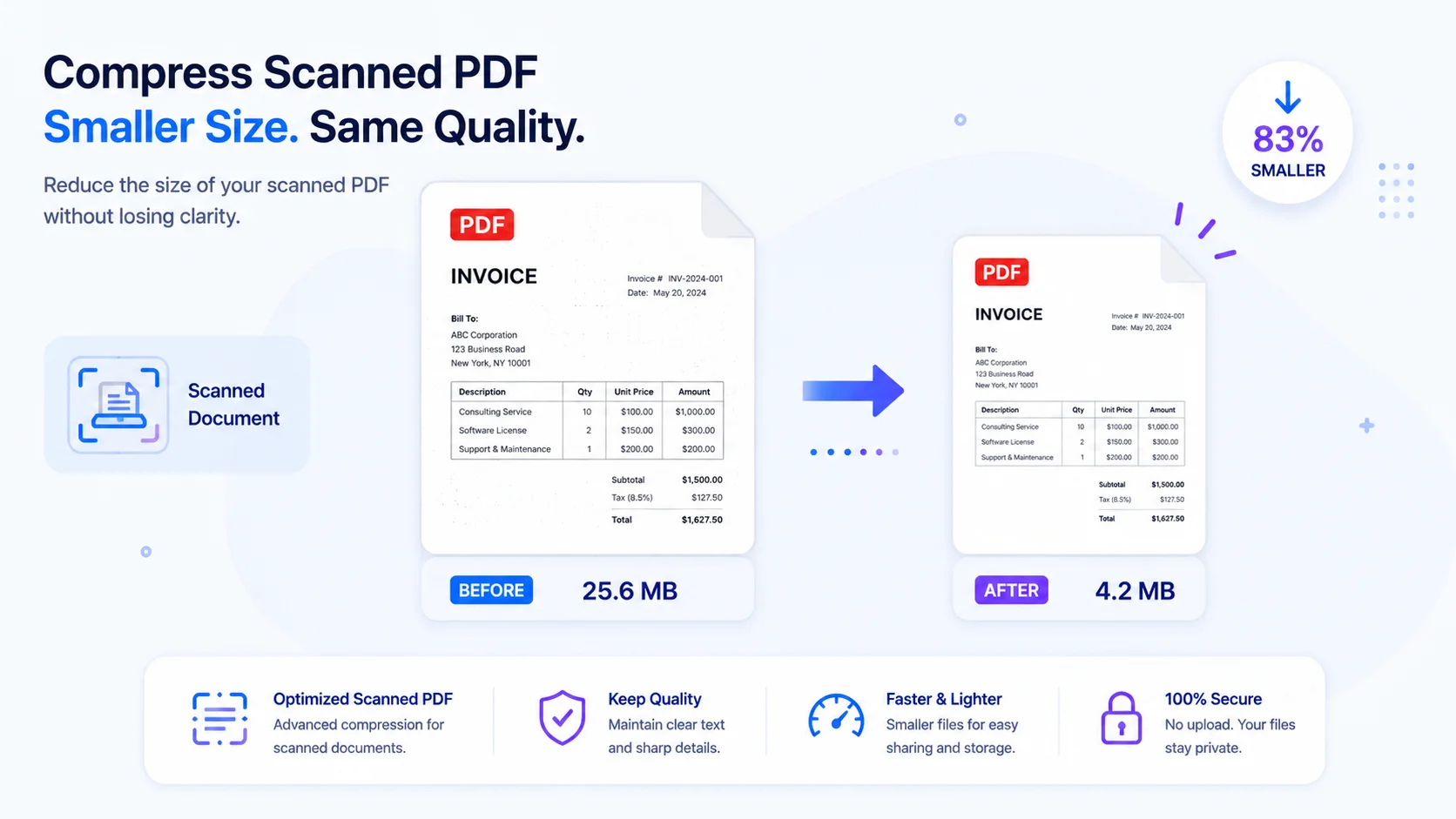
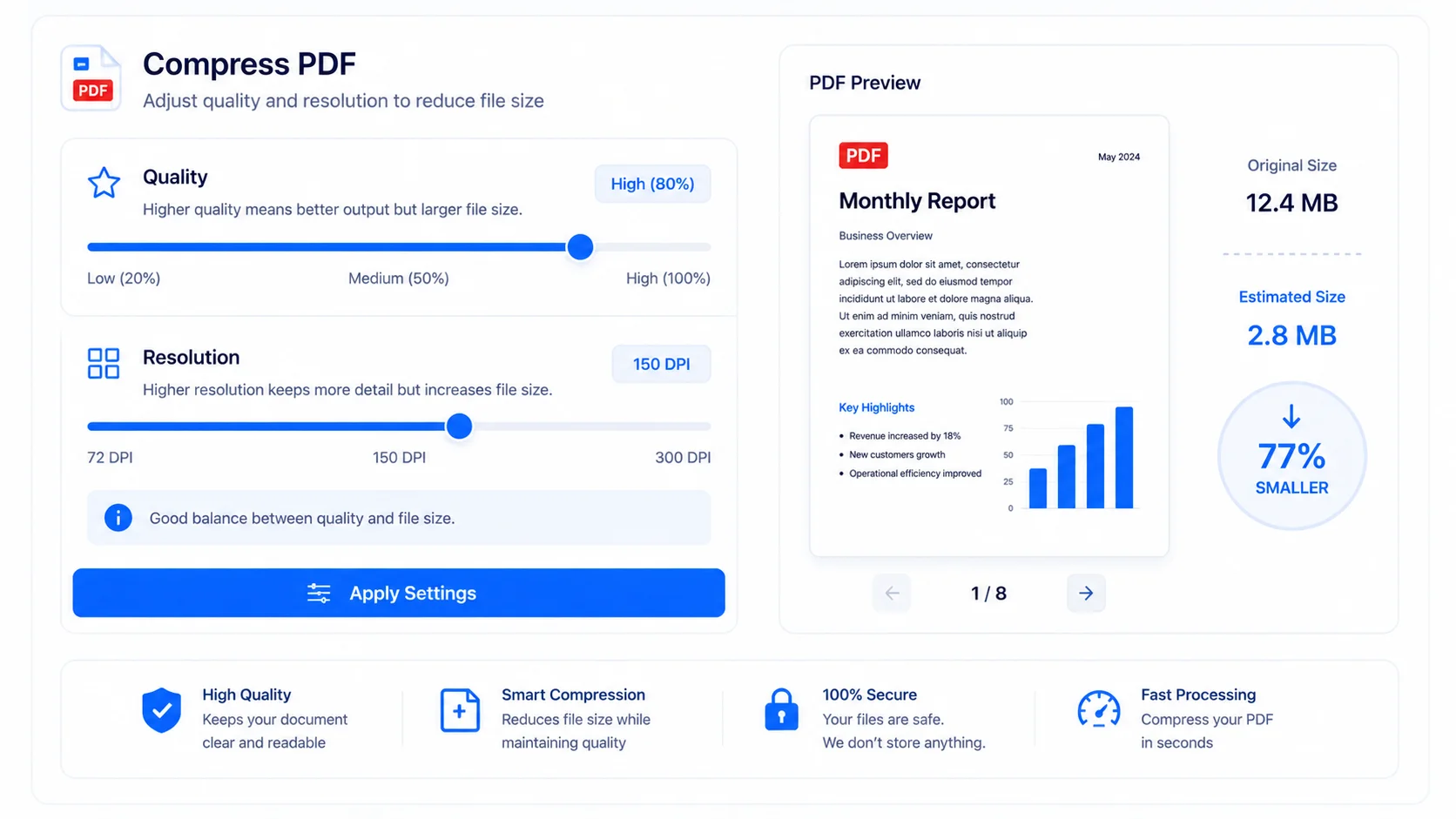
This tool re-renders each page as an optimized image and rebuilds the PDF from those images. Two sliders control the result: image quality and resolution scale.
Because pages become images, this is ideal for scanned documents and image-heavy PDFs. One trade-off to know: the text in the output is saved as an image, so it won’t be selectable or searchable afterward.
Why compress a PDF without uploading
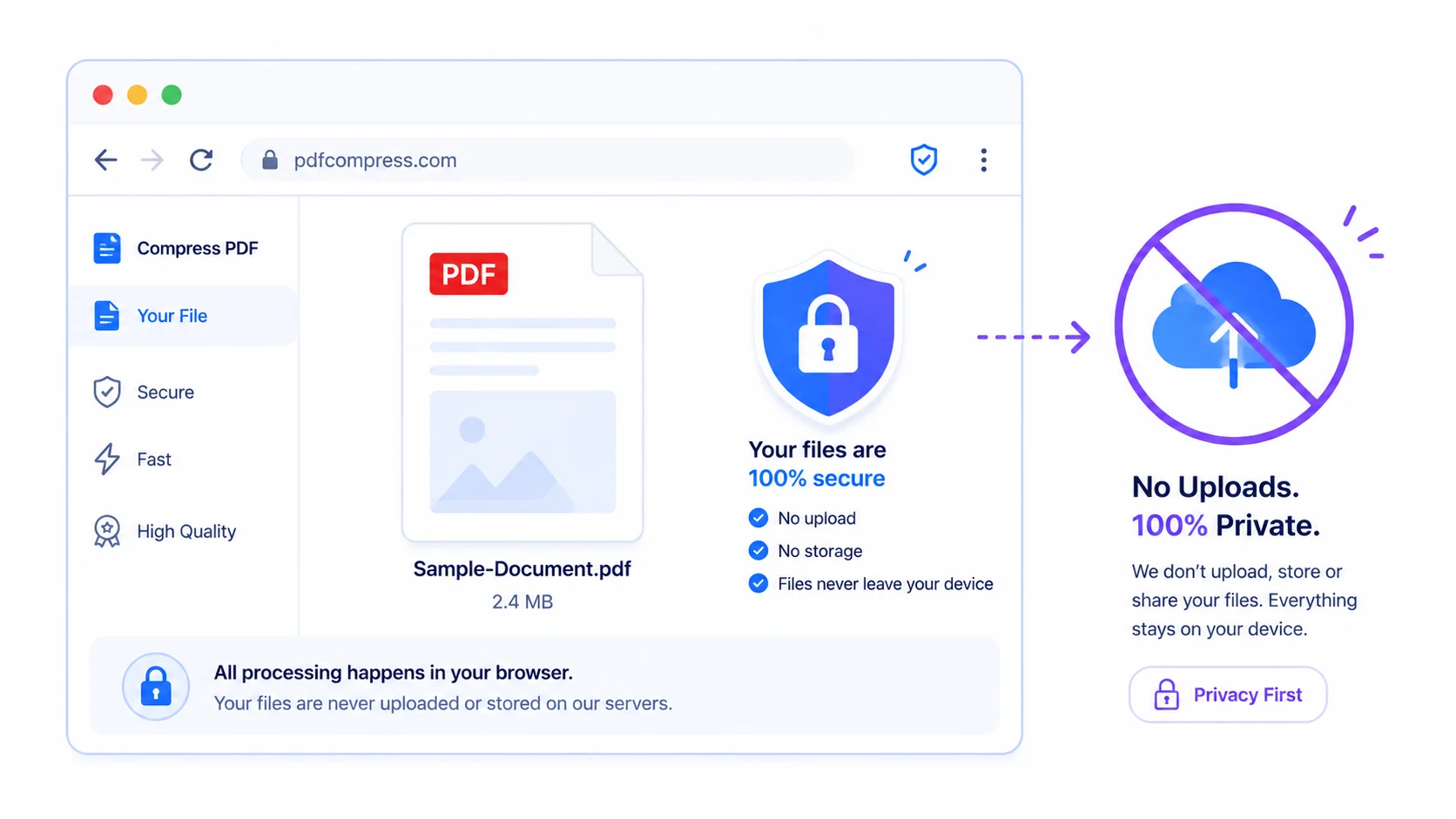
1. 100% private. Everything happens in your browser, so sensitive files are never sent to a server.
2. Great for scans. Scanned certificates, ID copies, and image-heavy reports shrink the most.
3. You control the size. Lower the quality or resolution slider for a smaller file; raise it for a sharper one.
4. Free and simple. No signup, no watermark – just upload, adjust, and download.
Who uses it (India + global)
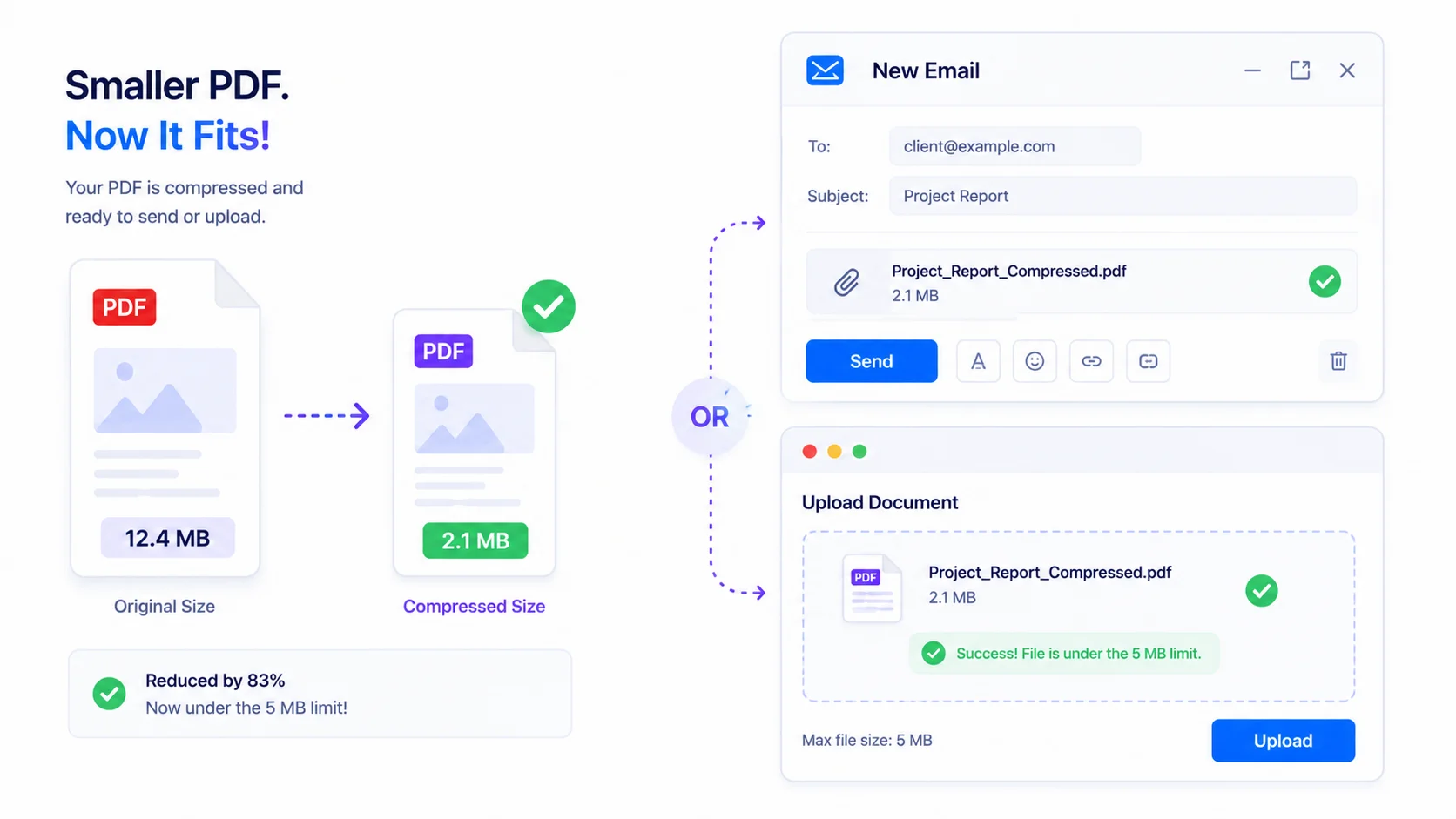
- Students & applicants (India + global): shrink a scanned certificate or marksheet PDF to meet an exam, job, or visa upload limit; or a passport/ID scan for a web form.
- Office & business (global + India): make image-heavy reports or brochures smaller for email.
- Everyday use: reduce a big scanned PDF so it sends or uploads without hitting size limits.
How to compress a PDF (step by step)
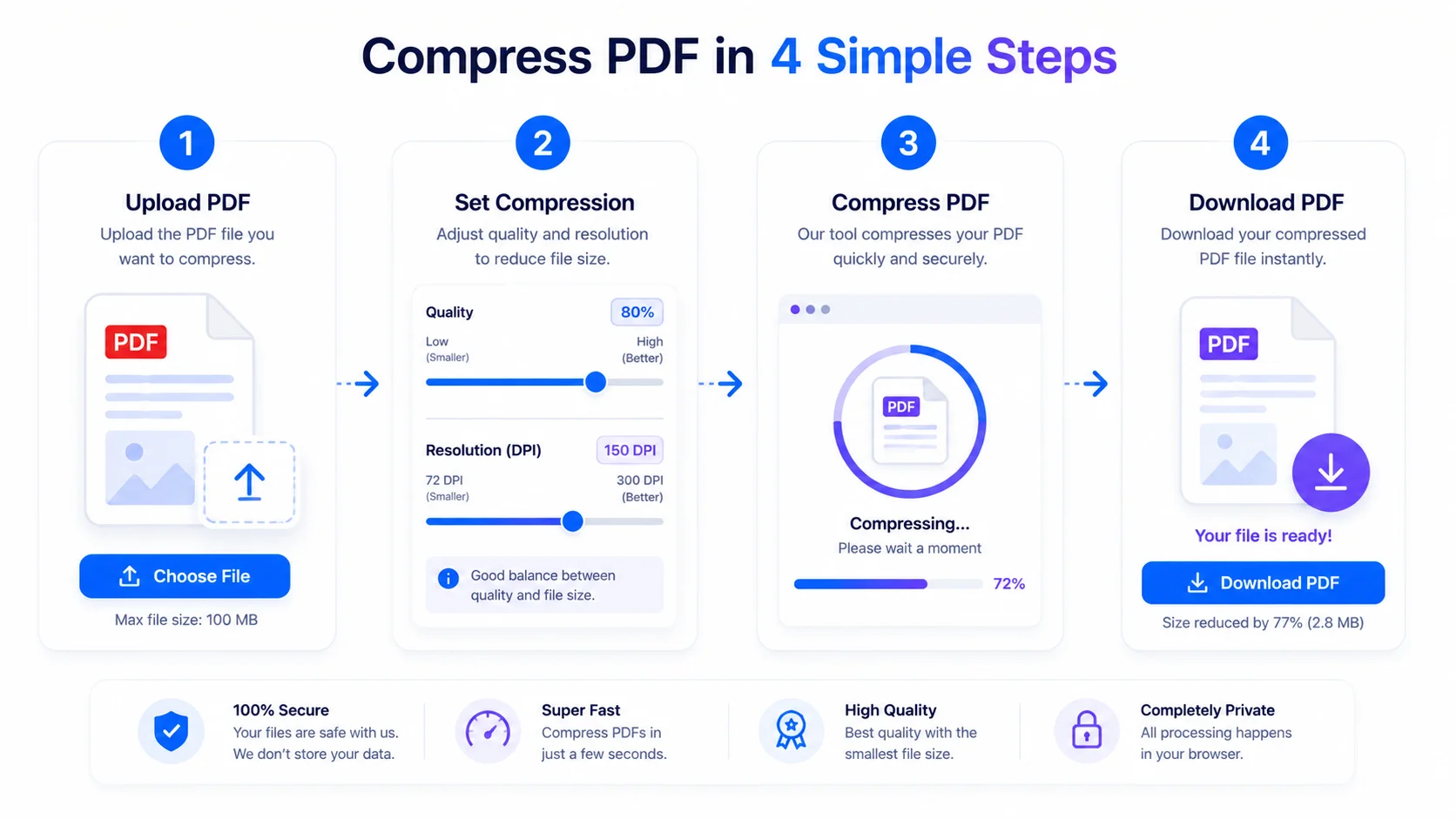
Step 1 — Add your PDF. Drag your file onto the box or click “Browse files.” You’ll see a preview and page count.
Step 2 — Set quality and resolution. Lower values = smaller file; higher values = sharper pages. Start around the middle and adjust.
Step 3 — Compress. Click “Compress selected” (or “Compress all” for every file). You’ll see how much smaller it got.
Step 4 — Download. Your compressed PDF downloads automatically.
Quick reference
- Best for: scanned and image-heavy PDFs.
- Less effective for: text-only PDFs (already small; may not shrink).
- Trade-off: output text is an image (not selectable).
- Privacy: nothing is uploaded; it all runs locally.
Tips for a smaller PDF
- For scans, try lowering the resolution scale first – it often shrinks the most with little visible change.
- If a file doesn’t get smaller, it’s probably already text-light and compact; that’s normal.
- Keep your original; the tool works on a copy.
- If you need selectable text, keep the original and only share the compressed copy where text-selection isn’t needed.
Frequently Asked Questions
Q: Is this PDF compressor free? Yes – completely free, with no signup and no watermark.
Q: Is my PDF uploaded to a server? No. You compress the PDF without uploading – it’s processed in your browser, so your file never leaves your device.
Q: Will the text still be selectable after compressing? No. This tool re-renders pages as images, so text becomes part of the image. Keep your original if you need selectable text.
Q: What kind of PDFs compress best? Scanned and image-heavy PDFs shrink the most. Text-only PDFs are already small and may not reduce much.
Q: Why did my file not get smaller? It’s likely a text-based PDF, which is already compact. This tool works best on scans and images.
Q: Can I compress more than one PDF at once? Yes – add several files and use “Compress all.”
Q: Does it work on mobile? Yes – you can compress PDFs on a phone or tablet.
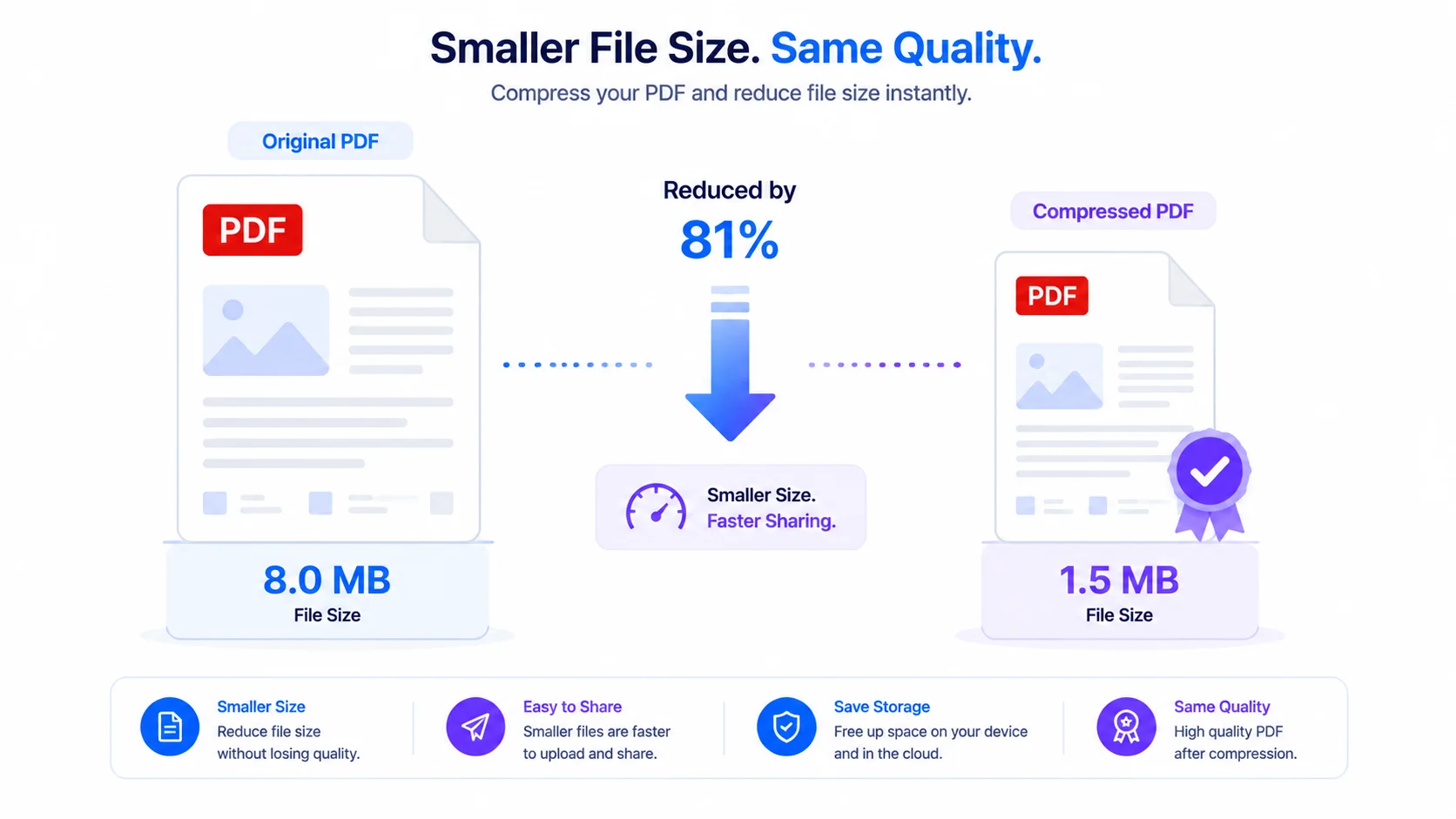
When you need a smaller file but want to keep it private, this tool lets you compress PDF without uploading — right in your browser, free, and especially effective on scanned documents. Add your PDF above, set the sliders, and download a lighter file.
External reference (DoFollow): link “PDF (Portable Document Format)” to Wikipedia (https://en.wikipedia.org/wiki/PDF).