
Excel to PDF Without Uploading
Convert XLSX, XLS & CSV to PDF privately — in your browser. Multi-sheet, options, and merge.
- 100% Private
- No Upload
- Multi-sheet
- Free
Excel to PDF Without Uploading - Free Private XLSX to PDF
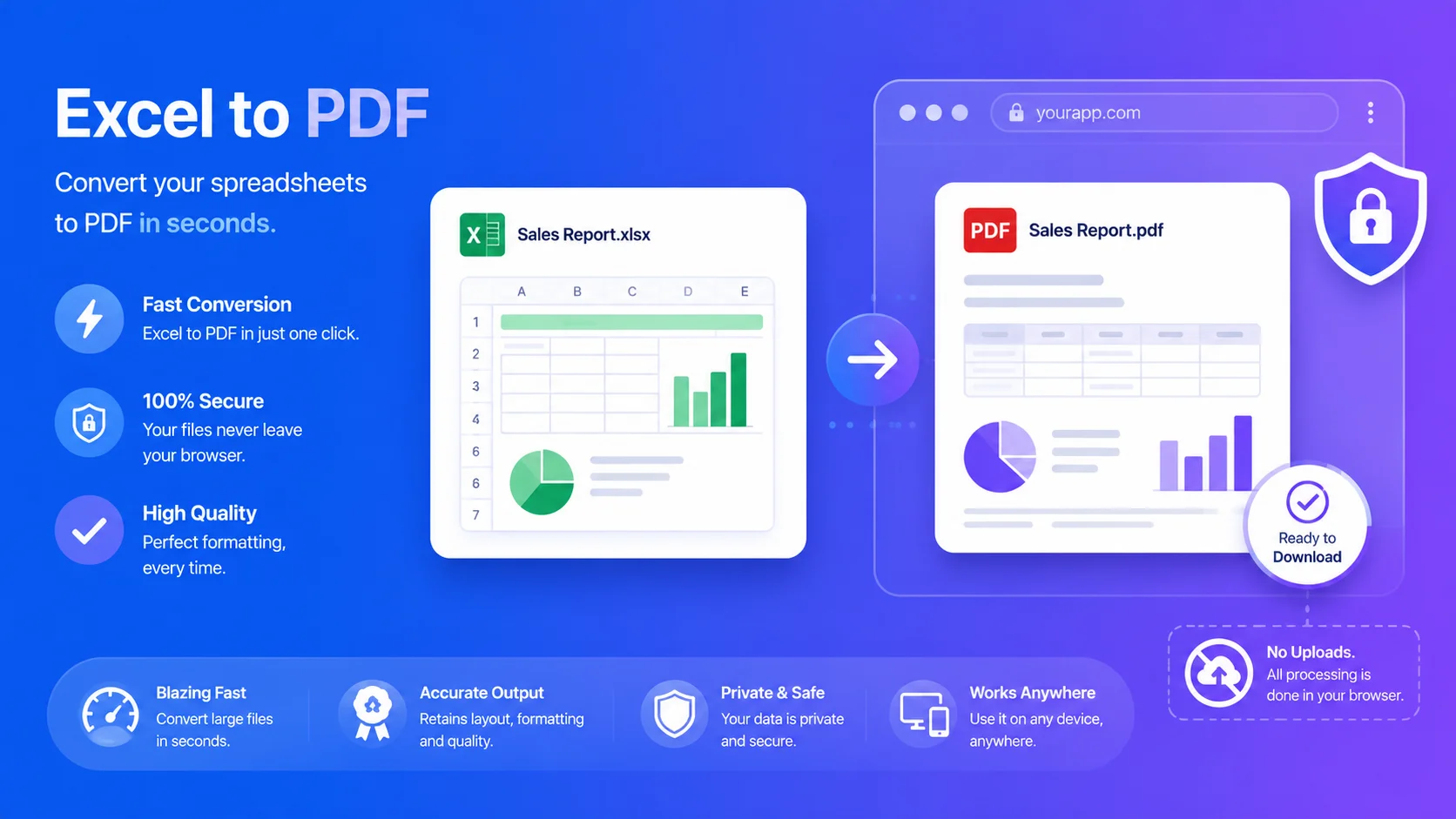
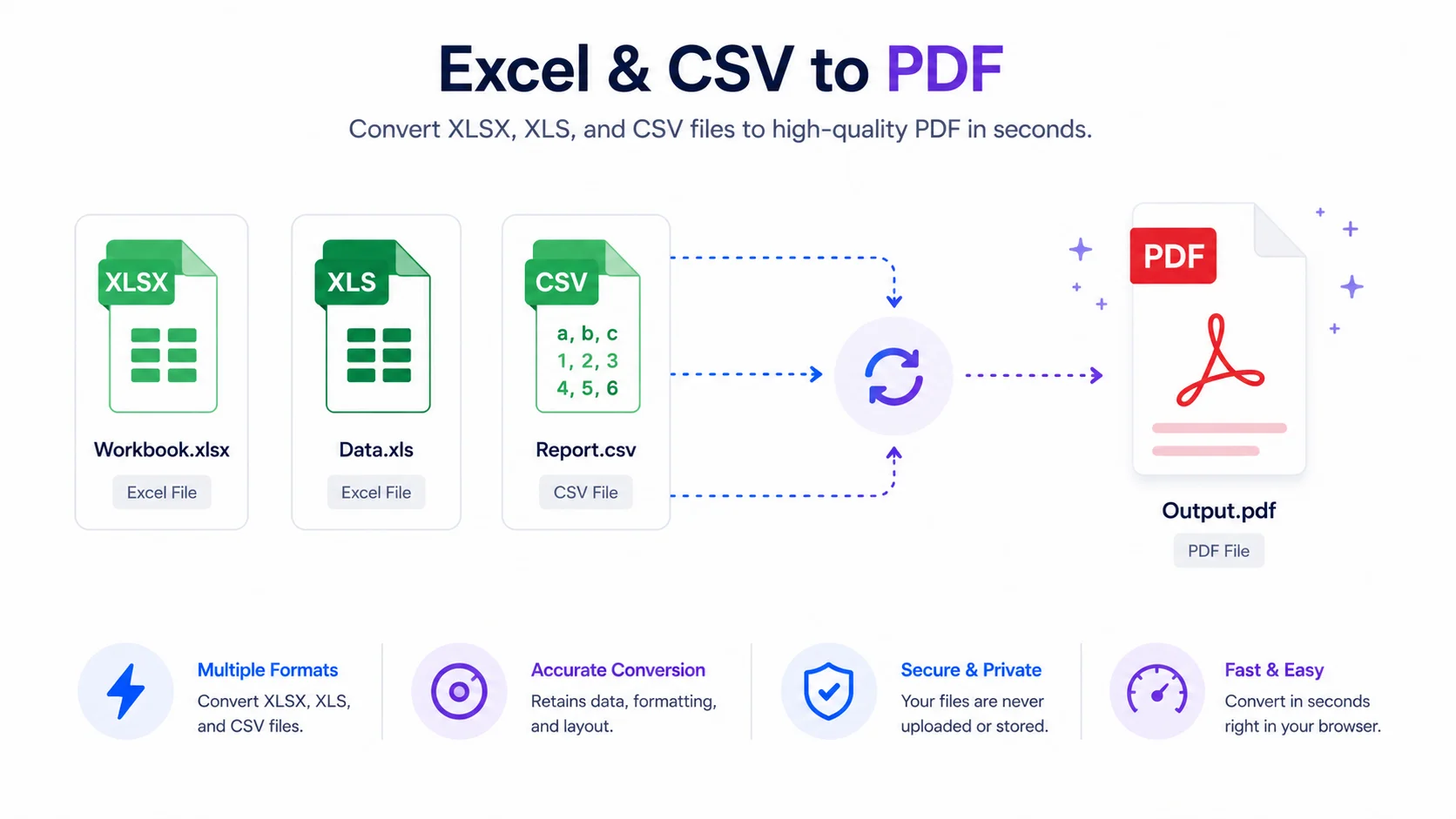
This free tool converts Excel to PDF without uploading – your spreadsheet is processed right in your browser, so it never leaves your device. It turns an XLSX, XLS, or CSV into a share-ready PDF.
No signup, no watermark, and nothing sent to a server.
Why convert Excel to PDF without uploading
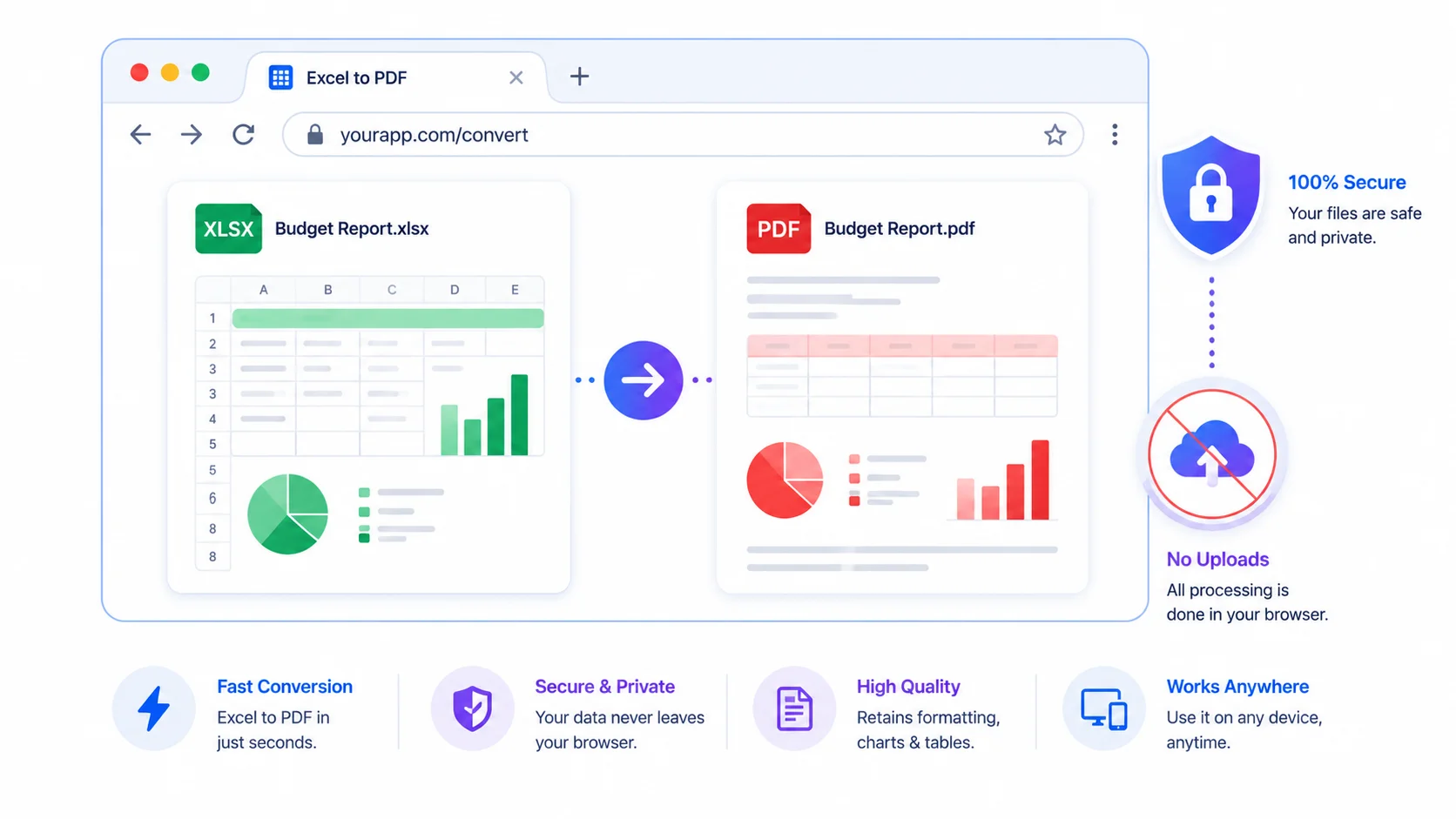
1. 100% private. Financial reports, invoices, and data stay on your device — nothing is uploaded.
2. Free and simple. No signup, no email, no watermark.
3. Multi-sheet + multi-file. Convert whole workbooks and several files; merge into one PDF.
4. Page control. Choose size, orientation, margins, and fit-to-width before you download.
What works best (be informed)
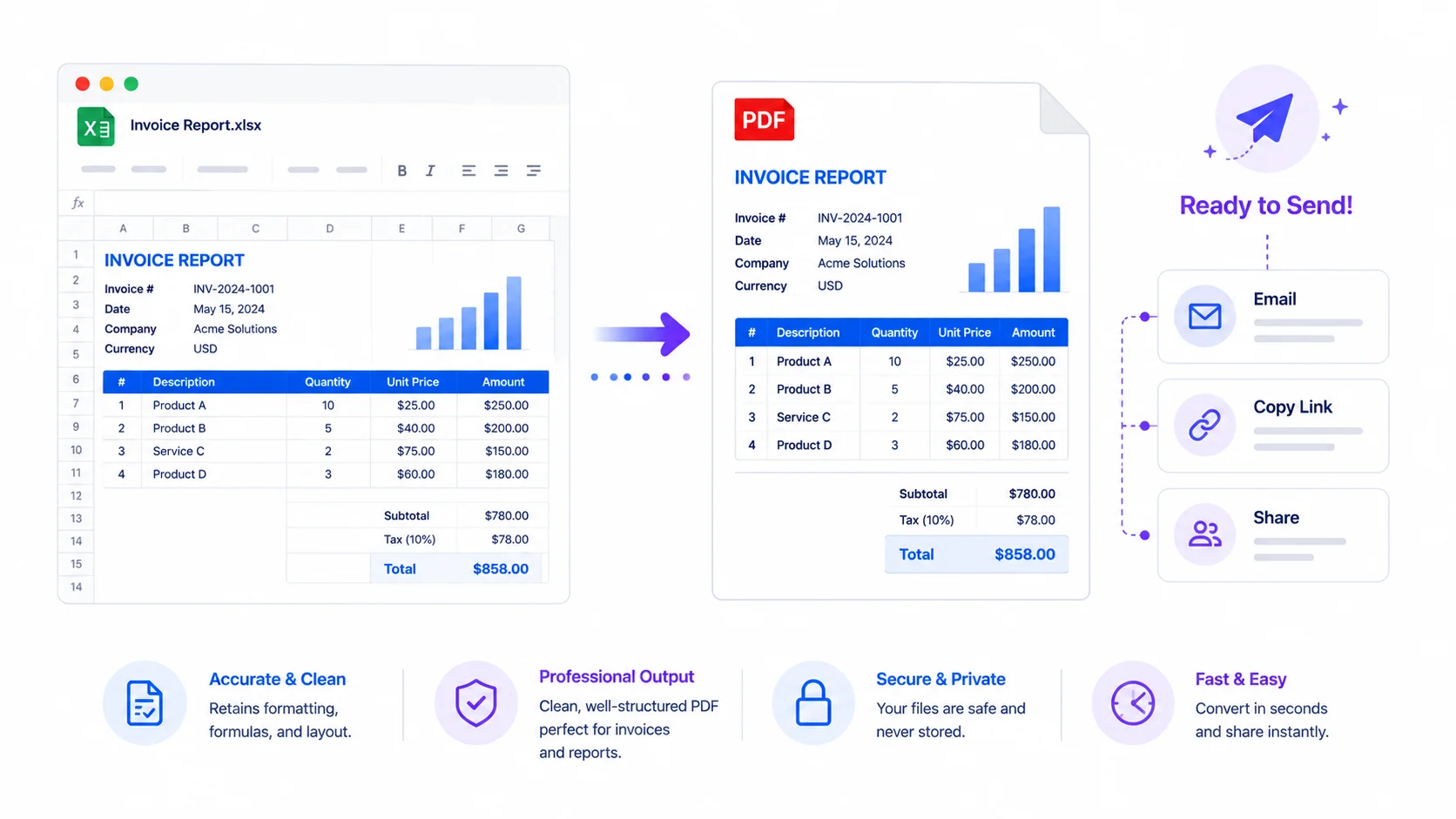
The tool reads your spreadsheet’s cells and lays them out as a clean table, then saves that as a PDF.
It’s best-effort: simple tables convert cleanly, but charts, images, and heavy styling (colors, conditional formatting, merged cells) may not carry over, and formulas show their calculated values.
Because the PDF is created from a rendered page, its text is captured as an image – ideal for sharing and printing. Keep your original spreadsheet for editing.
Who uses it (India + global)
- Accounts & finance (global + India): turn a report or invoice sheet into a clean PDF to send.
- Students & office: convert an assignment or data table to PDF for submission.
- Anyone sharing data: produce a consistent PDF that looks the same on every device.
How to convert Excel to PDF (step by step)
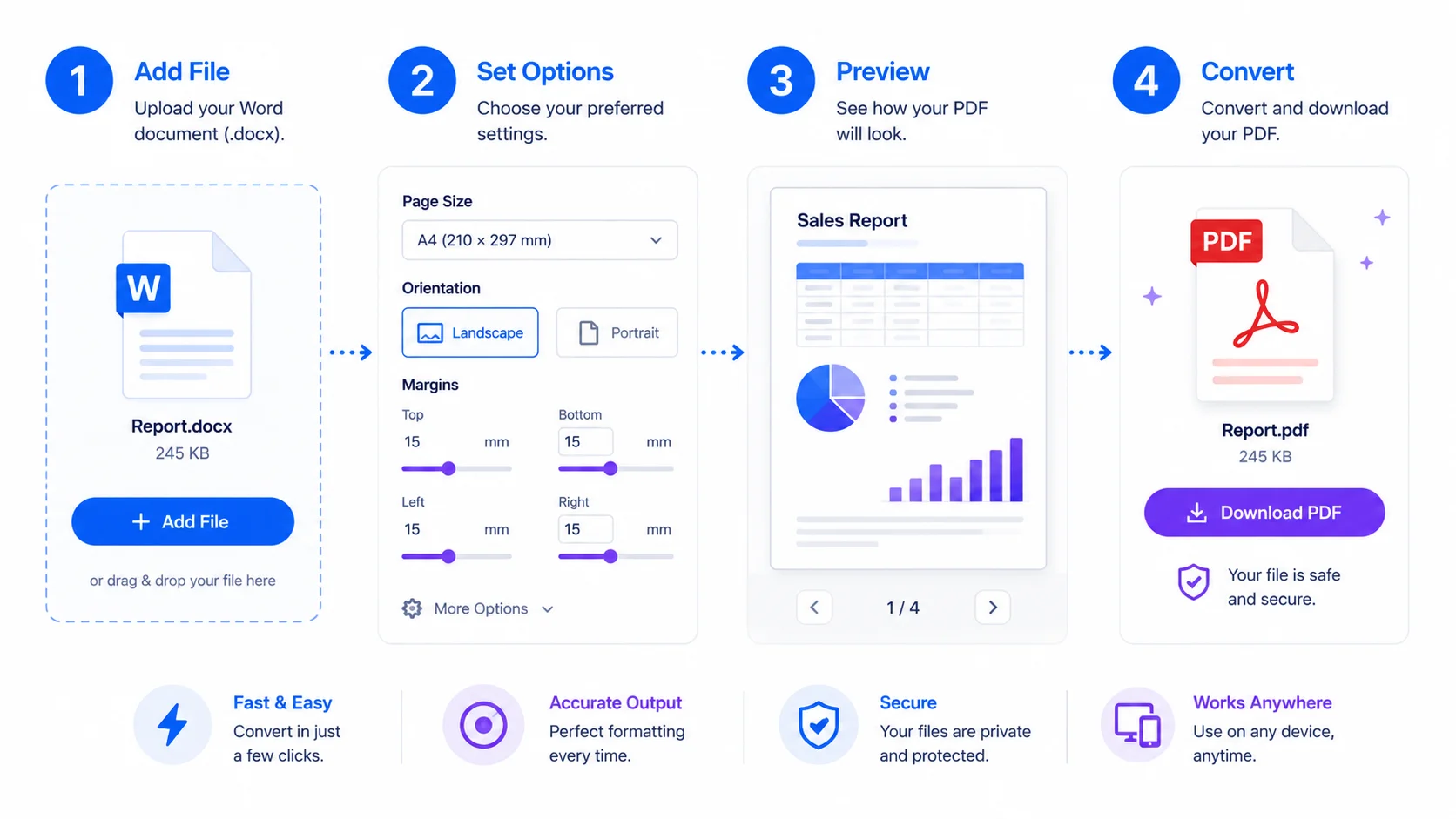
Step 1 – Add your files. Drag XLSX, XLS, or CSV onto the box, or click “Browse.”
Step 2 – Set options. Page size, orientation, margins, and fit-to-width.
Step 3 – Preview. Open a file to see how it will look.
Step 4 – Convert. Download each PDF, “Download all,” or “Merge into one PDF.”
Quick reference
- Supported: .XLSX, .XLS, .CSV.
- Best for: tables and reports you want to share or print.
- May not carry over: charts, images, some styling; formulas show values.
- Privacy: nothing is uploaded; it all runs locally.
Tips for the best result
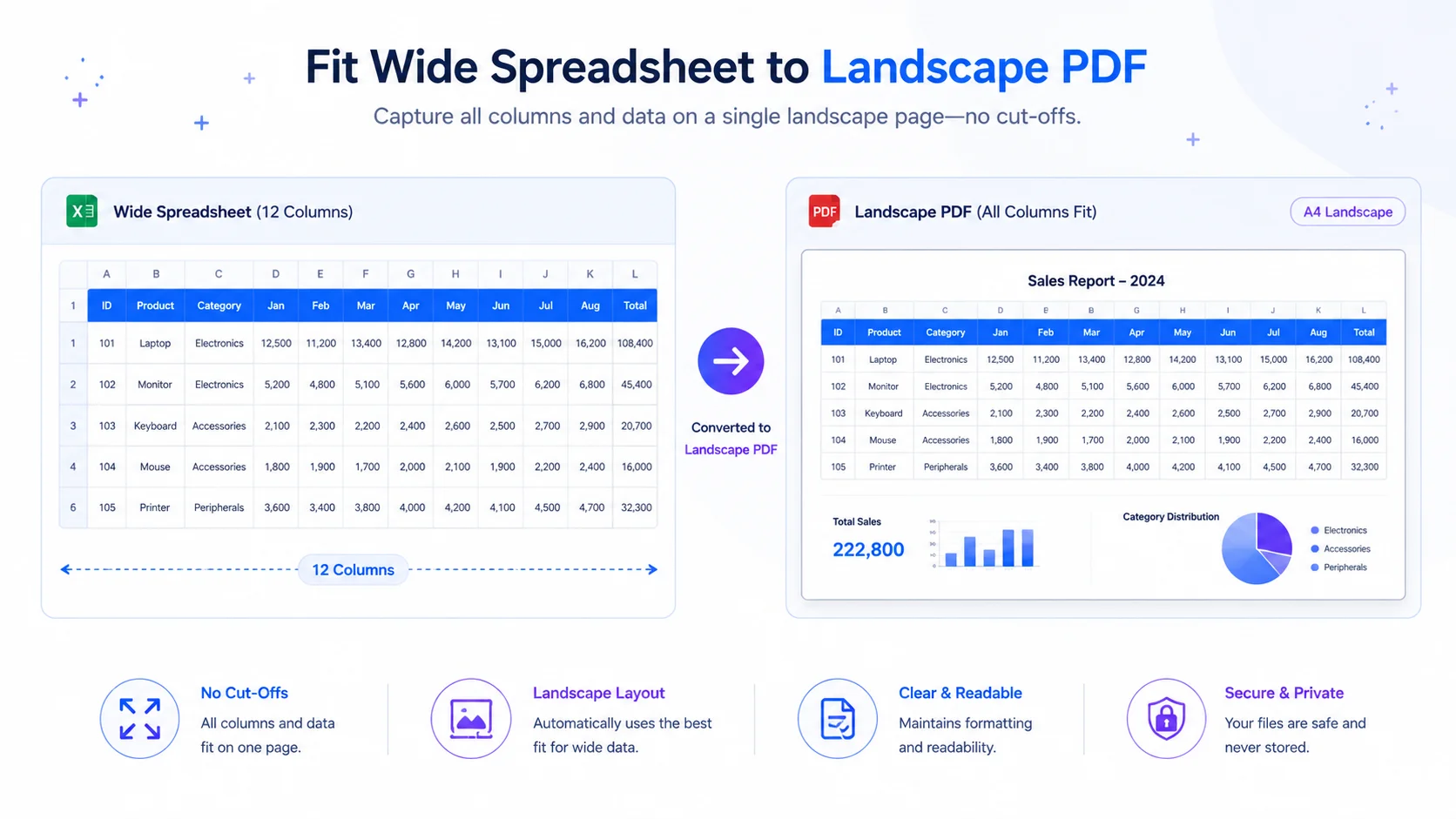
- For wide sheets, use Landscape and Fit-to-width so columns aren’t cut off.
- Keep styling simple for the cleanest PDF.
- To combine files, add them in order, then choose Merge.
- Keep the original spreadsheet if you’ll edit later.
Frequently Asked Questions
Q: Is this Excel to PDF converter free? Yes – completely free, with no signup and no watermark.
Q: Is my Excel file uploaded to a server? No. You convert Excel to PDF without uploading – it’s processed in your browser, so your file never leaves your device.
Q: Does it keep charts and exact formatting? It’s best-effort. Simple tables convert cleanly; charts, images, and heavy styling may not carry over, and formulas show their computed values.
Q: Which file types can I convert? XLSX, XLS, and CSV.
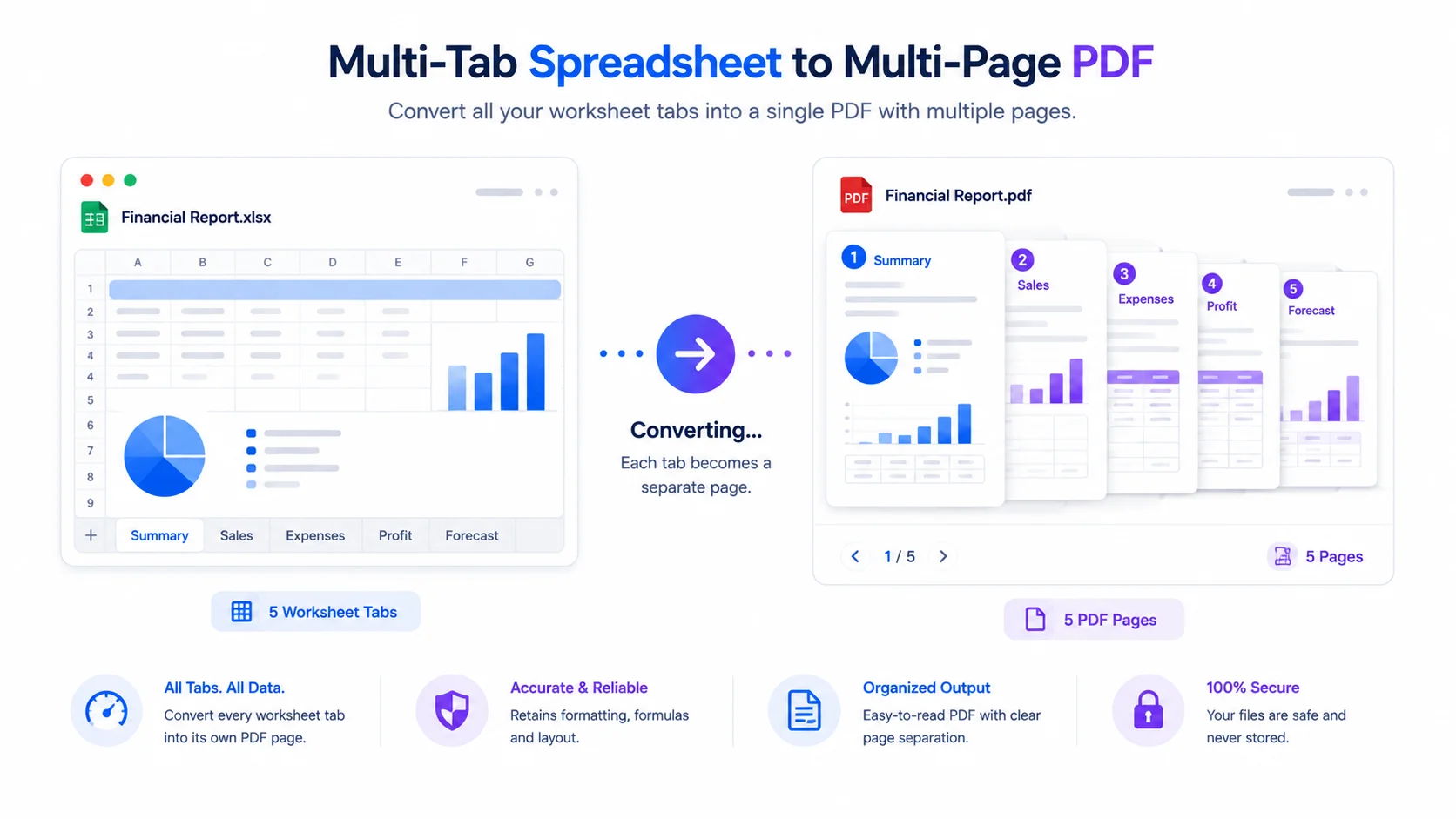
Q: Can I convert a workbook with several sheets? Yes – each sheet becomes its own section in the PDF. You can also merge multiple files into one PDF.
Q: Is the text in the PDF selectable? The PDF is created from a rendered page, so text is captured as an image. It’s ideal for sharing and printing; keep your spreadsheet for editing.
Q: Does it work on mobile? Yes – though large workbooks convert faster on a computer.
When you need a share-ready PDF but want to keep it private, this tool lets you convert Excel to PDF without uploading – free, in your browser, with multi-sheet and merge. Add your spreadsheet above, set your options, and download your PDF.
External reference: link “PDF (Portable Document Format)” to Wikipedia (https://en.wikipedia.org/wiki/PDF).
Explore More Tools:-