
PDF to Excel Without Uploading
Extract tables & text from text-based PDFs to XLSX or CSV — privately, in your browser.
- 100% Private
- No Upload
- XLSX & CSV
- Free
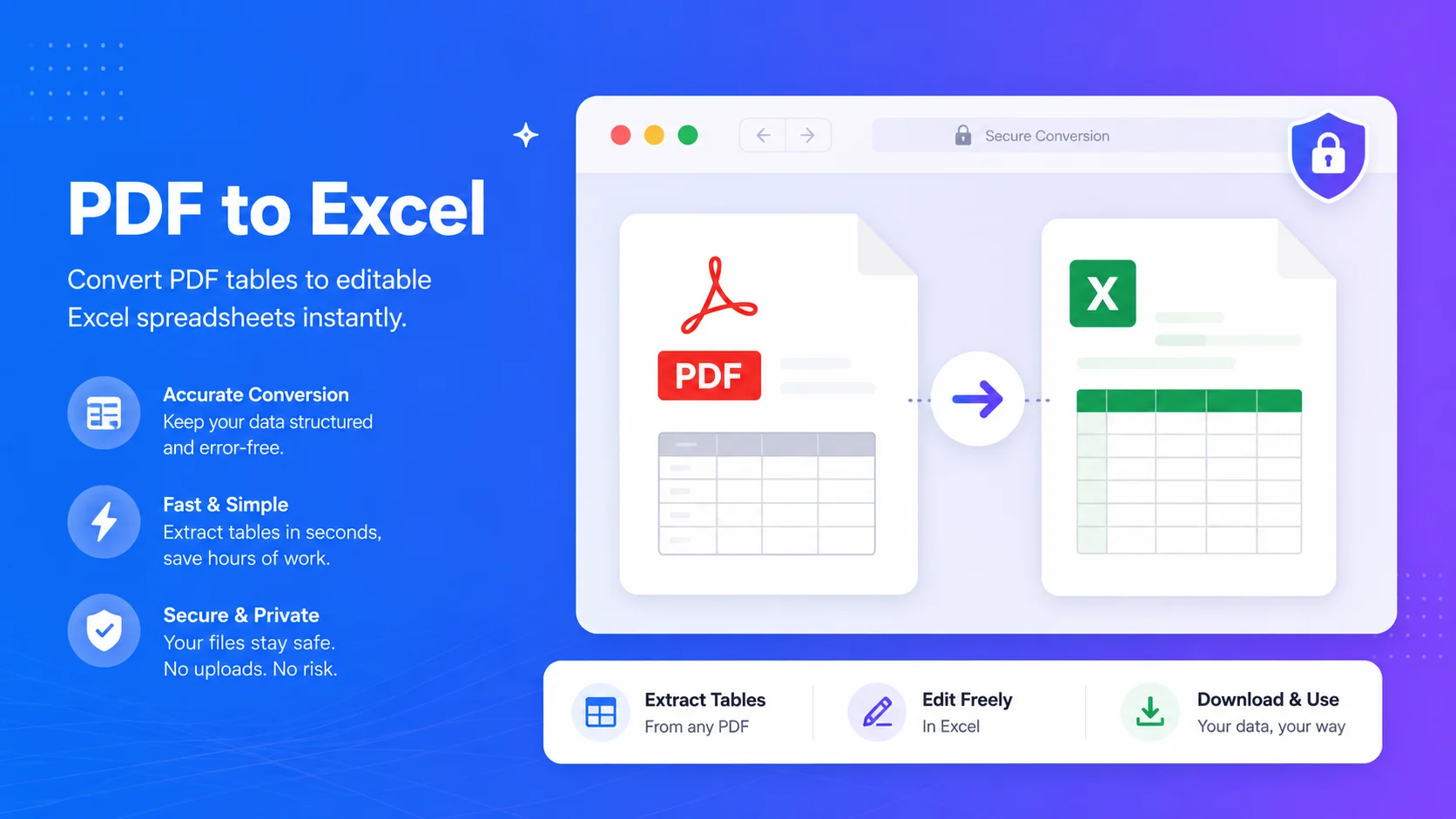
PDF to Excel Without Uploading - Free Private PDF to XLSX
This free tool converts PDF to Excel without uploading – your file is read right in your browser, so it never leaves your device. It pulls tables and text from text-based PDFs into an XLSX or CSV you can edit.
No signup, no watermark, and nothing sent to a server.
Why convert PDF to Excel without uploading
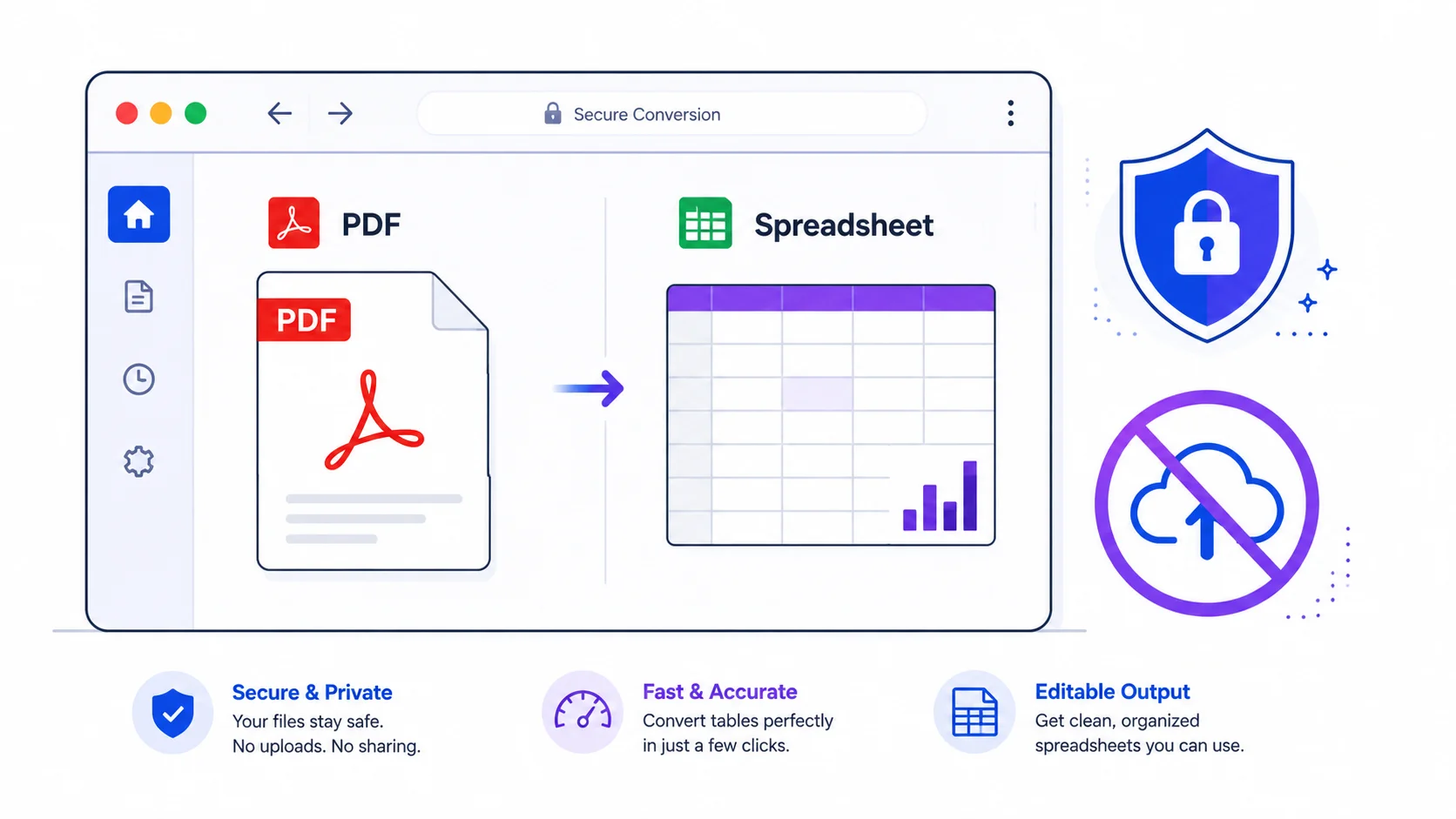
1. 100% private. Invoices, statements, and reports stay on your device – nothing is uploaded.
2. Free and simple. No signup, no email, no watermark.
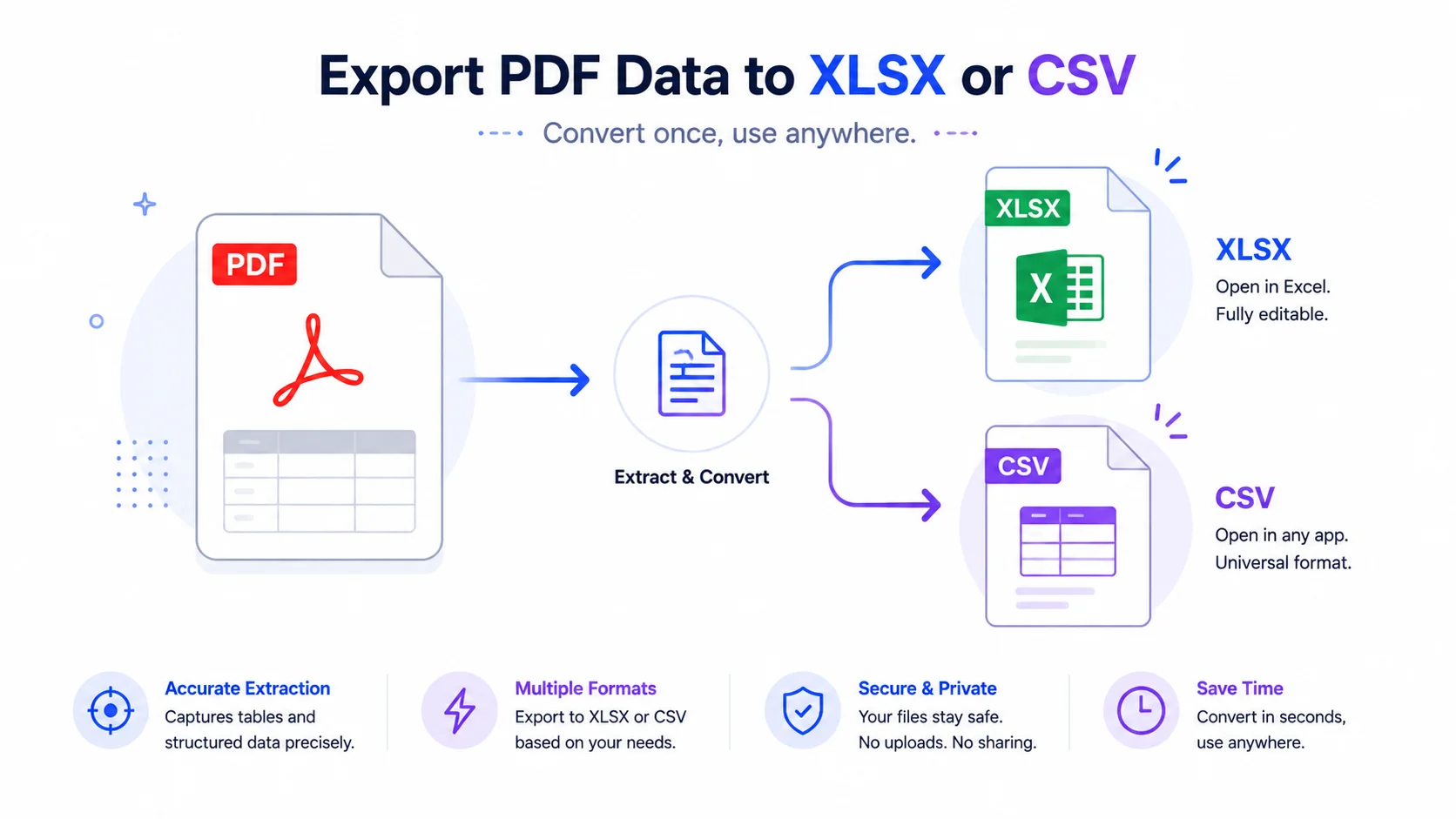
3. XLSX or CSV. Export to Excel or a plain CSV, one file each or combined.
4. Control. Pick pages, choose table or text mode, and tune columns with a live preview.
What works best (be informed)
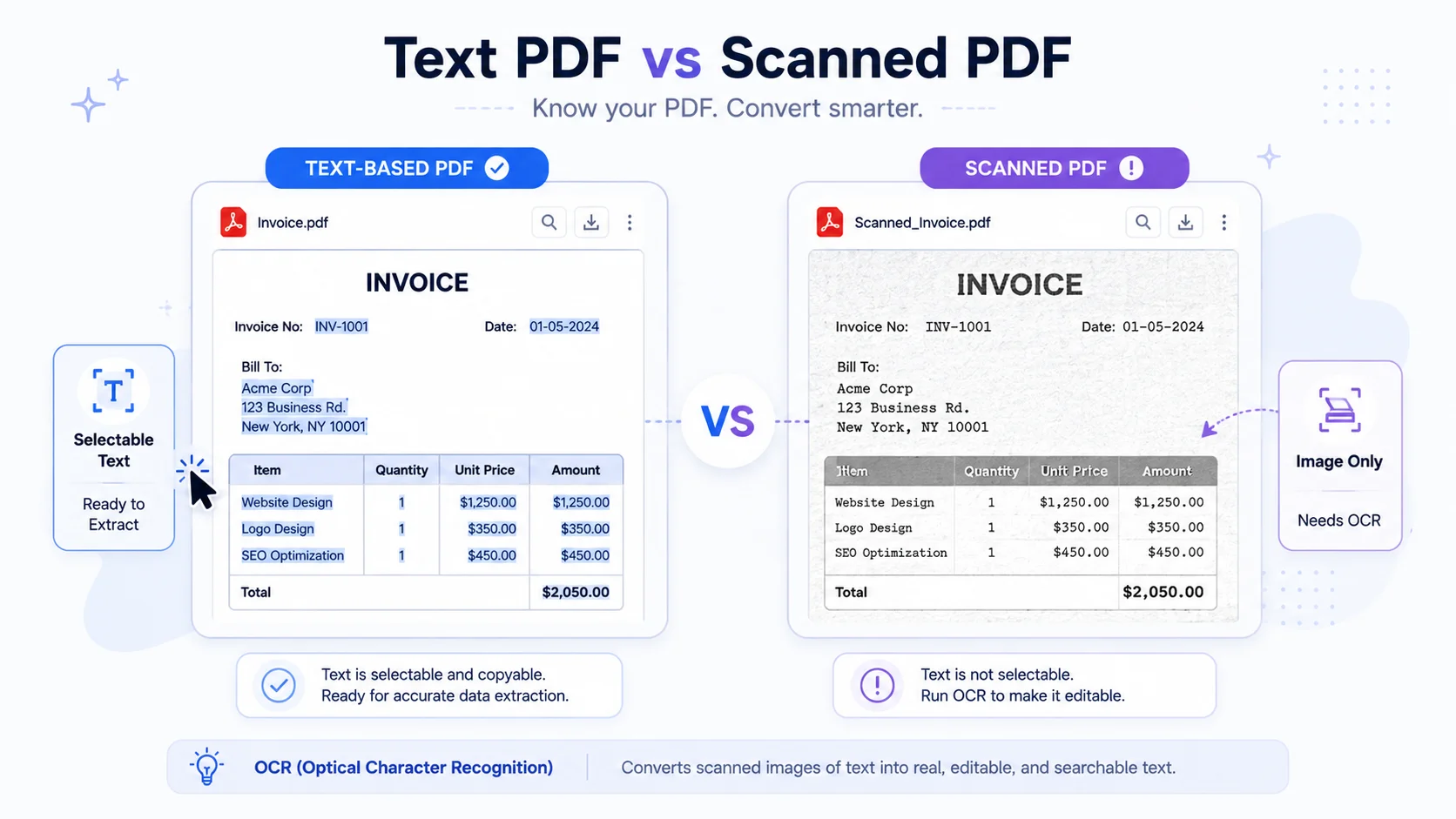
This tool reads text-based PDFs – ones where you can select and copy the text. It does not use OCR, so scanned or image-only PDFs will not work here.
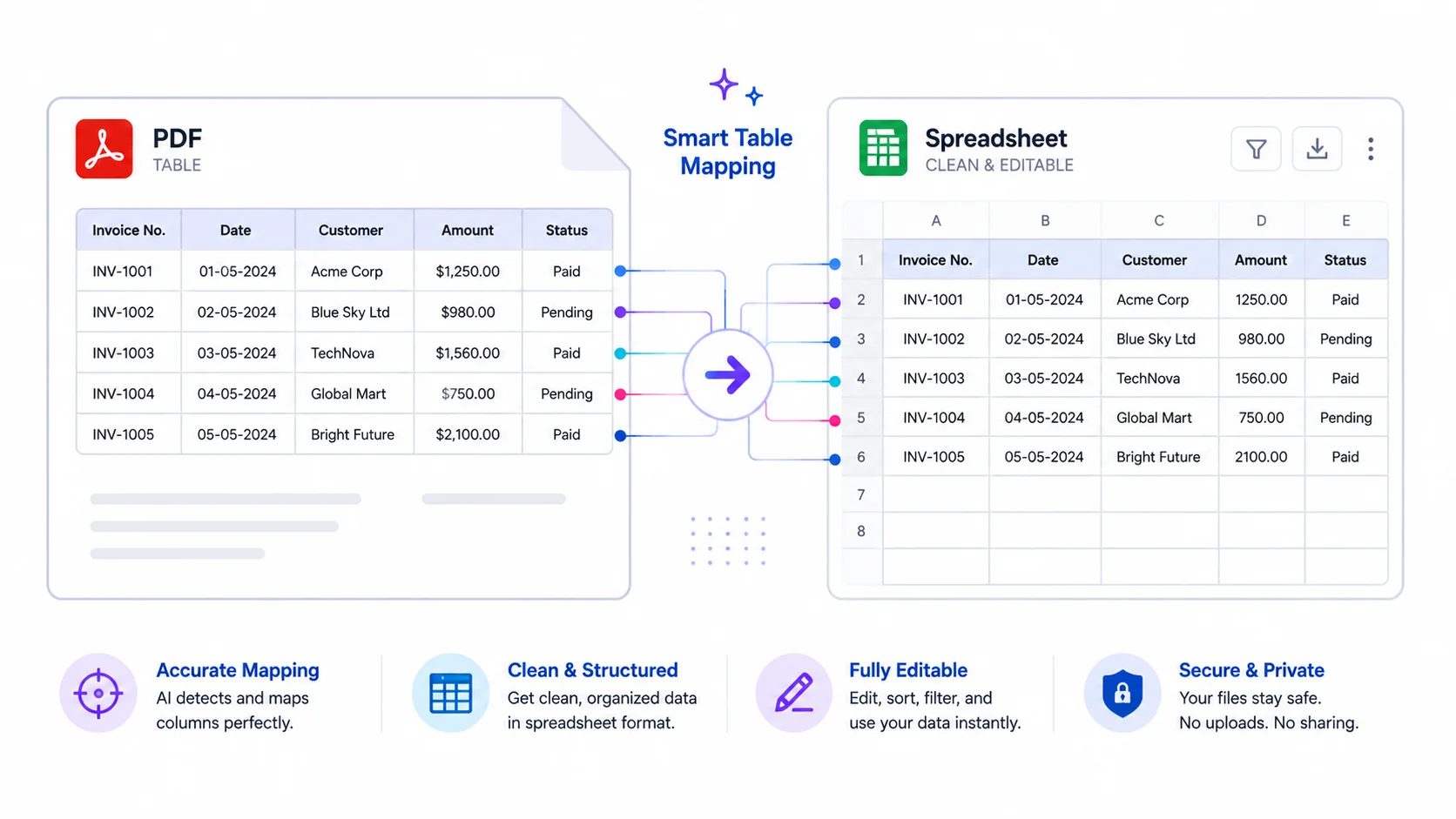
Table mode is experimental: it groups text into columns by position, which suits clean tables, invoices, and statements. Very complex or merged-cell tables may need a little tuning.
Text mode puts each line into a single column – handy for reports and lists. Always check the preview before you download.
Who uses it (India + global)
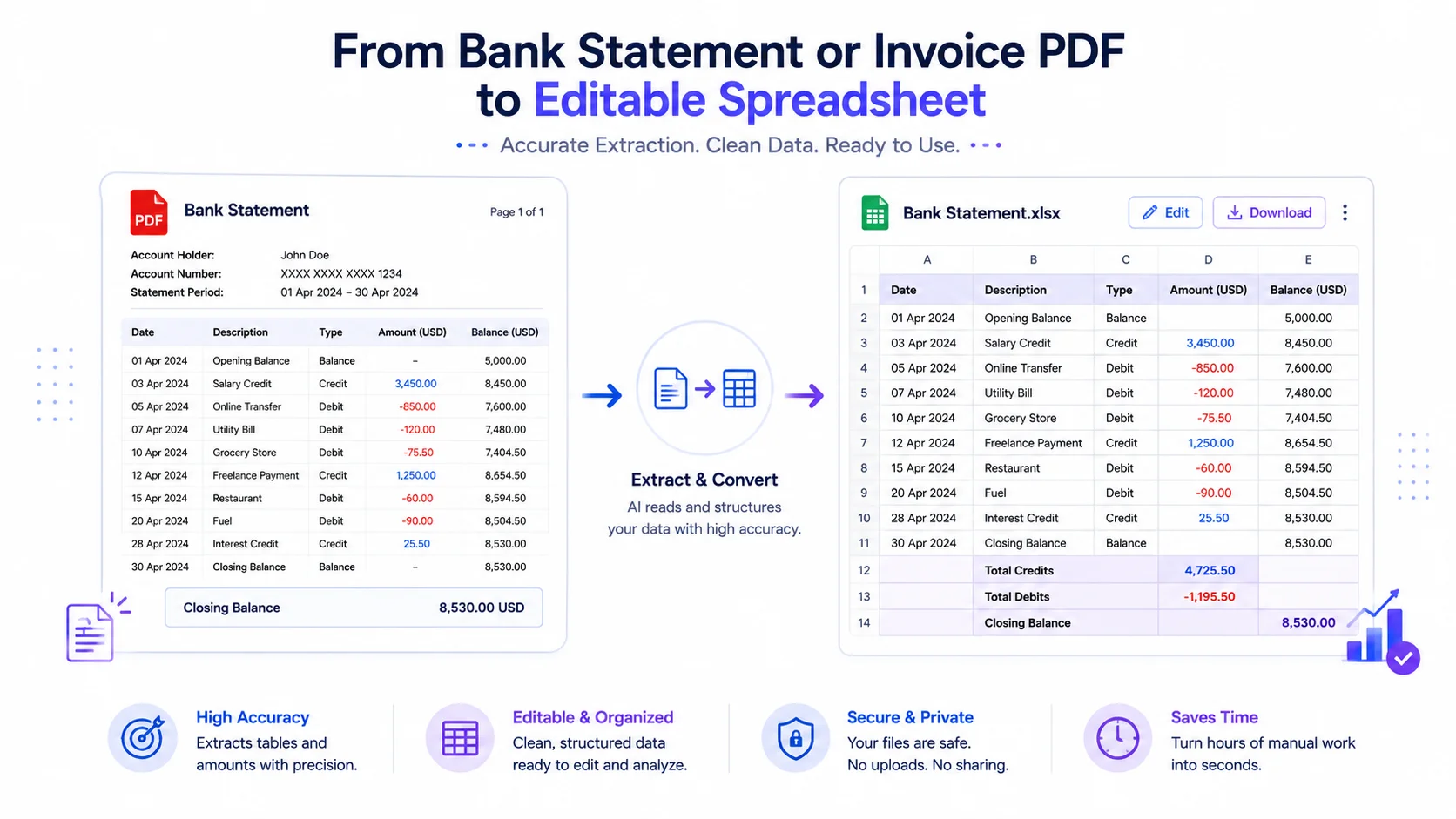
- Accounts & finance (global + India): pull a bank statement or invoice table into Excel for bookkeeping.
- Students & analysts: copy a data table from a report or paper into a spreadsheet.
- Data entry: turn a clean PDF list into rows without retyping.
How to convert PDF to Excel (step by step)
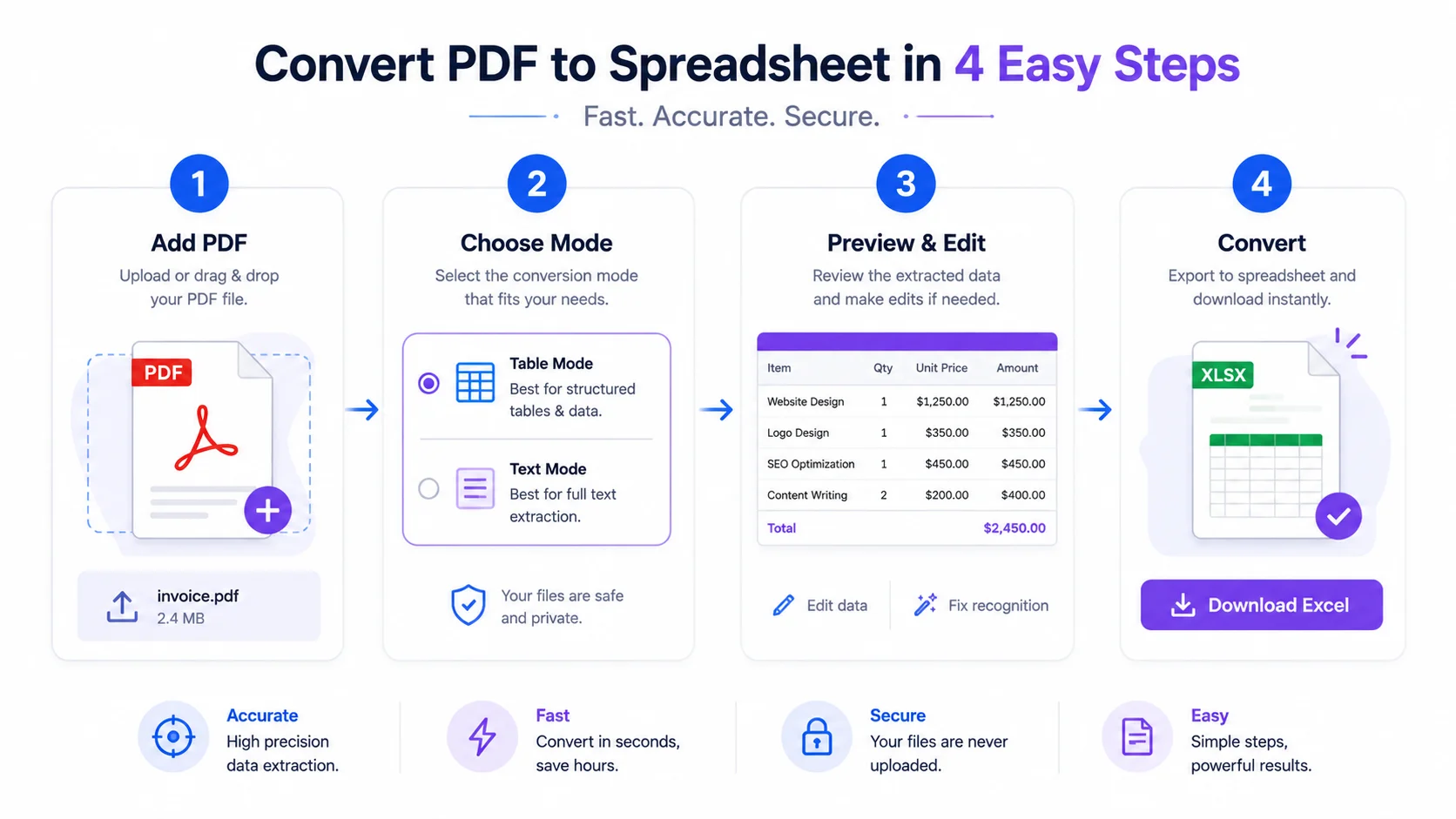
Step 1 — Add your PDFs. Drag them onto the box or click “Browse.”
Step 2 — Choose pages and mode. Set a page range, pick Table or Text, and XLSX or CSV.
Step 3 — Preview. Click “Preview extracted” and adjust the row/column tolerance if the columns look off.
Step 4 — Convert. Convert the active file, or convert all (combined workbook or a ZIP). Your file downloads when done.
Quick reference
- Works on: text-based PDFs (selectable text).
- Not supported: scanned/image PDFs (need OCR elsewhere).
- Table mode: best for clean tables; tune tolerances if needed.
- Privacy: nothing is uploaded; it all runs locally.
Tips for the best result
- If columns merge or split wrongly, raise or lower the column tolerance.
- For invoices/reports without clear tables, try Text mode.
- Use “Combine into one workbook” to keep several PDFs in one XLSX.
- Keep the original PDF; the tool works on a copy.
Frequently Asked Questions
Q: Is this PDF to Excel converter free? Yes – completely free, with no signup and no watermark.
Q: Is my PDF uploaded to a server? No. You convert PDF to Excel without uploading – it’s processed in your browser, so your file never leaves your device.
Q: Does it work on scanned PDFs? No. This tool reads text-based PDFs only. Scanned or image PDFs need OCR, which this tool doesn’t include.
Q: Will it keep my table exactly? Table mode is experimental and detects columns by position. Clean tables convert well; complex or merged-cell tables may need tuning. Always check the preview.
Q: Can I export to CSV as well as Excel? Yes – choose XLSX or CSV. You can also combine several PDFs into one workbook or download a ZIP.
Q: Can I convert only some pages? Yes – set a page range like 1-3, 5, 7-9.
Q: Does it work on mobile? Yes – though large files convert faster on a computer.
When you need spreadsheet data from a text-based PDF but want to keep it private, this tool lets you convert PDF to Excel without uploading – free, in your browser, with a live preview. Add your PDF above, check the preview, and download your XLSX or CSV.
External reference (DoFollow): link “Office Open XML (XLSX)” to Wikipedia (https://en.wikipedia.org/wiki/Office_Open_XML).