
PDF to Word Without Uploading
Convert PDF to editable DOCX privately — in your browser. Editable text, exact layout, or OCR for scans.
- 100% Private
- No Upload
- OCR Included
- Free
Exact Layout: pages as images (looks like PDF, not editable text).
OCR: best for scanned PDFs, slower and uses more CPU.
PDF to Word Without Uploading - Free Private DOCX Converter
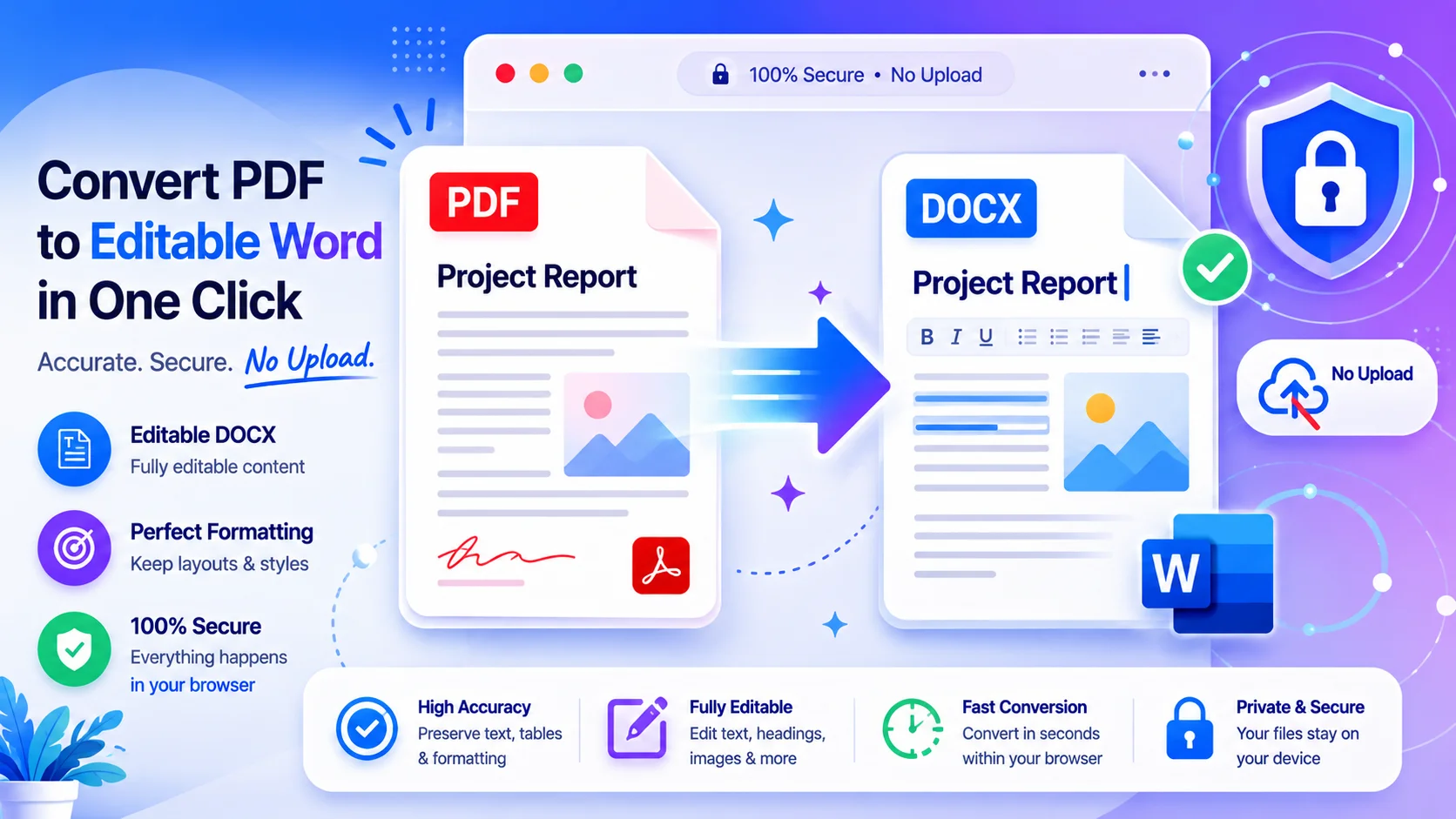
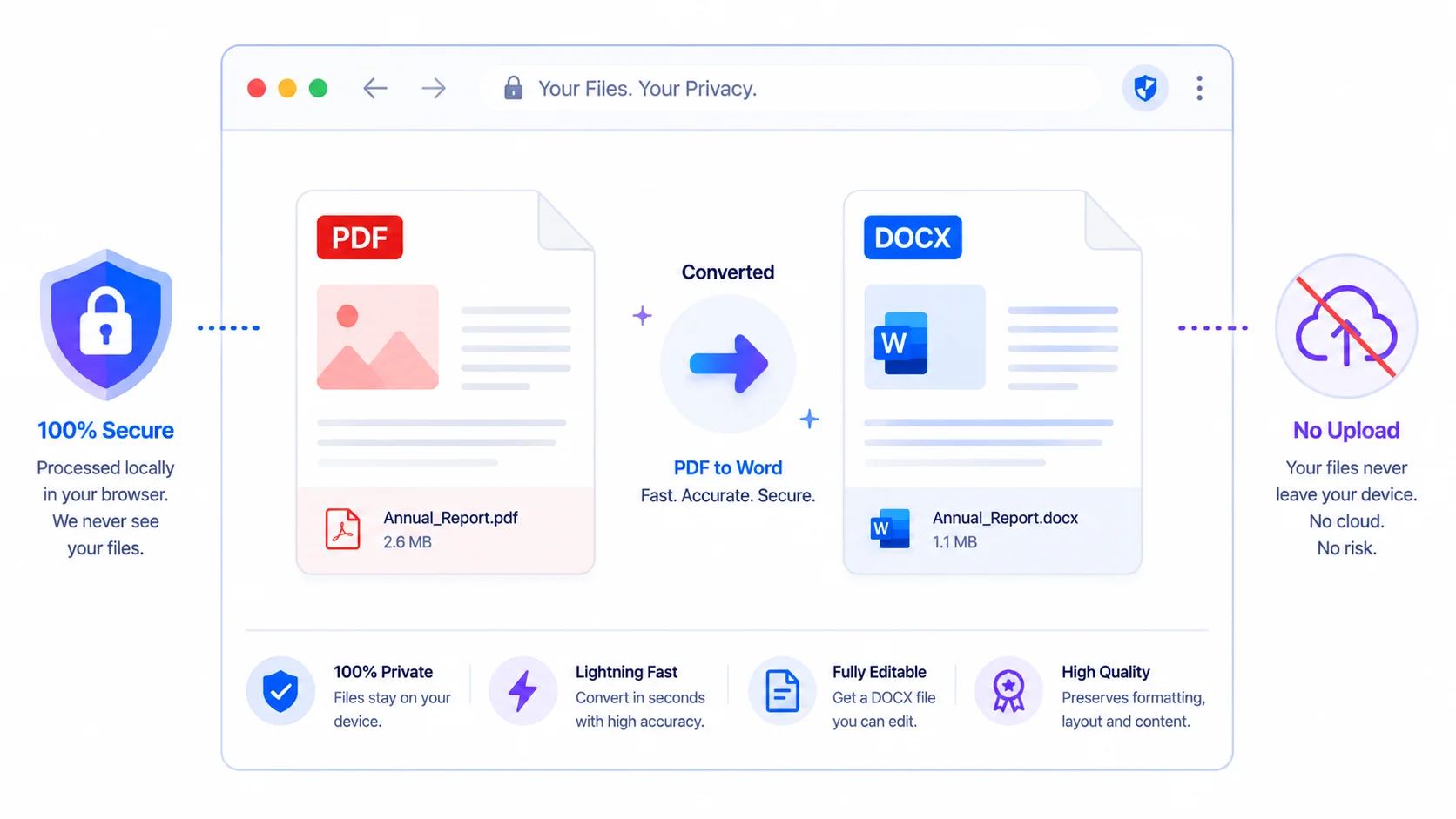
This free tool converts PDF to Word without uploading – your file is processed right in your browser, so it never leaves your device. It’s the private way to turn a PDF into an editable DOCX.
No signup, no watermark, and nothing sent to a server.
Why convert PDF to Word without uploading
1. 100% private. Resumes, contracts, and ID scans stay on your device – nothing is uploaded.
2. Free and simple. No signup, no email, no watermark.
3. Three modes. Editable text, exact-layout (pages as images), and OCR for scanned PDFs.
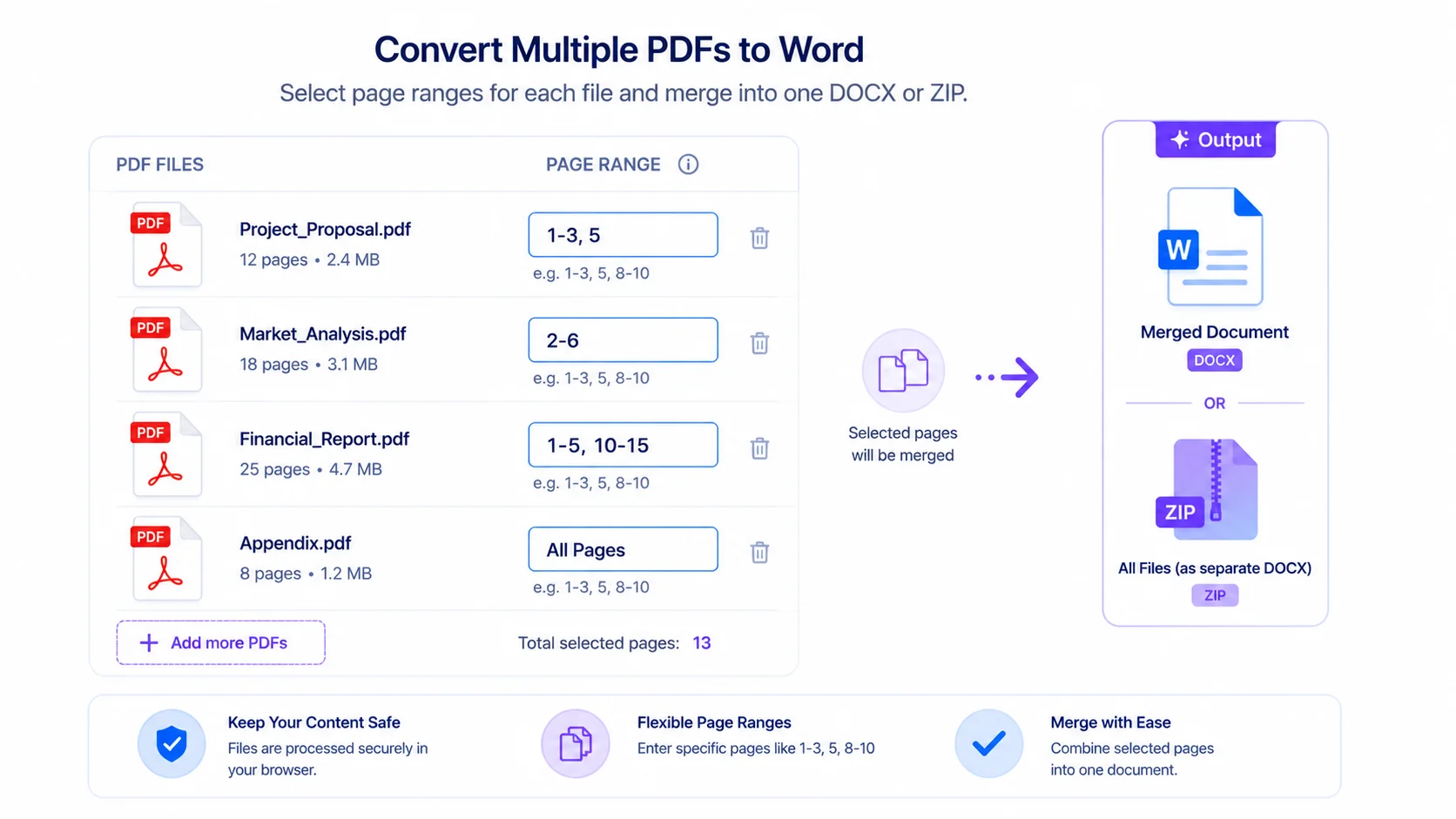
4. Batch + control. Convert several PDFs, set page ranges per file, drag to reorder, and download as one DOCX or a ZIP.
How the three modes work (be informed)
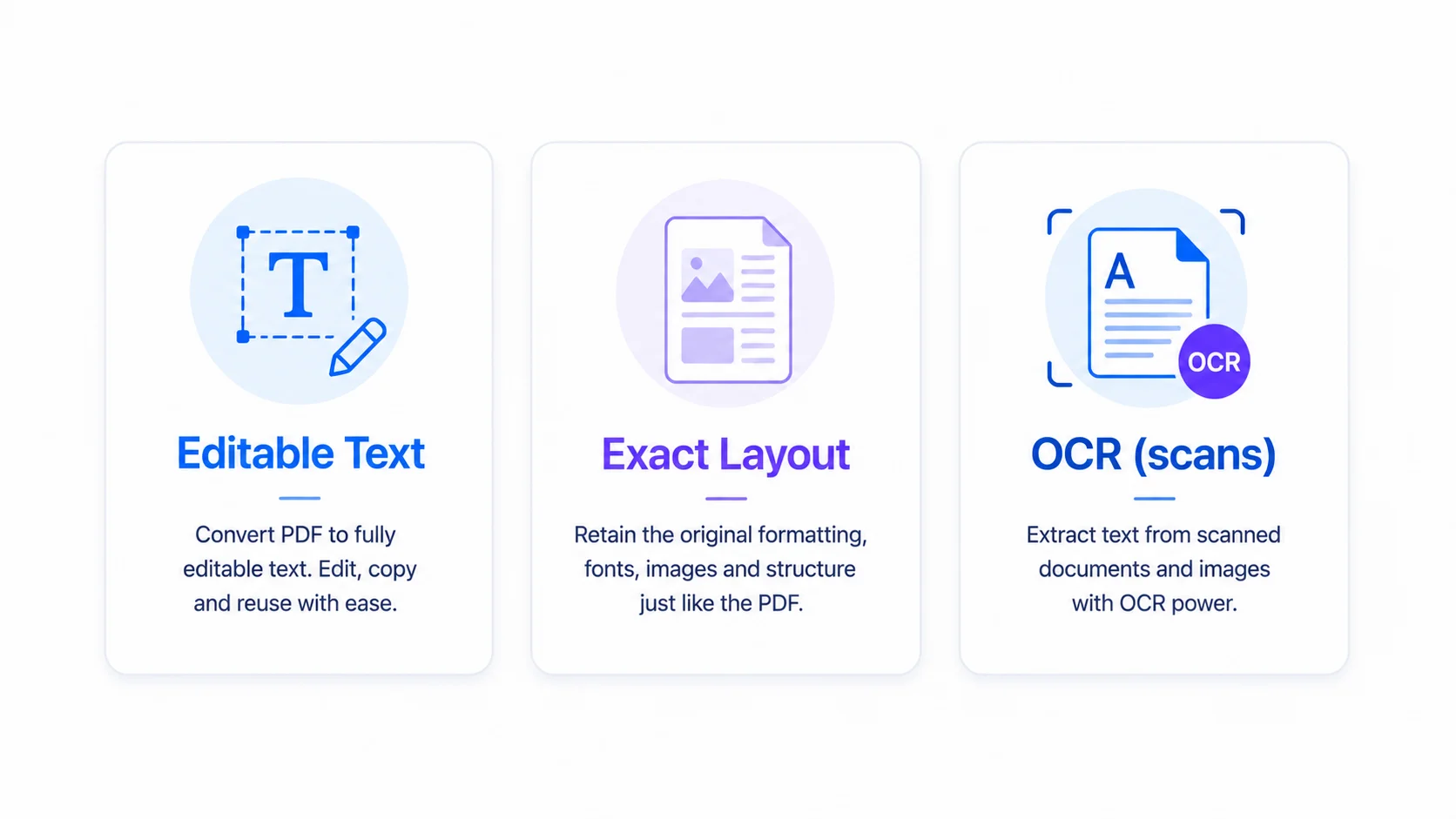
Editable Text pulls the text out of the PDF so you can edit it. It’s best-effort: simple documents convert well, but complex tables, columns, and exact formatting may shift.
Exact Layout places each page into Word as an image, so it looks just like the PDF – but the text isn’t editable.
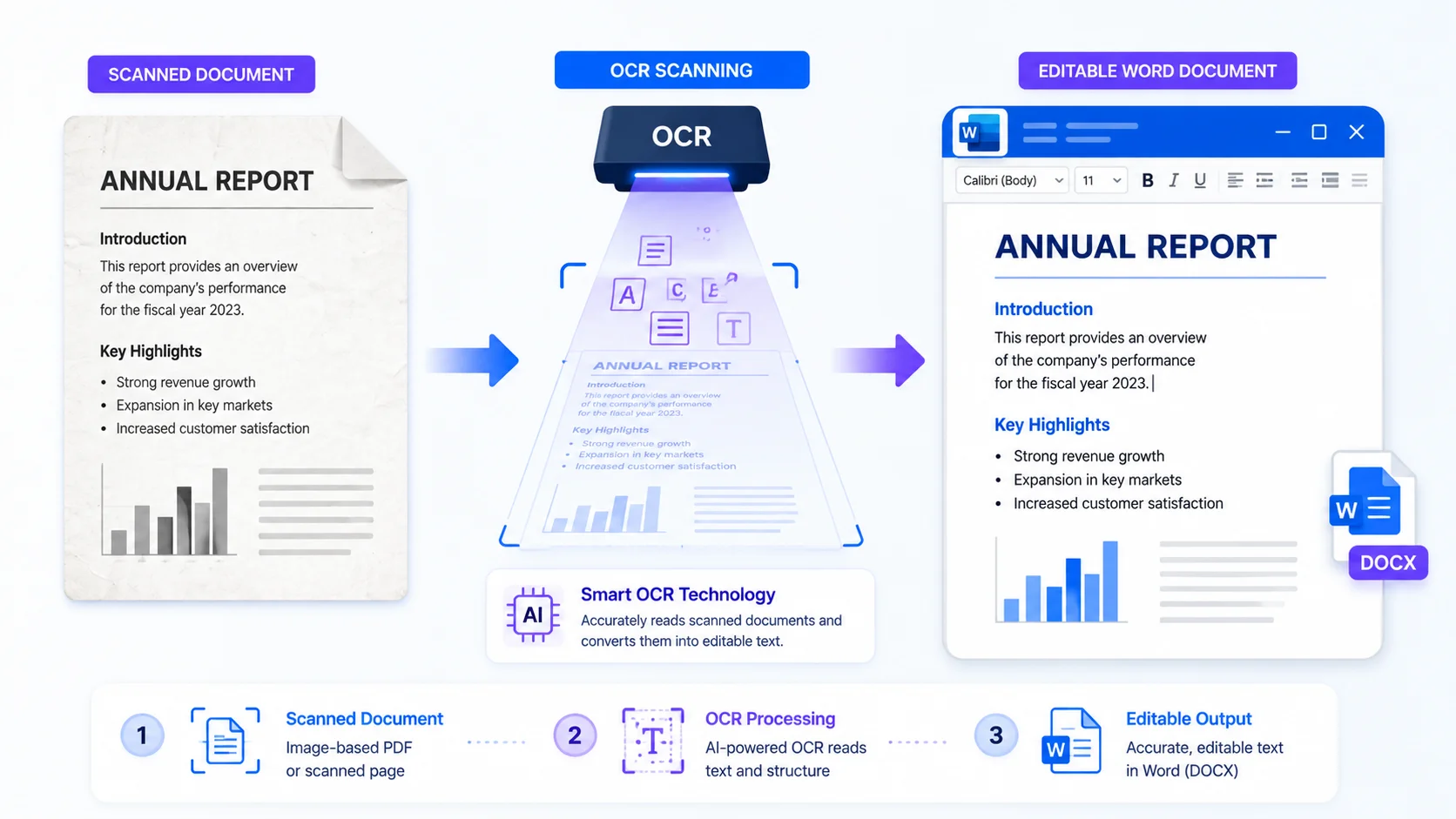
OCR reads text from scanned (image-based) PDFs using your browser. It’s slower and downloads a language file the first time, but it turns scans into editable text.
Who uses it (India + global)
- Students & jobseekers (India + global): edit a resume, reuse notes, or turn a question-paper PDF into editable text.
- Office & business (global + India): repurpose a contract or report into Word for quick edits.
- Scanned documents: use OCR to make a scanned PDF editable for forms or records.
How to convert PDF to Word (step by step)
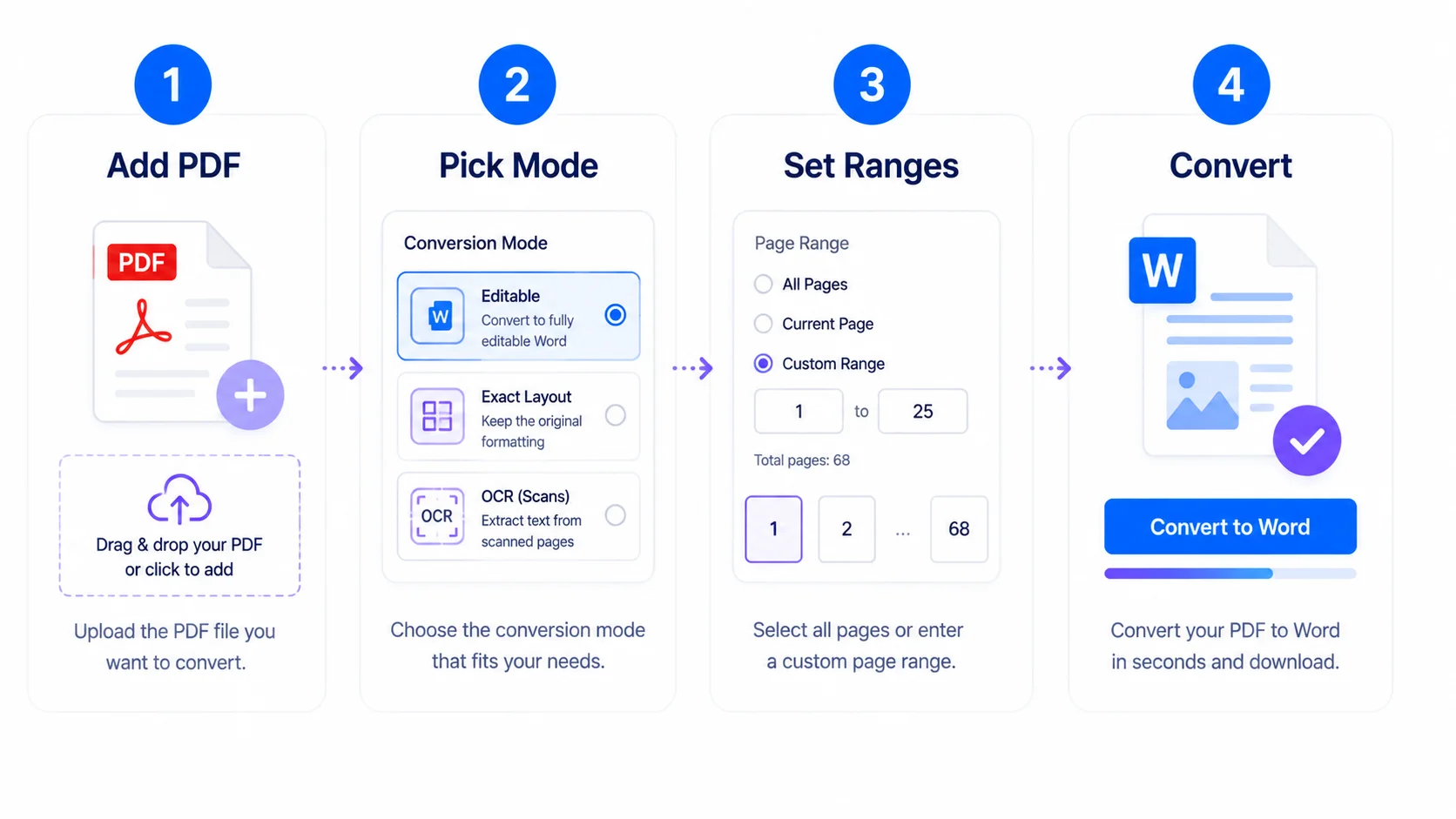
Step 1 — Add your PDFs. Drag them onto the box or click “Browse.” Password-protected files are detected and skipped.
Step 2 — Pick a mode. Editable Text, Exact Layout, or OCR (choose OCR for scans).
Step 3 — Set page ranges (optional). Type pages like 1-3, 5, 7-9 per file, and drag cards to reorder.
Step 4 — Convert. Choose “Convert active,” “Convert all (ZIP),” or “Convert all to one DOCX.” Your file downloads when done.
Tips for the best result
- For simple text PDFs, start with Editable Text.
- For complex designs you only need to read/print, use Exact Layout.
- For scans or photos of documents, use OCR and pick the right language.
- Keep your original PDF; the tool works on a copy.
Frequently Asked Questions
Q: Is this PDF to Word converter free? Yes – completely free, with no signup and no watermark.
Q: Is my PDF uploaded to a server? No. You convert PDF to Word without uploading – it’s processed in your browser, so your file never leaves your device.
Q: Will the Word file keep the exact formatting? Editable Text mode is best-effort, so complex layouts may shift. For an exact look, use Exact Layout (pages as images).
Q: Can it convert scanned PDFs? Yes – use OCR mode. It reads text from scans in your browser and downloads a language file on first use.
Q: Can I convert several PDFs at once? Yes – convert all to a ZIP of DOCX files, or merge them into one DOCX. You can set page ranges per file.
Q: What about password-protected PDFs? They’re detected and skipped. Remove the password first, then upload again.
Q: Does it work on mobile? Yes – though large files and OCR run faster on a computer.
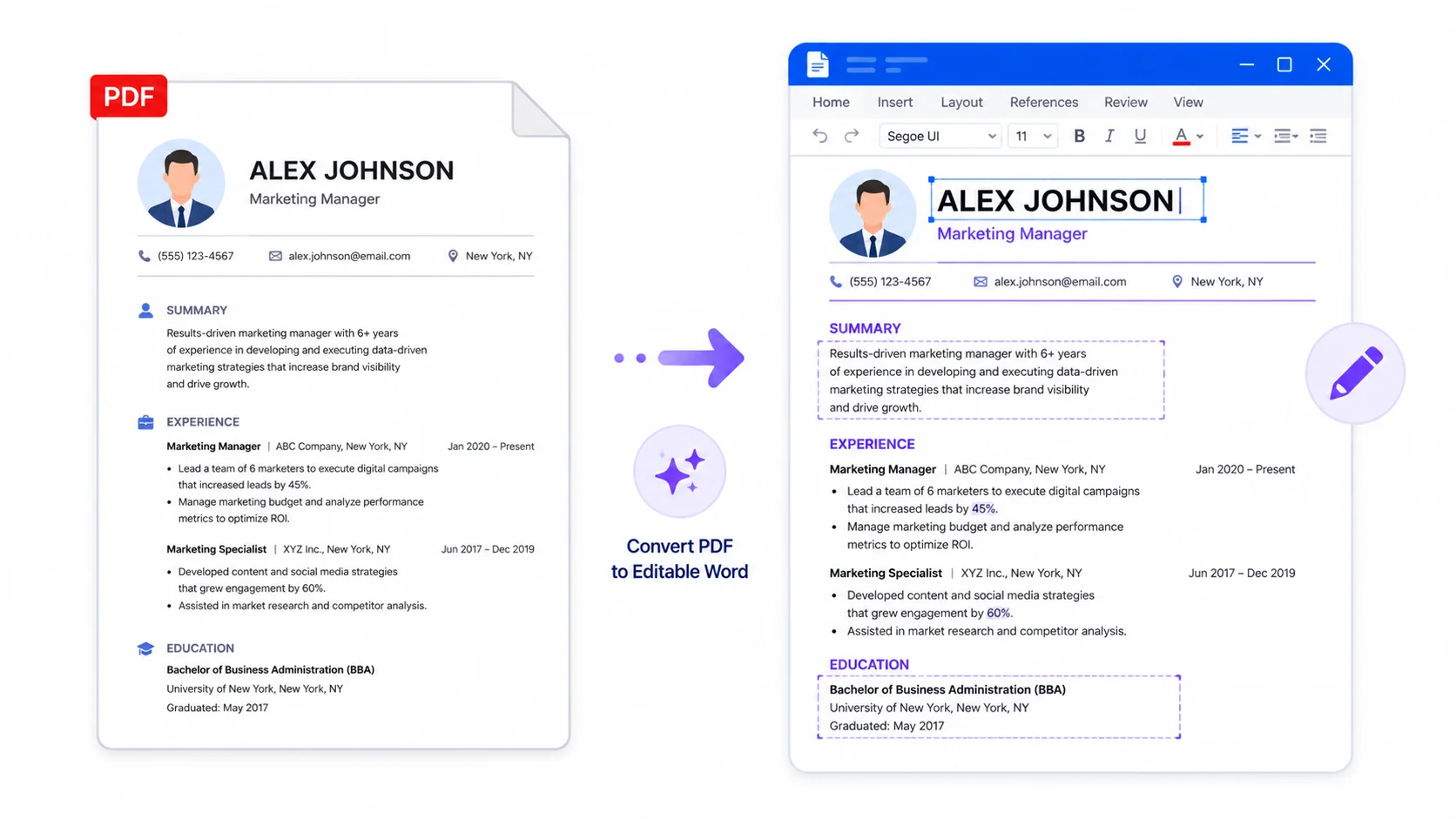
When you need an editable Word file but want to keep it private, this tool lets you convert PDF to Word without uploading — free, in your browser, with OCR for scans. Add your PDF above, pick a mode, and download your DOCX.
External reference: link “Office Open XML (DOCX)” to Wikipedia (https://en.wikipedia.org/wiki/Office_Open_XML).