
Split PDF Into Separate Pages
Extract pages, make single-page PDFs, or split by range — right in your browser. No upload.
- 100% Private
- No Upload
- No Quality Loss
- Mobile-Friendly
1,3,5-7. Leave blank in extract mode to use all pages.Split PDF Into Separate Pages — Free Online PDF Splitter
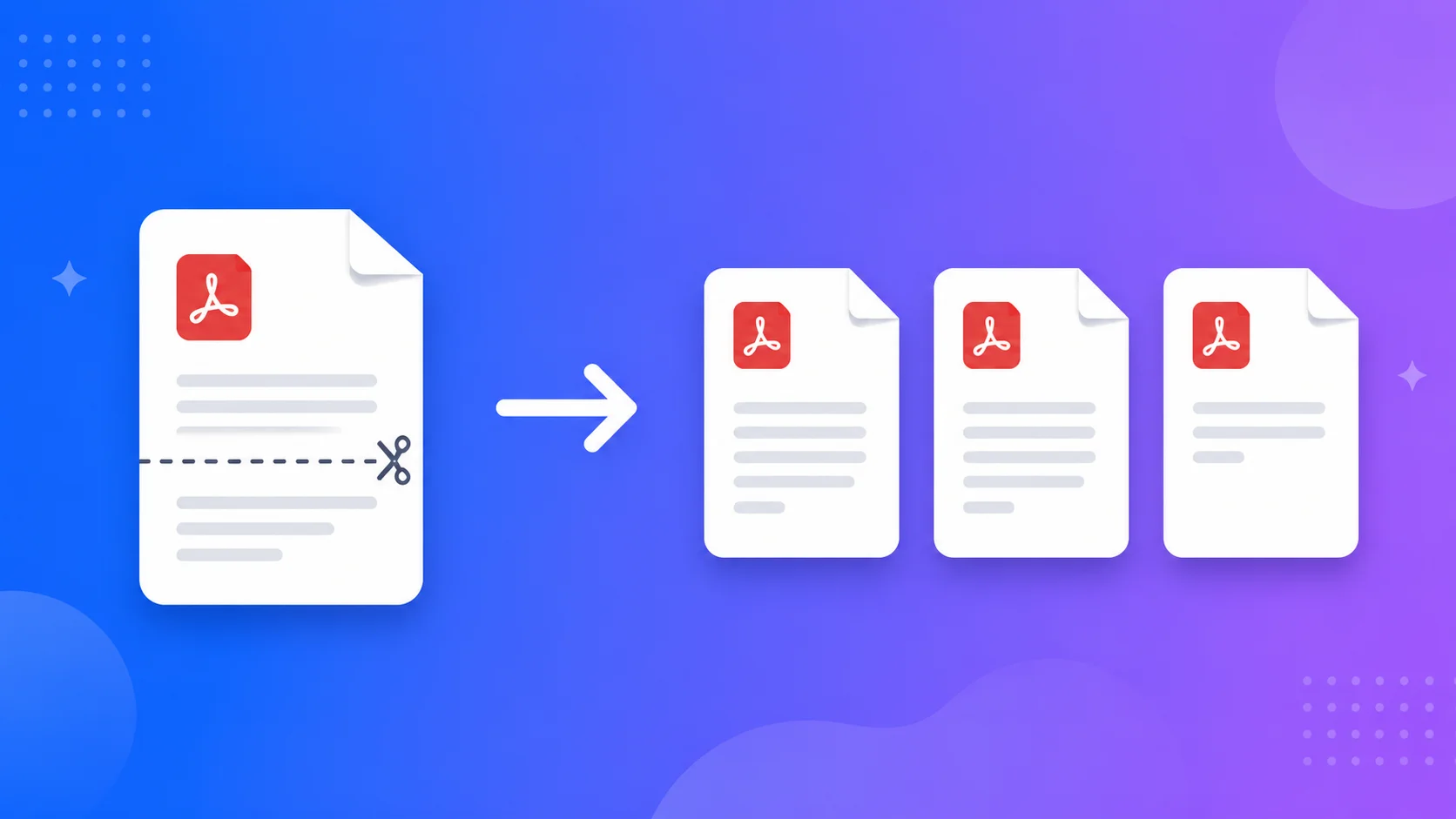
This free tool lets you split PDF into separate pages in seconds – extract just the pages you need, turn every page into its own PDF, or split by custom ranges. It all runs in your browser, so your files are never uploaded.
No signup, no watermark, and no quality loss – your documents stay private on your device.
What does it mean to split a PDF?
Splitting a PDF means breaking one file into smaller PDFs. You might pull out a few pages, separate every page into its own file, or cut the document into ranges.
This tool gives you all three options, with a preview of each PDF’s first page so you know exactly what you’re working with.
Why use this PDF splitter
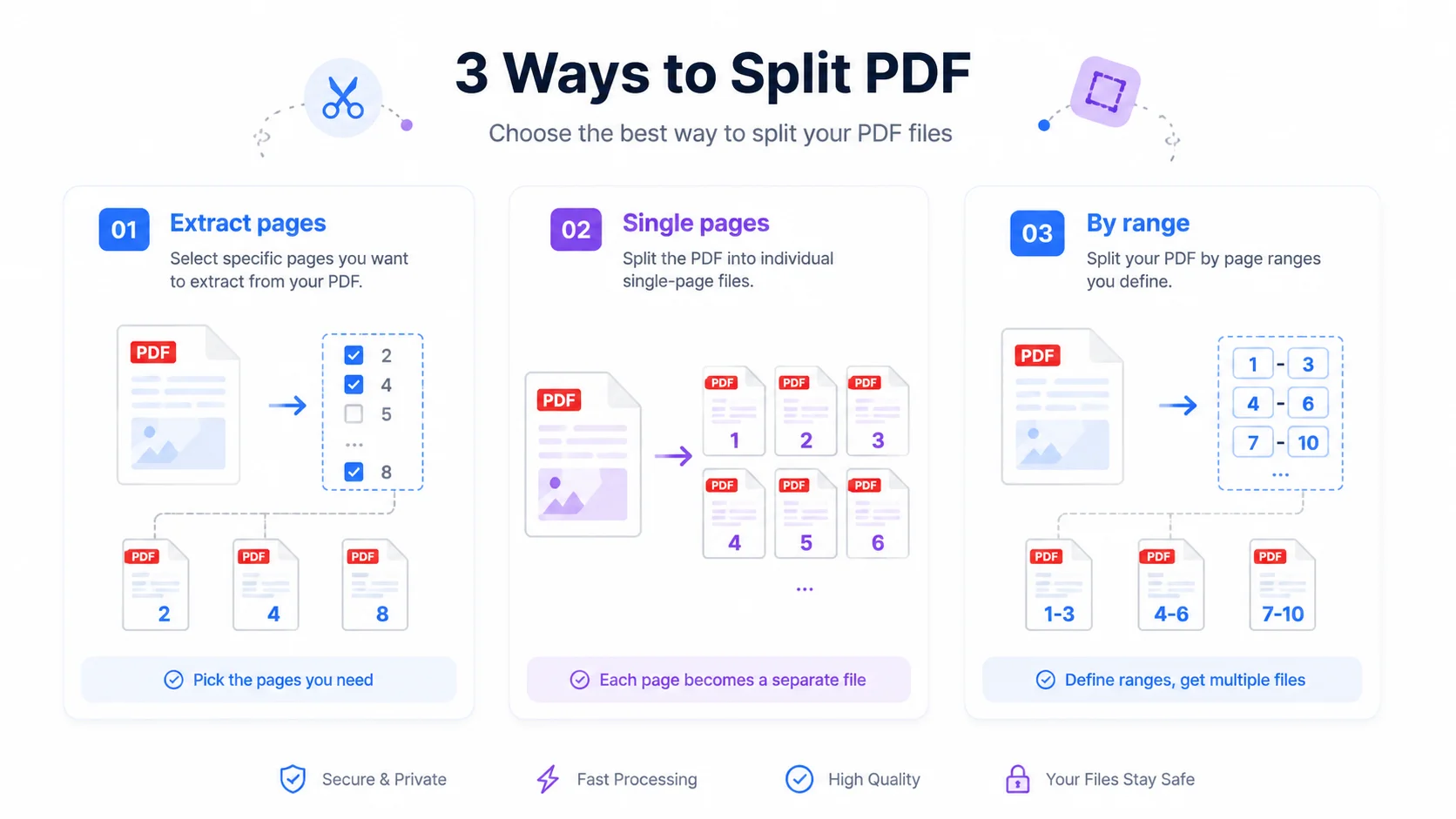
1. 100% private. The splitting happens inside your browser with no upload, so sensitive documents never leave your computer.
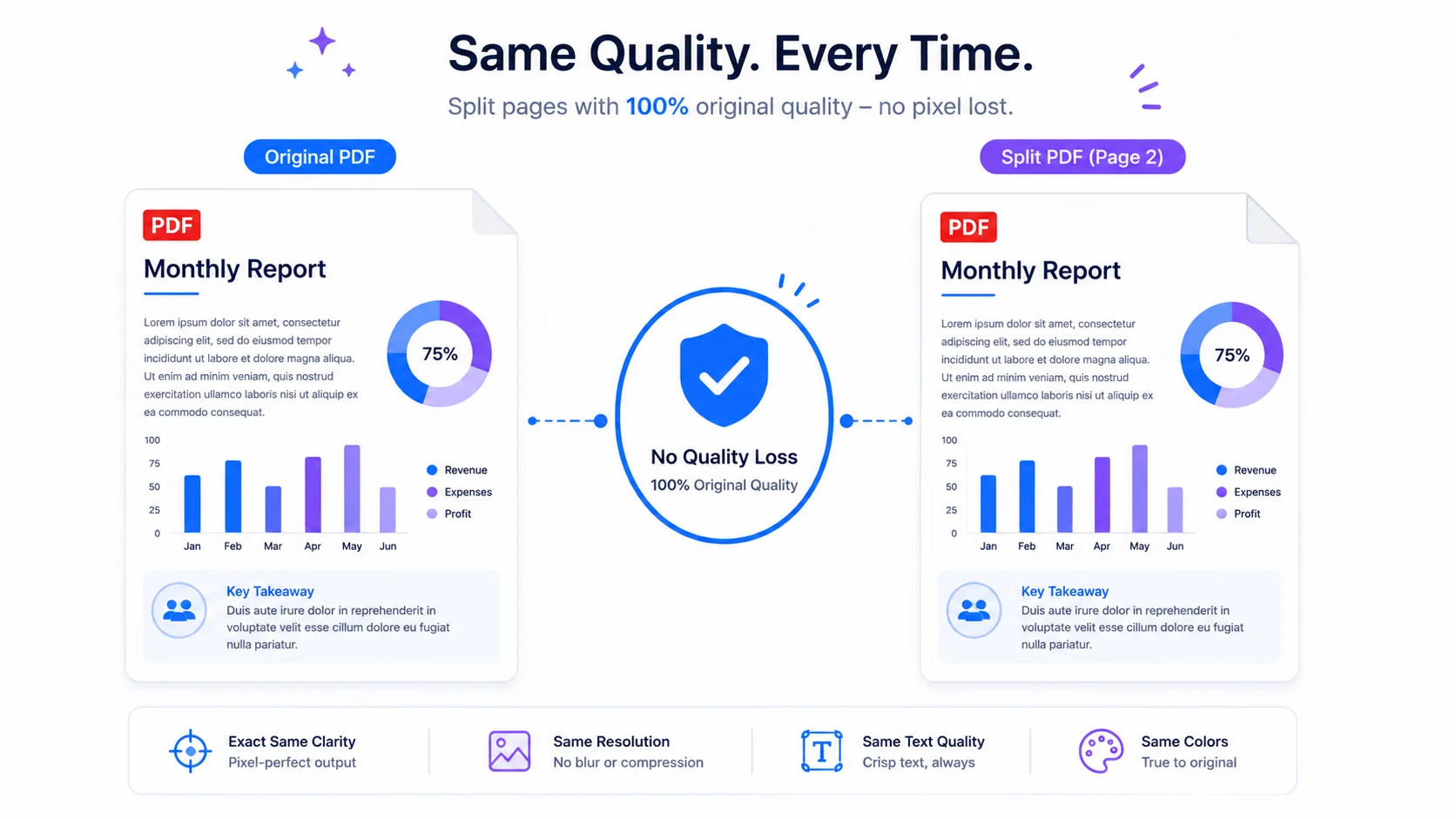
2. No quality loss. Pages are copied as-is, so text stays selectable and images stay sharp.
3. Three flexible modes. Extract pages into one PDF, split into single pages, or split by custom ranges like 1-3, 4-6.
4. Free and simple. No signup, no watermark, no limits — upload, choose, and download.
Who uses it (India + global)
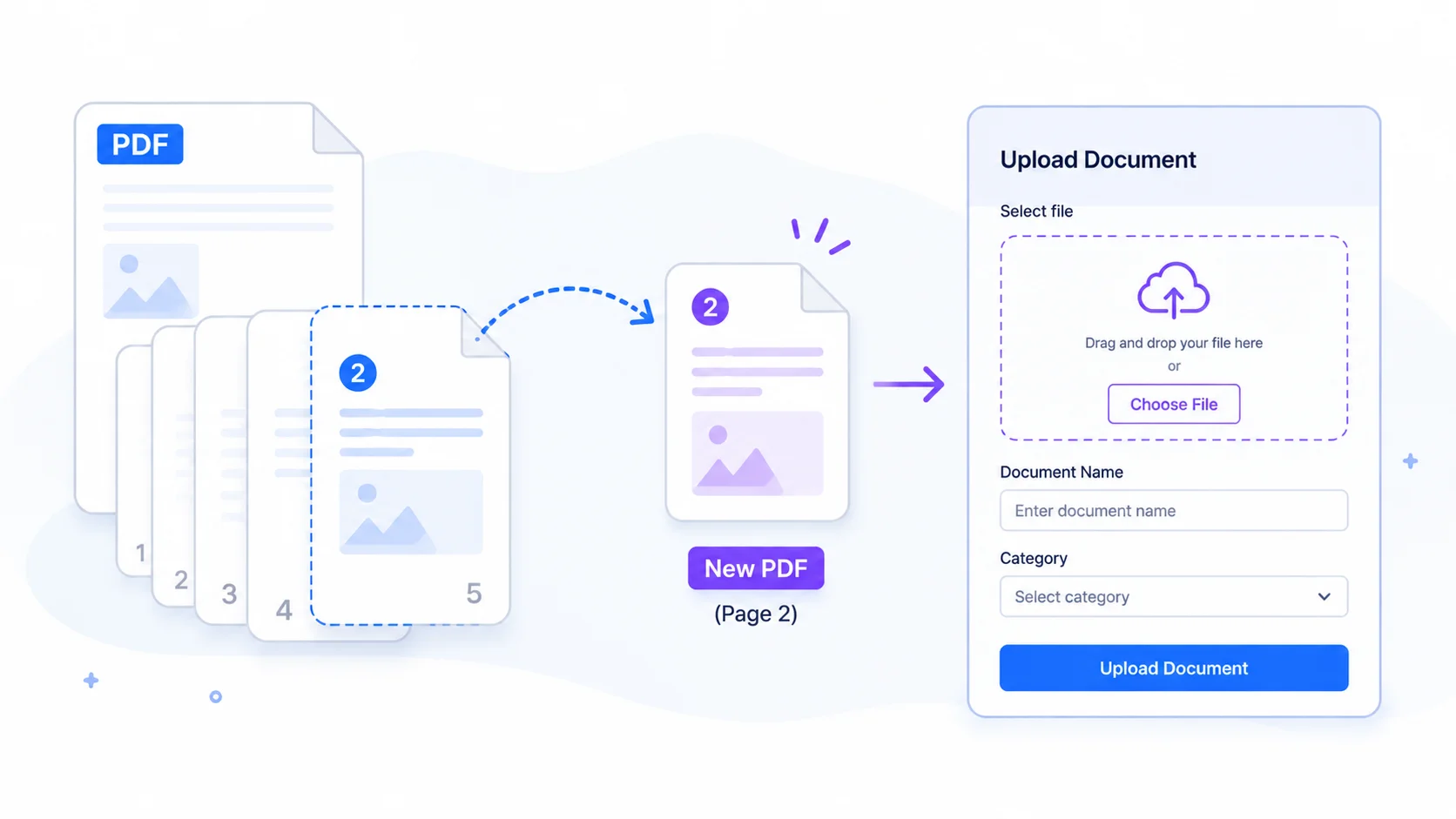
- Students & applicants (India + global): extract a single certificate or marksheet page from a big scan to upload to an exam, job, or visa form.
- Office & business (global + India): separate invoices, contracts, or report sections into their own files to share.
- Everyday use: pull one chapter from an ebook, or break a long scan into single pages.
How to split PDF into separate pages (step by step)
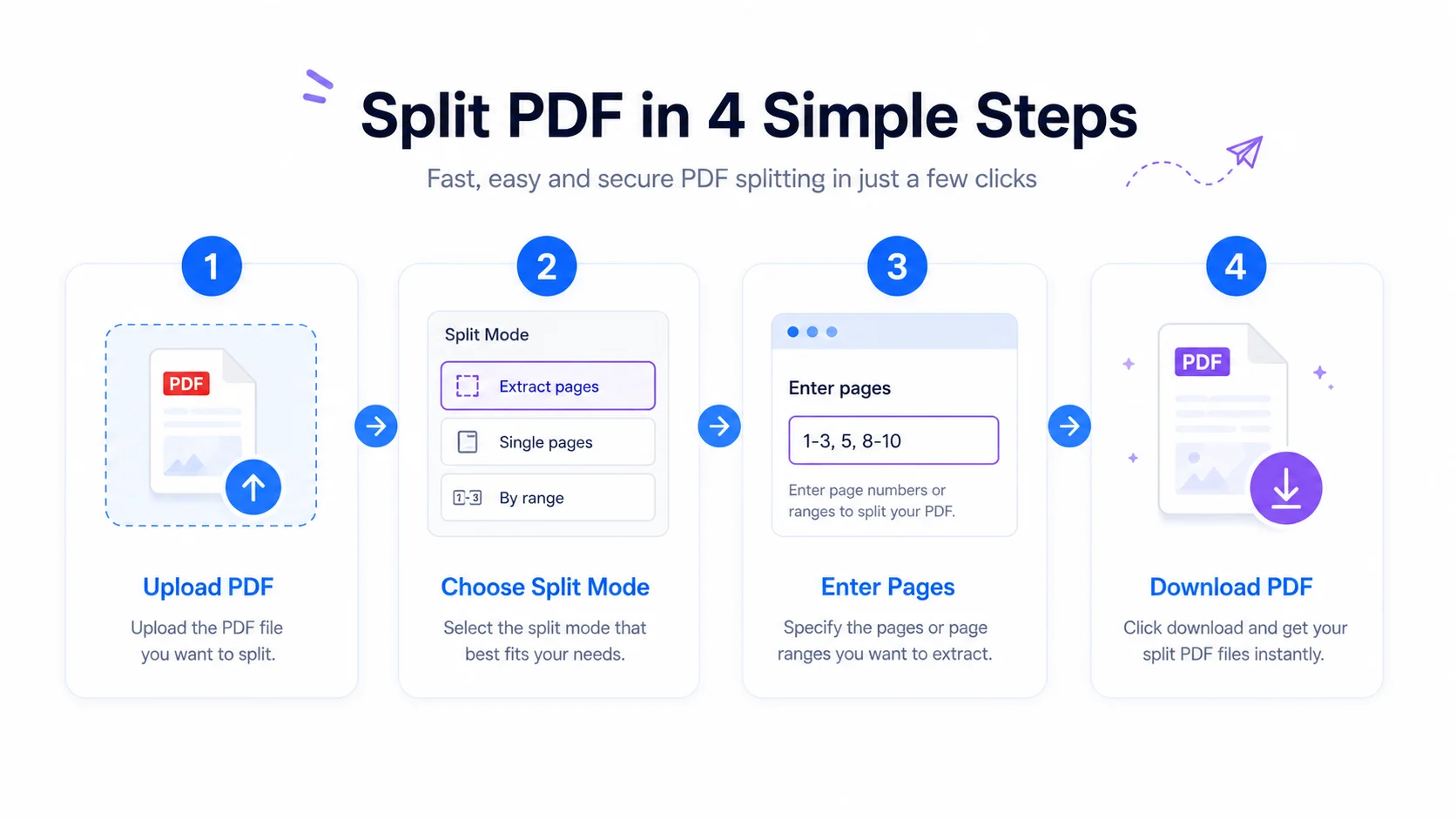
Step 1 — Add your PDF. Drag your file onto the box, or click “Browse files.” You’ll see a preview card with the page count.
Step 2 — Choose a mode. Pick “Extract pages into one PDF,” “Split into single-page PDFs,” or “Split into custom ranges.”
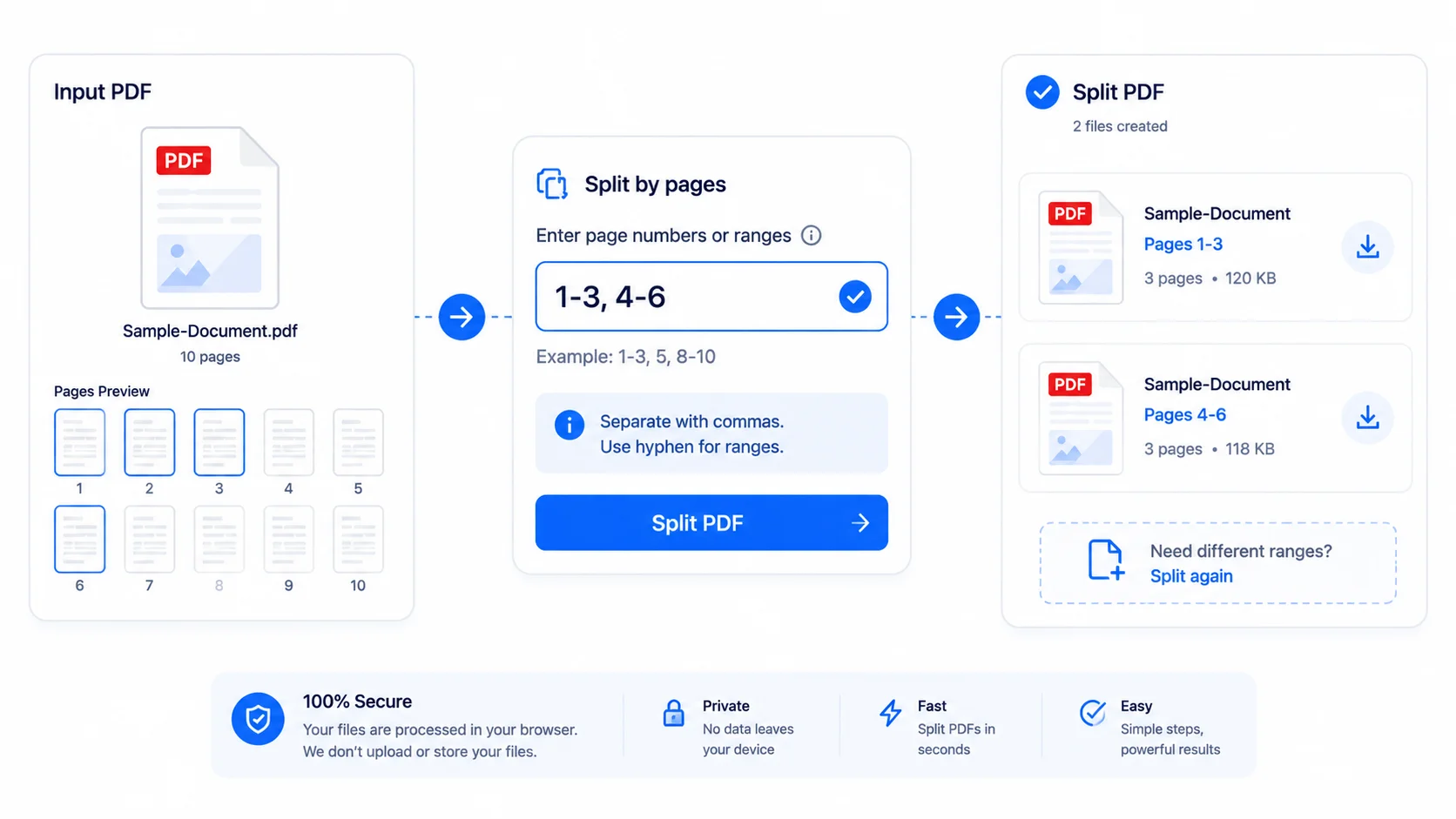
Step 3 — Enter pages (if needed). For extract and range modes, type pages like 1,3,5-7 or 1-3,4-6. Single-page mode needs no input.
Step 4 — Split & download. Click “Split selected” (or “Split all” for every file). Your new PDFs download instantly.
Quick reference
- Extract mode: pages you list become one new PDF (blank = all pages).
- Single-page mode: every page becomes its own PDF.
- Range mode: each range becomes one PDF (e.g. 1-3, 4-6 = two files).
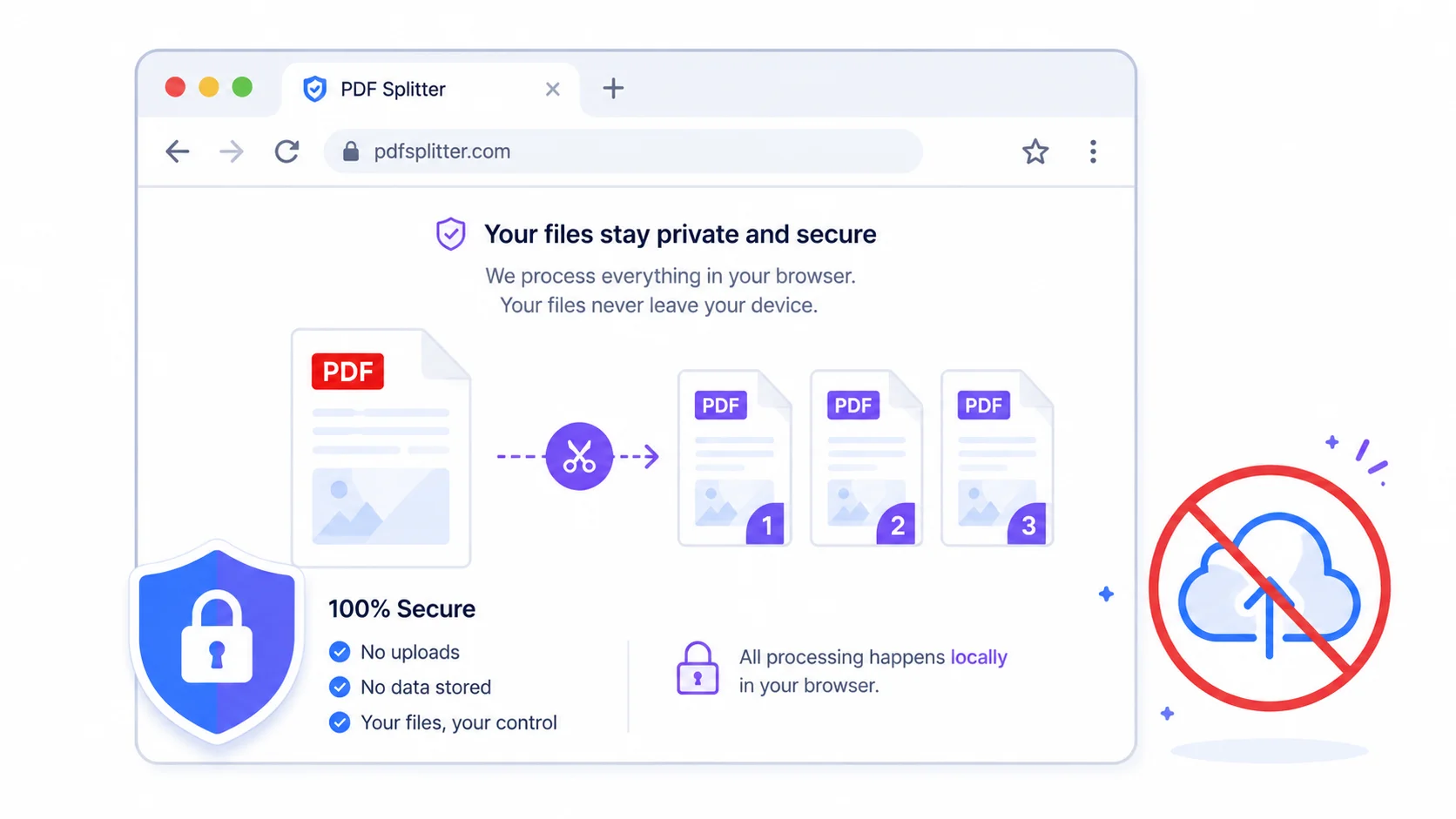
- Privacy: nothing is uploaded; it all runs locally.
Tips for clean splitting
- Check the page count on the card before you split.
- Use commas for separate pages and dashes for ranges:
1,3,5-7. - Keep your original file; the tool works on a copy.
- If you split into many single pages, download them and keep only the ones you need.
Frequently Asked Questions
Q: Is this PDF splitter free? Yes – completely free, with no signup and no watermark.
Q: Are my PDFs uploaded to a server? No. The splitting happens in your browser, so your files never leave your device.
Q: How do I extract only certain pages? Choose “Extract pages into one PDF” and type the pages, like 1,3,5-7. Those pages become one new PDF.
Q: Can I make every page its own PDF? Yes – choose “Split into single-page PDFs” and each page is saved as a separate file.
Q: Will splitting reduce quality? No. Pages are copied as-is, so text stays selectable and images stay sharp.
Q: Can I split more than one PDF at once? Yes – add several files and use “Split all” to process them together.
Q: Does it work on mobile? Yes – you can split PDFs on a phone; a larger screen just makes page previews easier to read.
Whether you’re pulling one page for a form upload or breaking a report into sections, this tool lets you split PDF into separate pages quickly, privately, and for free. Add your PDF above, pick a mode, and download your new files.
External reference: link “PDF (Portable Document Format)” to Wikipedia (https://en.wikipedia.org/wiki/PDF).