PDF to JPG Without Uploading
Turn PDF pages into sharp JPG images — privately, in your browser. Pick pages, set quality, download a ZIP.
- 100% Private
- No Upload
- High Quality
- Free
PDF to JPG Without Uploading - Free Private PDF to Image
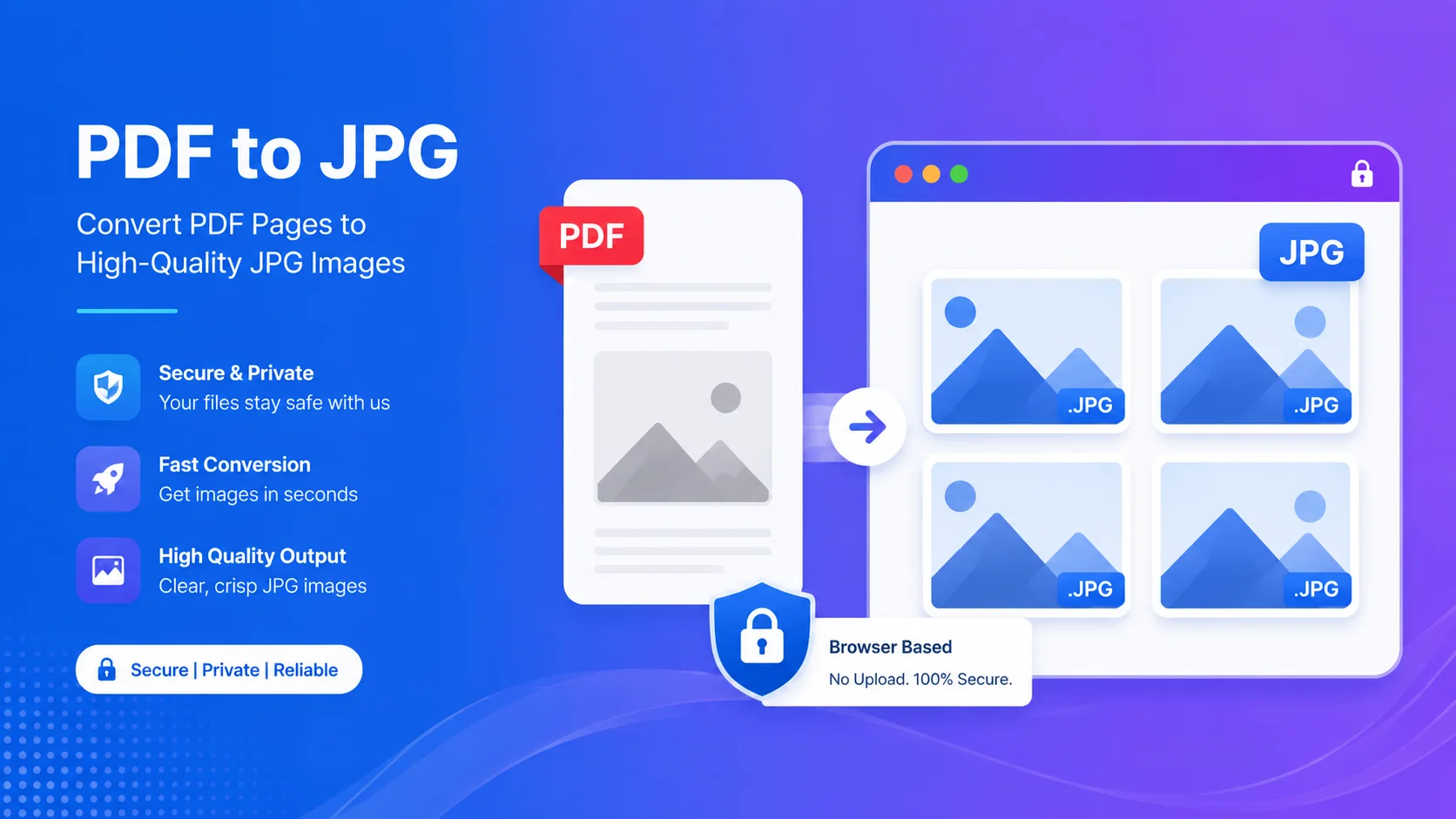
This free tool converts PDF to JPG without uploading – your file is processed right in your browser, so it never leaves your device. Each PDF page becomes a sharp JPG image you can download.
No signup, no watermark, and nothing sent to a server.
Why convert PDF to JPG without uploading
1. 100% private. ID documents, forms, and reports stay on your device — nothing is uploaded.
2. Free and simple. No signup, no email, no watermark.
3. High quality. Choose the render scale for sharper, higher-DPI images.
4. Control. Pick exact pages with thumbnails, set a page range, rotate, and download a ZIP.
What you can do with it
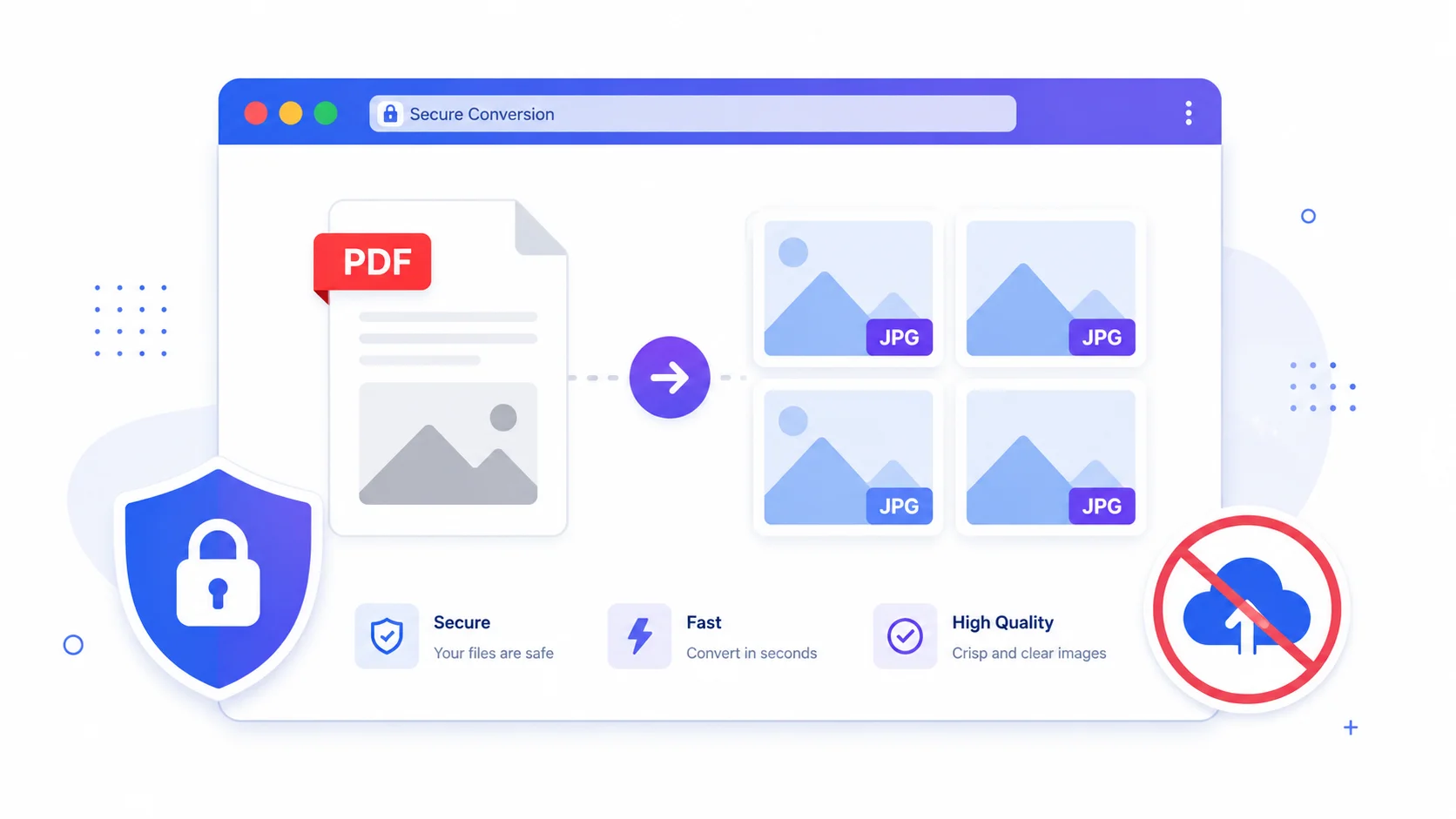
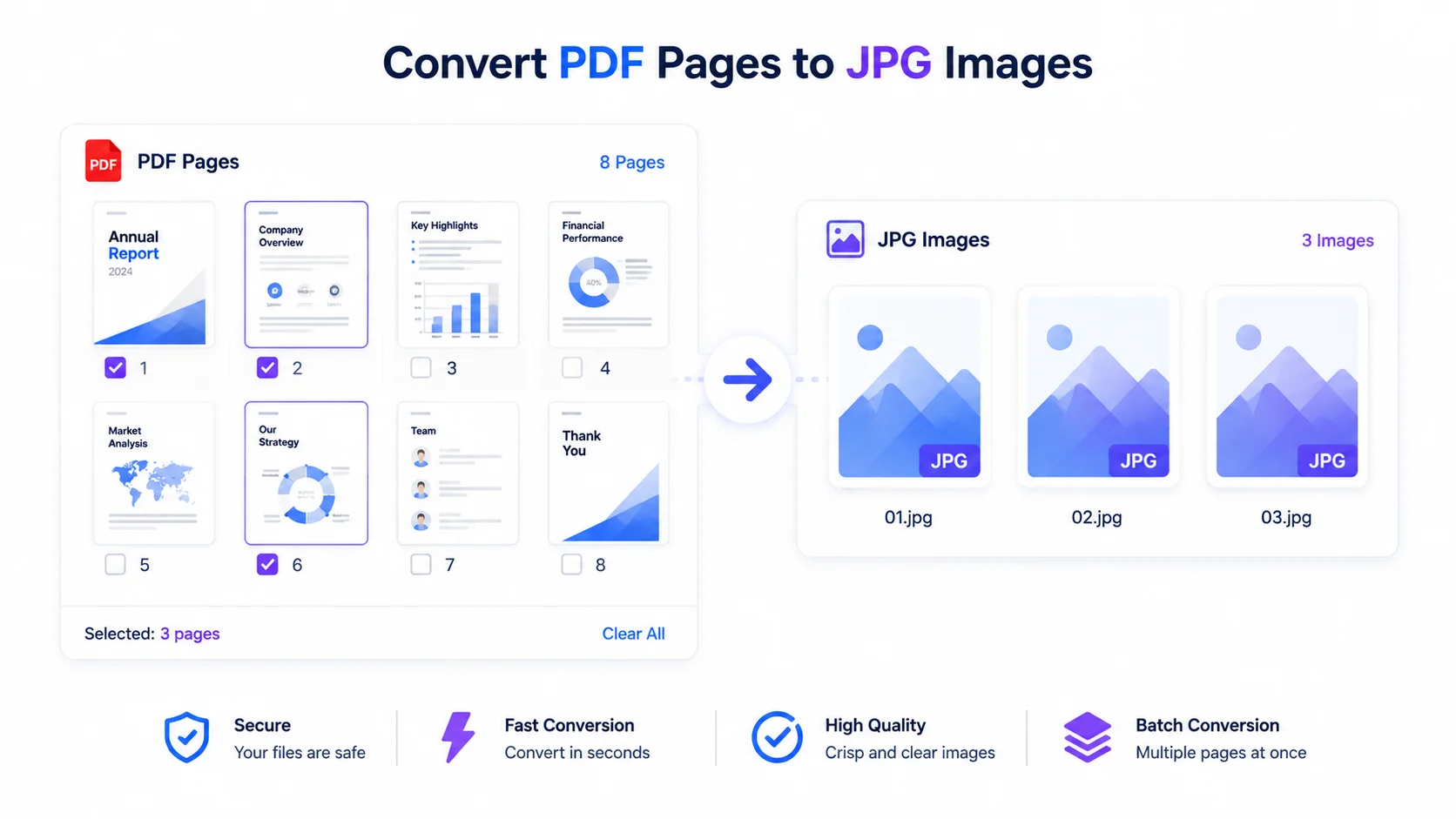
Convert every page of a PDF to JPG, or select just the pages you need using thumbnails.
You can also try Extract Images (beta), which pulls embedded pictures out of the PDF. Some PDFs store graphics as vectors, so extraction may not catch everything – page conversion is the reliable option.
If a PDF is password-protected, enter the password and it will open locally on your device.
Who uses it (India + global)
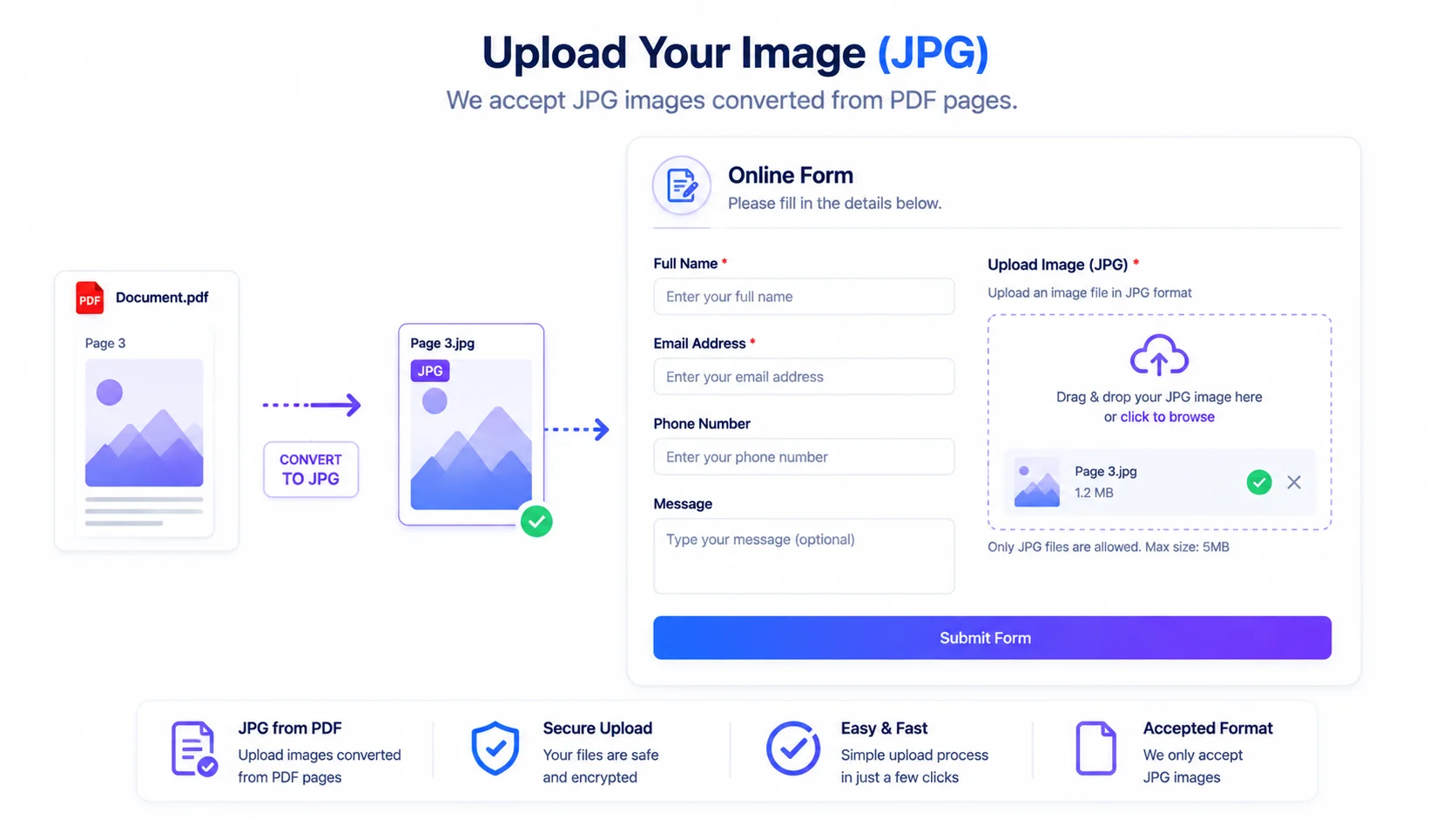
- Forms & applications (India + global): turn a PDF page into a JPG for an upload field that only accepts images.
- Students & office: grab a page as an image for slides, notes, or a report.
- Web & social: export a page as a JPG for a website, post, or email attachment.
How to convert PDF to JPG (step by step)
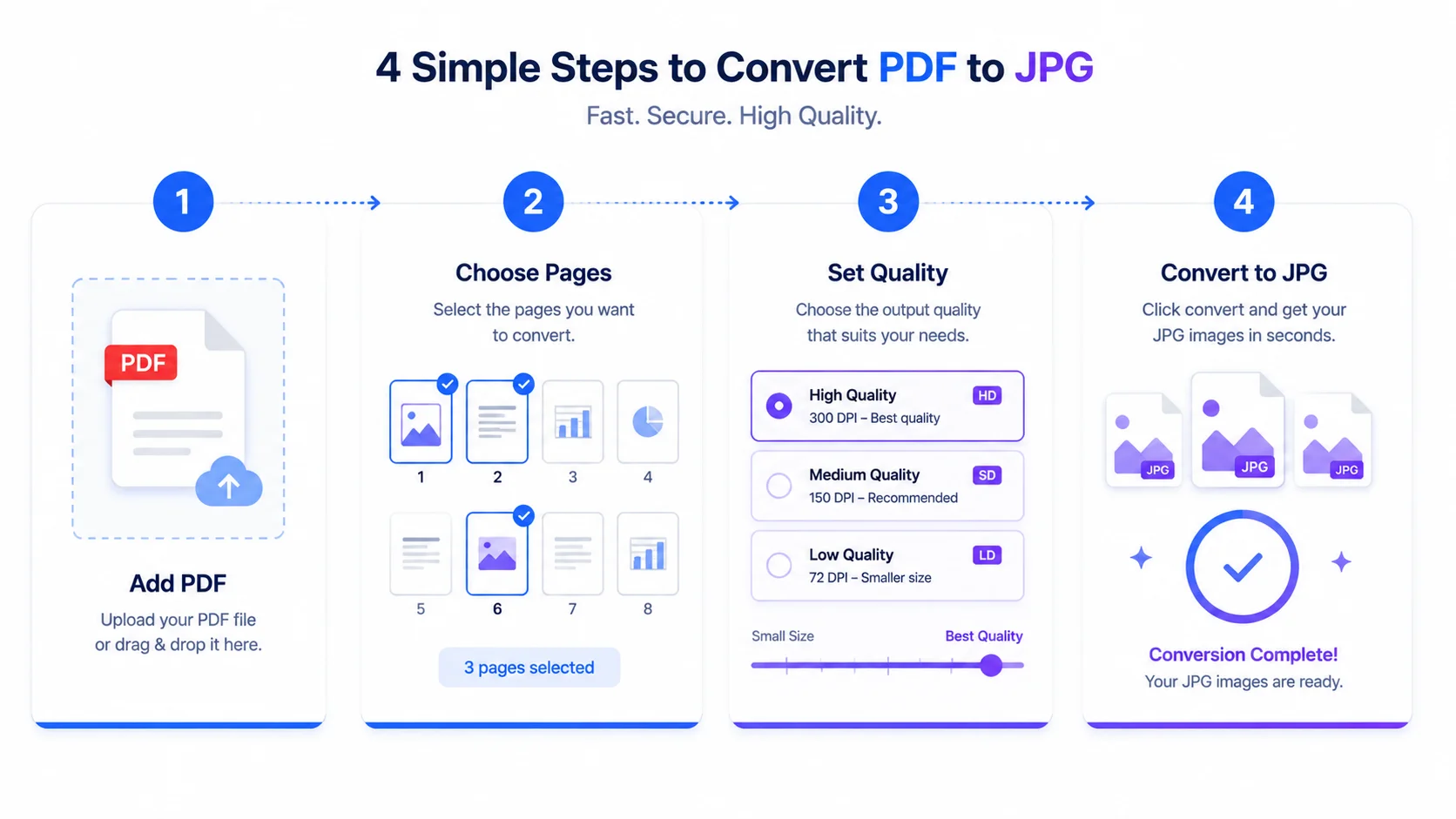
Step 1 – Add your PDFs. Drag them onto the box or click “Select files.”
Step 2 – Choose pages. Load page thumbnails and click the pages you want, or type a range like 1-3, 5.
Step 3 – Set quality. Adjust render scale and JPG quality in Options.
Step 4 – Convert. Convert the active PDF or all of them. Multiple images download as a ZIP.
Quick reference
- Output: one JPG per page (or selected pages).
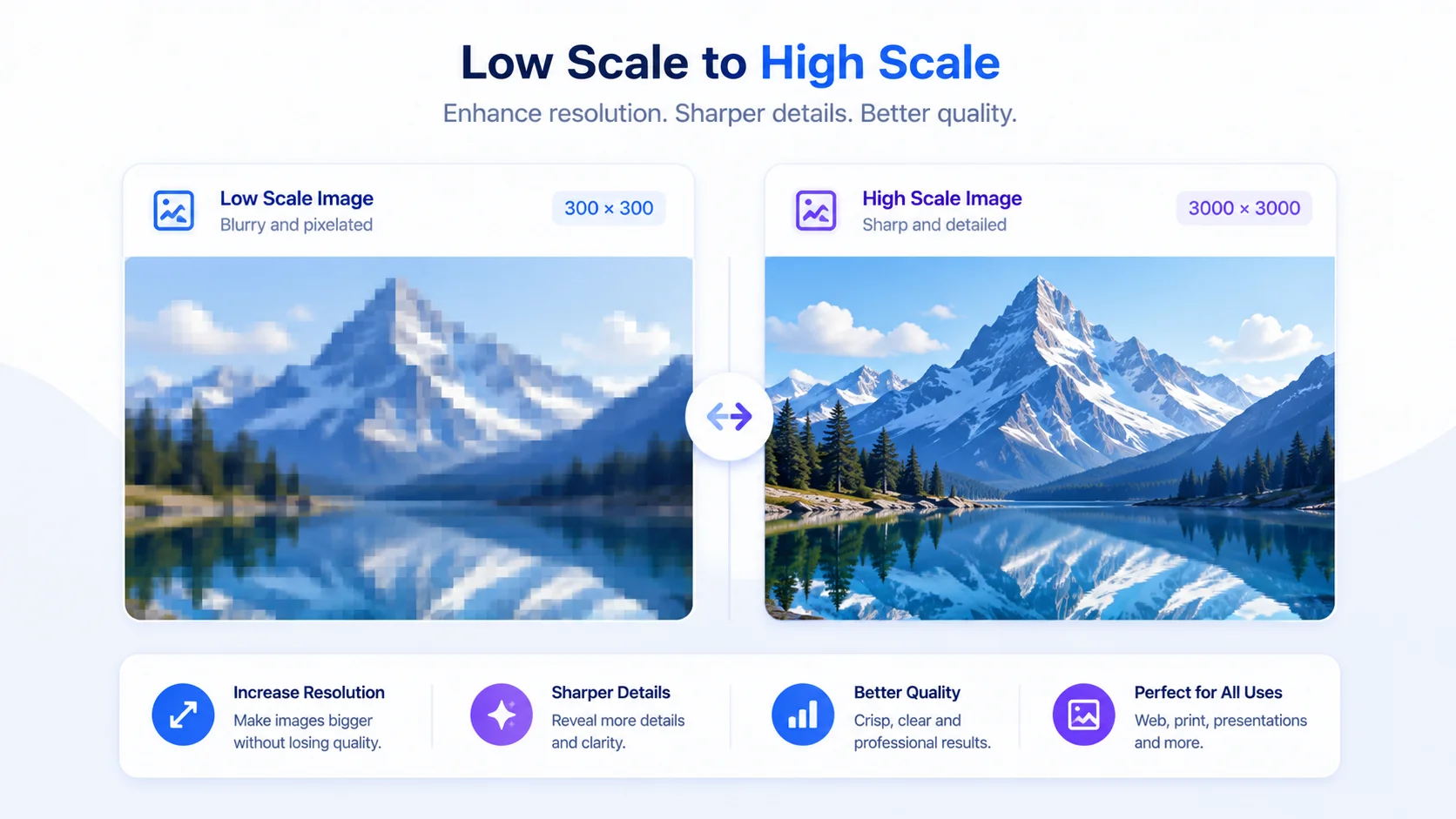
- Quality: higher render scale = sharper image, larger file.
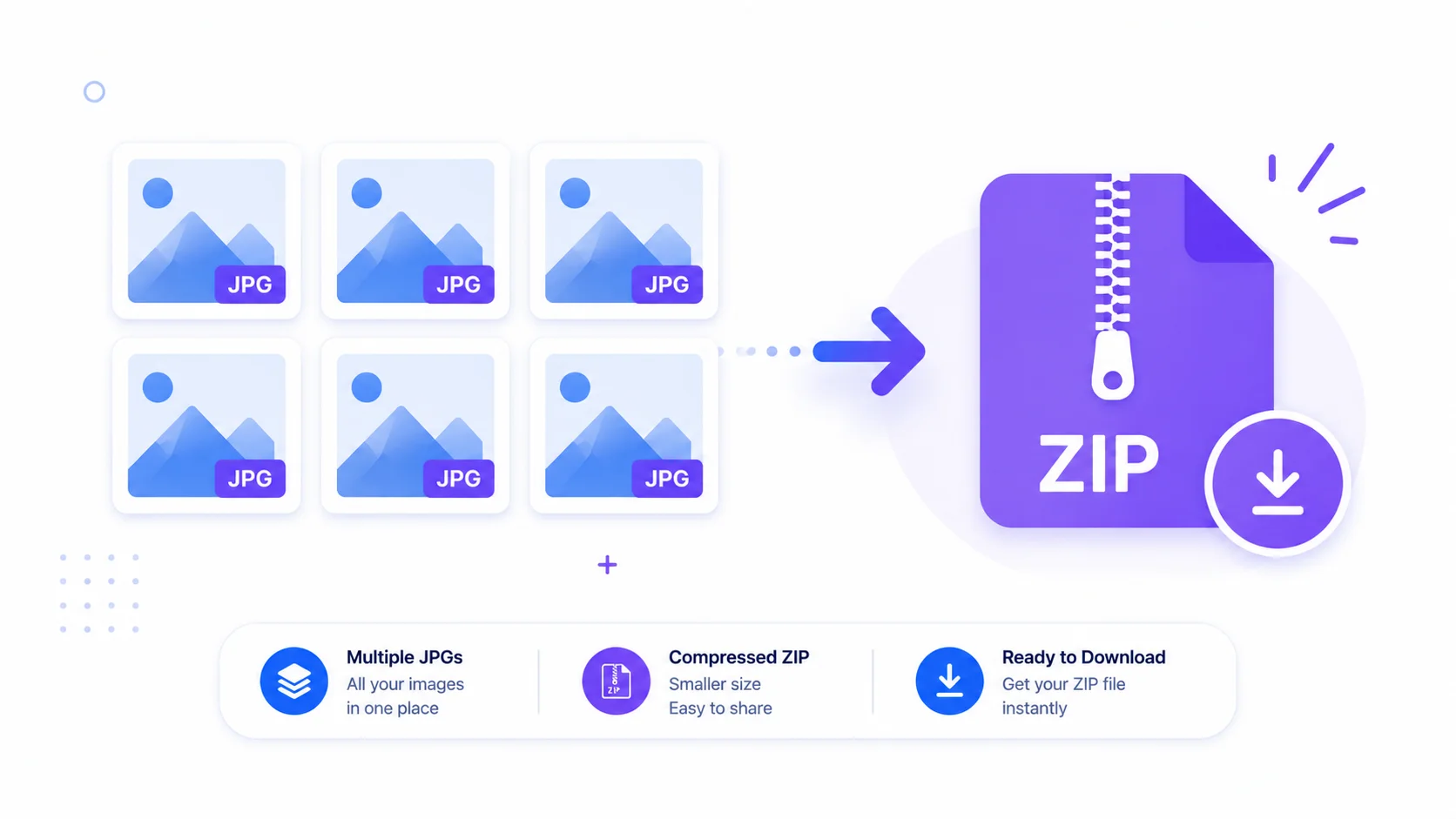
- Multiple images: download as a ZIP.
- Extract Images: beta, best-effort for embedded pictures.
- Privacy: nothing is uploaded; it all runs locally.
Tips for the best result
- For printing or forms, raise the render scale for a sharper image.
- Use thumbnails to convert only the page you actually need.
- If the JPG is too large for an upload limit, run it through an image compressor afterwards.
- Rotate pages in Options if your PDF is sideways.
Frequently Asked Questions
Q: Is this PDF to JPG converter free? Yes – completely free, with no signup and no watermark.
Q: Is my PDF uploaded to a server? No. You convert PDF to JPG without uploading – it’s processed in your browser, so your file never leaves your device.
Q: Will the images be high quality? Yes. Pages are rendered at the scale you choose, so you can produce sharp, high-DPI JPGs.
Q: Can I convert only some pages? Yes – click pages in the thumbnail view, or type a range like 1-3, 5, 7-9.
Q: Can it extract the pictures inside a PDF? There’s an Extract Images option in beta. It pulls embedded raster images; PDFs that store graphics as vectors may not be fully covered.
Q: Does it work with password-protected PDFs? Yes – enter the password and the file is unlocked locally on your device.
Q: How do I get all pages at once? Convert and the images download together as a ZIP file.
When you need images from a PDF but want to keep the file private, this tool lets you convert PDF to JPG without uploading — free, in your browser, at the quality you choose. Add your PDF above, pick your pages, and download your JPGs.