
PowerPoint to PDF Without Uploading
Convert PPTX to PDF privately — in your browser. Multi-file and merge. Best-effort for simple decks.
- 100% Private
- No Upload
- Best-effort
- Free
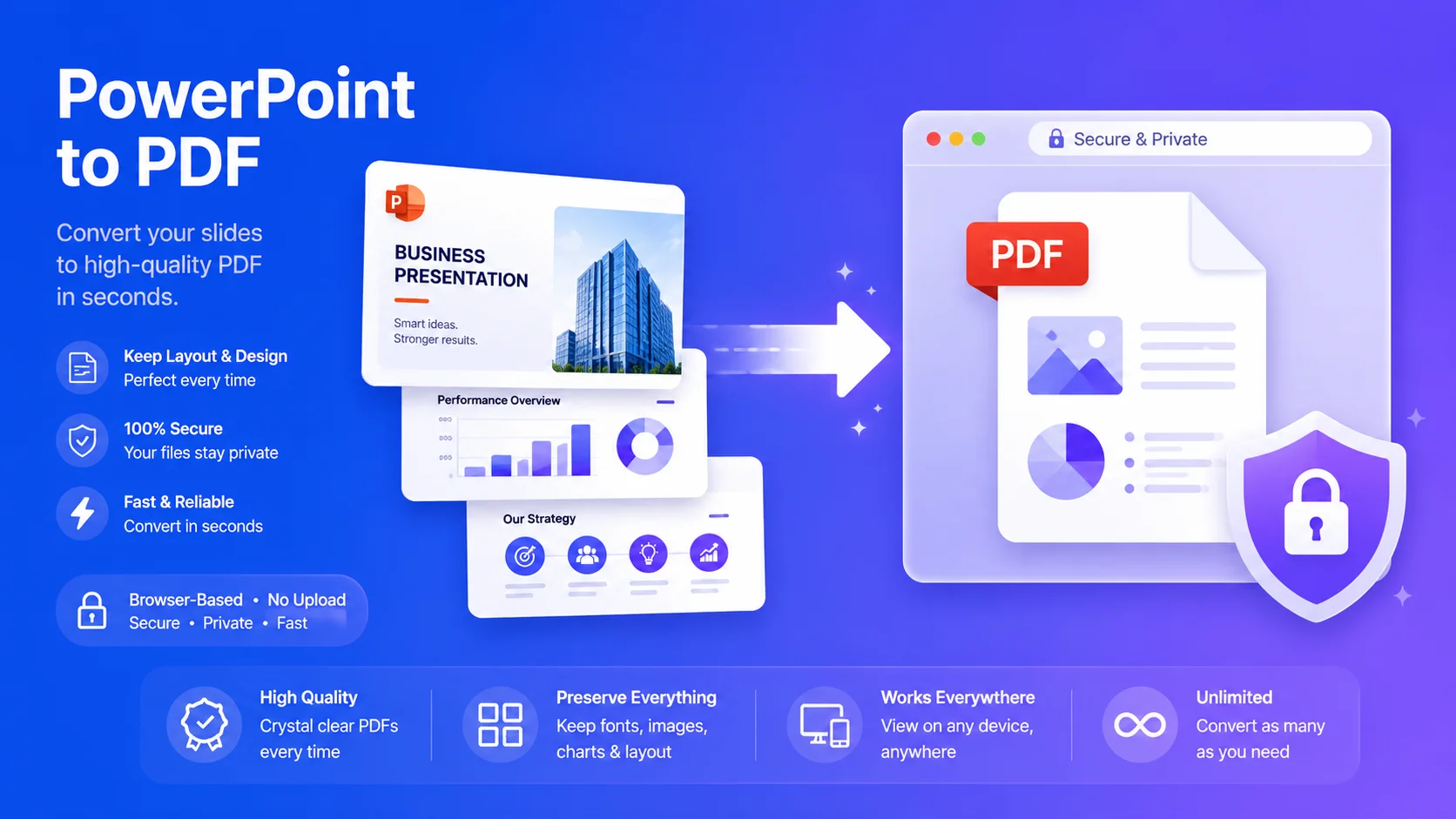
PowerPoint to PDF Without Uploading - Free Private PPTX to PDF
This free tool converts PowerPoint to PDF without uploading – your presentation is processed right in your browser, so it never leaves your device. It turns your slides into a shareable PDF.
No signup, no watermark, and nothing sent to a server.
Why convert PowerPoint to PDF without uploading
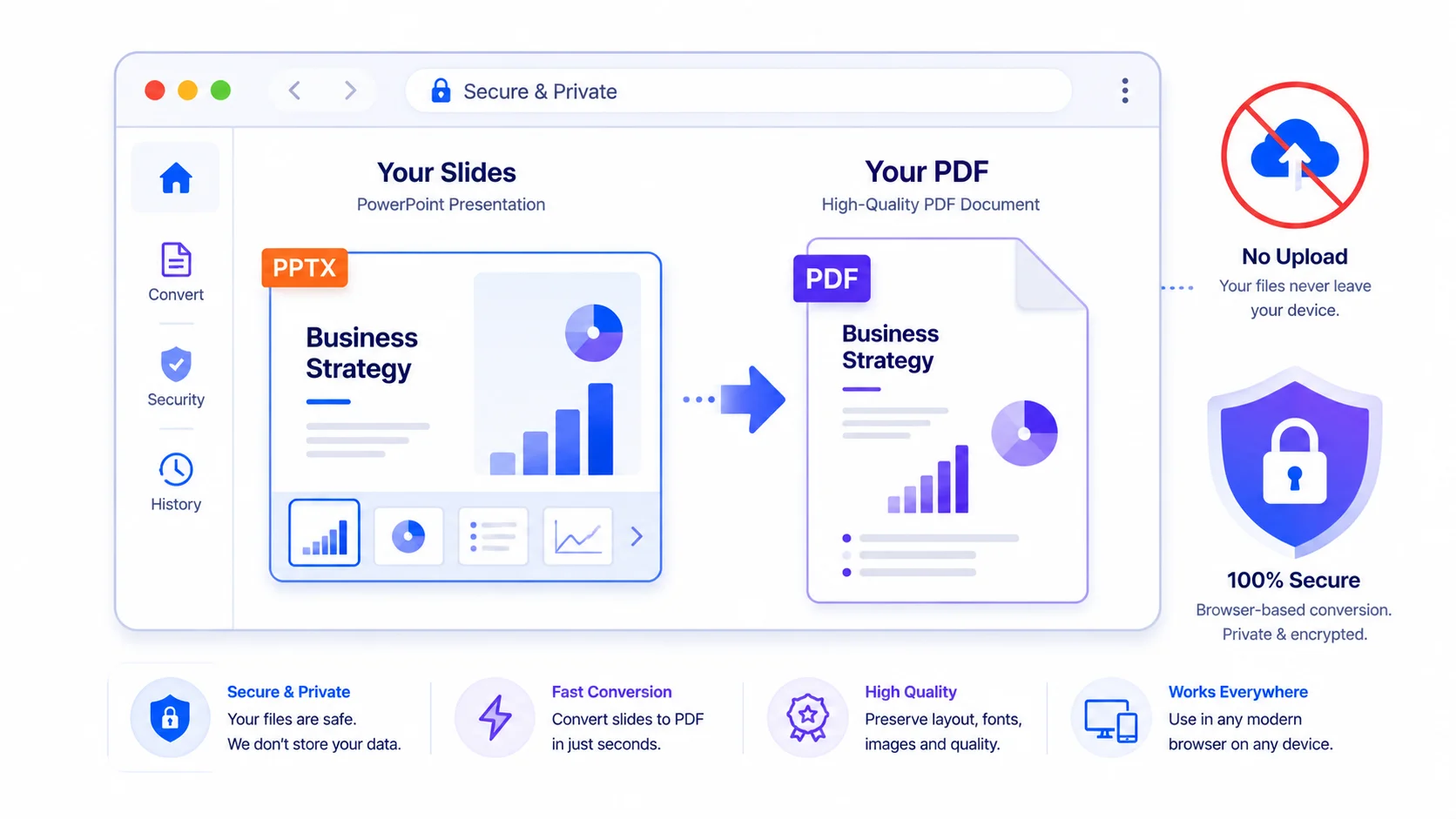
1. 100% private. Pitch decks, lecture slides, and internal presentations stay on your device – nothing is uploaded.
2. Free and simple. No signup, no email, no watermark.
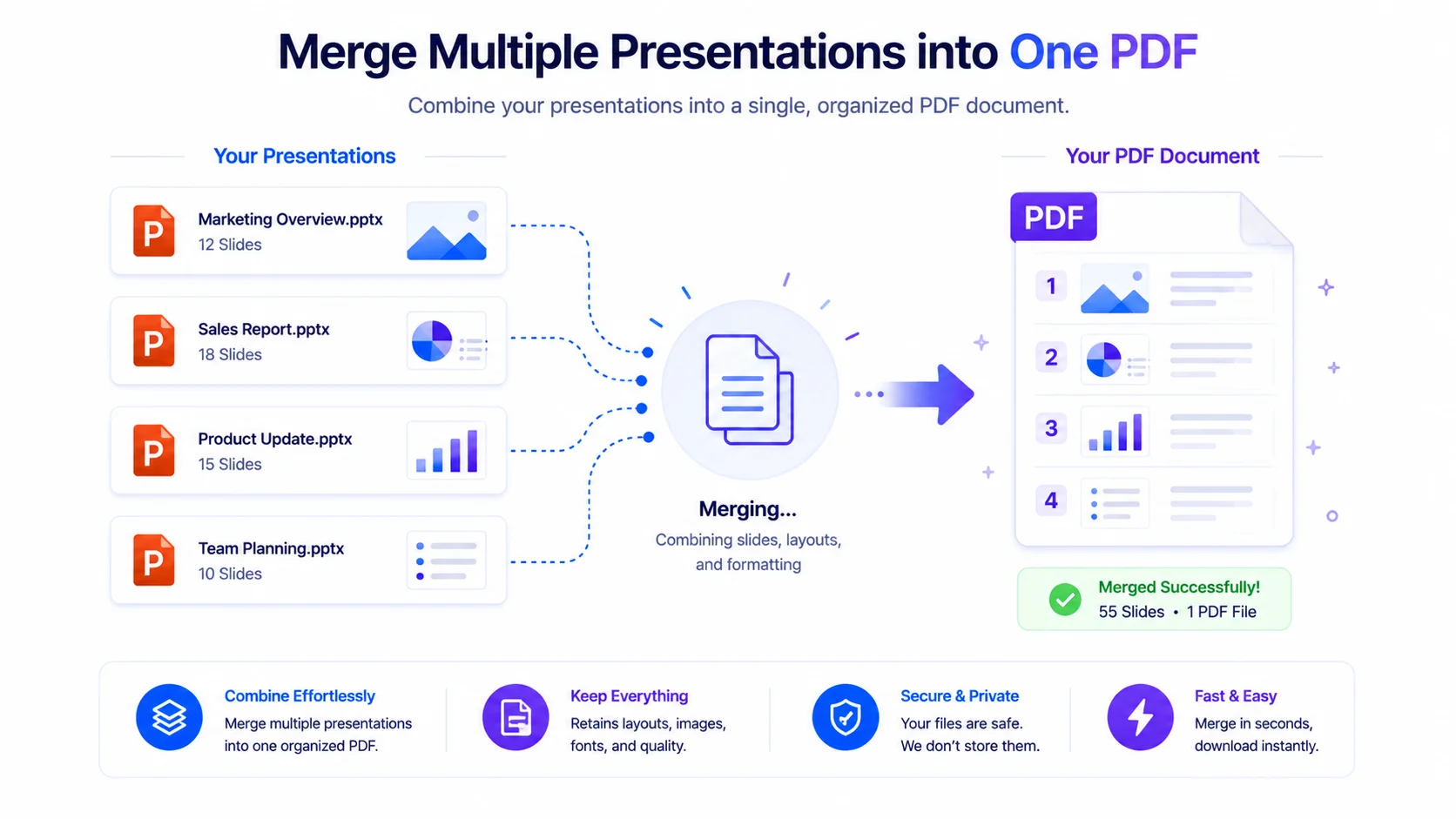
3. Multi-file. Convert several presentations and merge them into one PDF.
4. Quick sharing. A PDF opens on any device, even without PowerPoint.
What to expect (be informed)
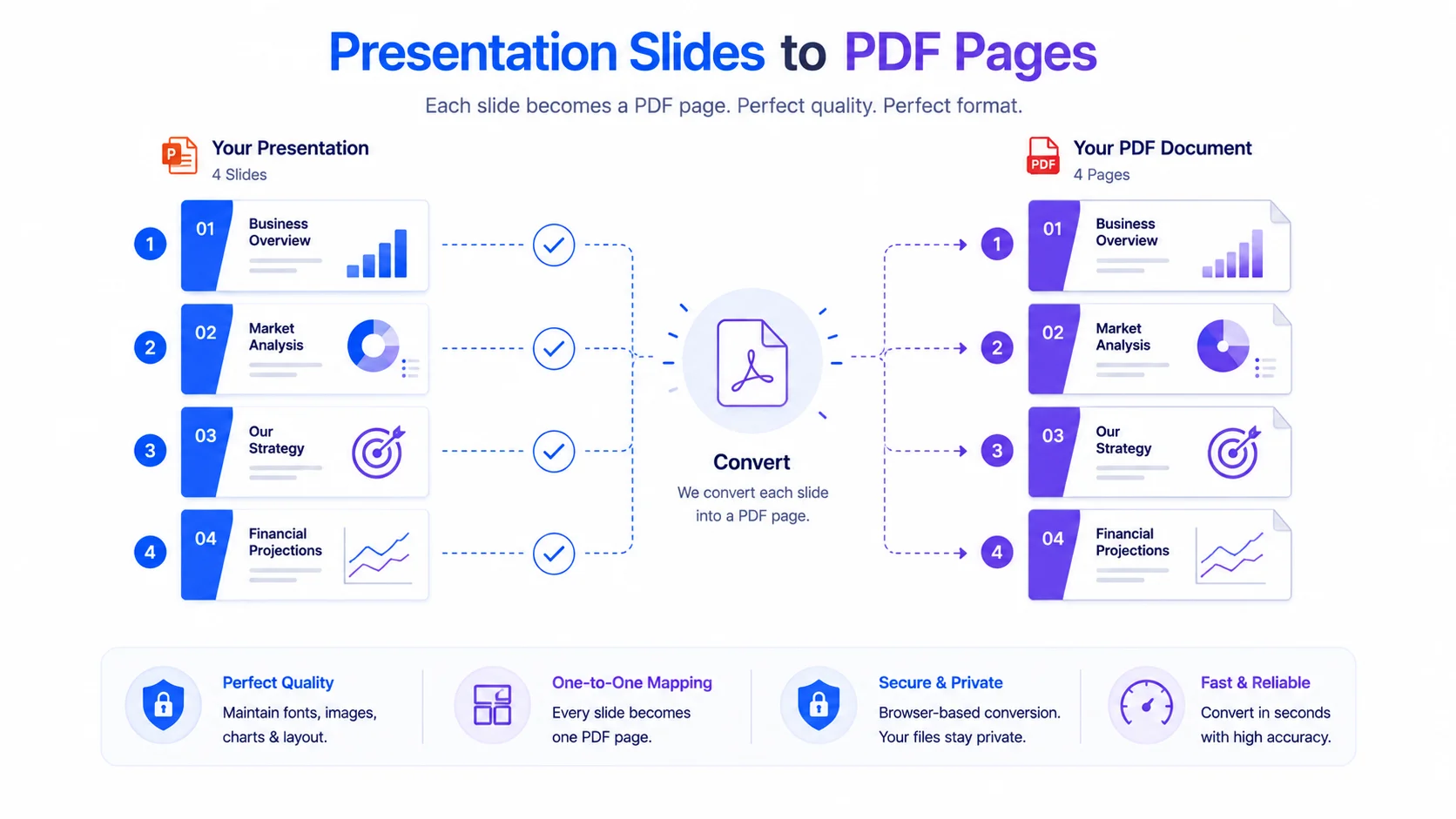
This is a best-effort, in-browser converter. It reads your PPTX and re-draws each slide’s text, images, and basic shapes into a PDF.
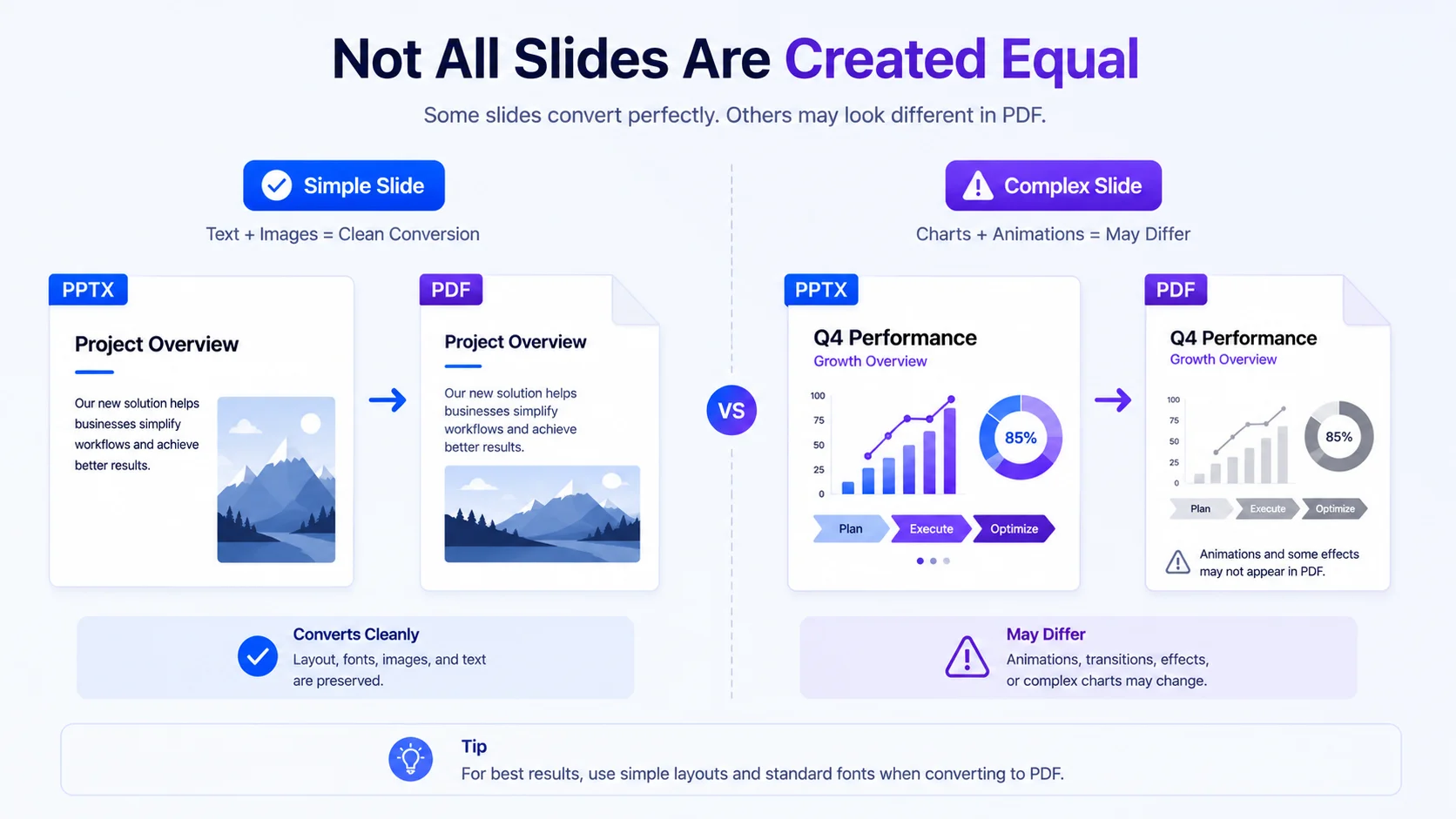
Because everything runs locally (with no PowerPoint engine), some things may not match your slides exactly: custom fonts, charts, SmartArt, gradients, animations, transitions, and embedded media. Simple, text-and-image decks convert well; complex designs may shift.
For pixel-perfect output, PowerPoint’s own File → Export → Create PDF is the most accurate. Use this tool when you want a fast, private PDF and don’t need exact fidelity – and always check the preview first.
Who uses it (India + global)
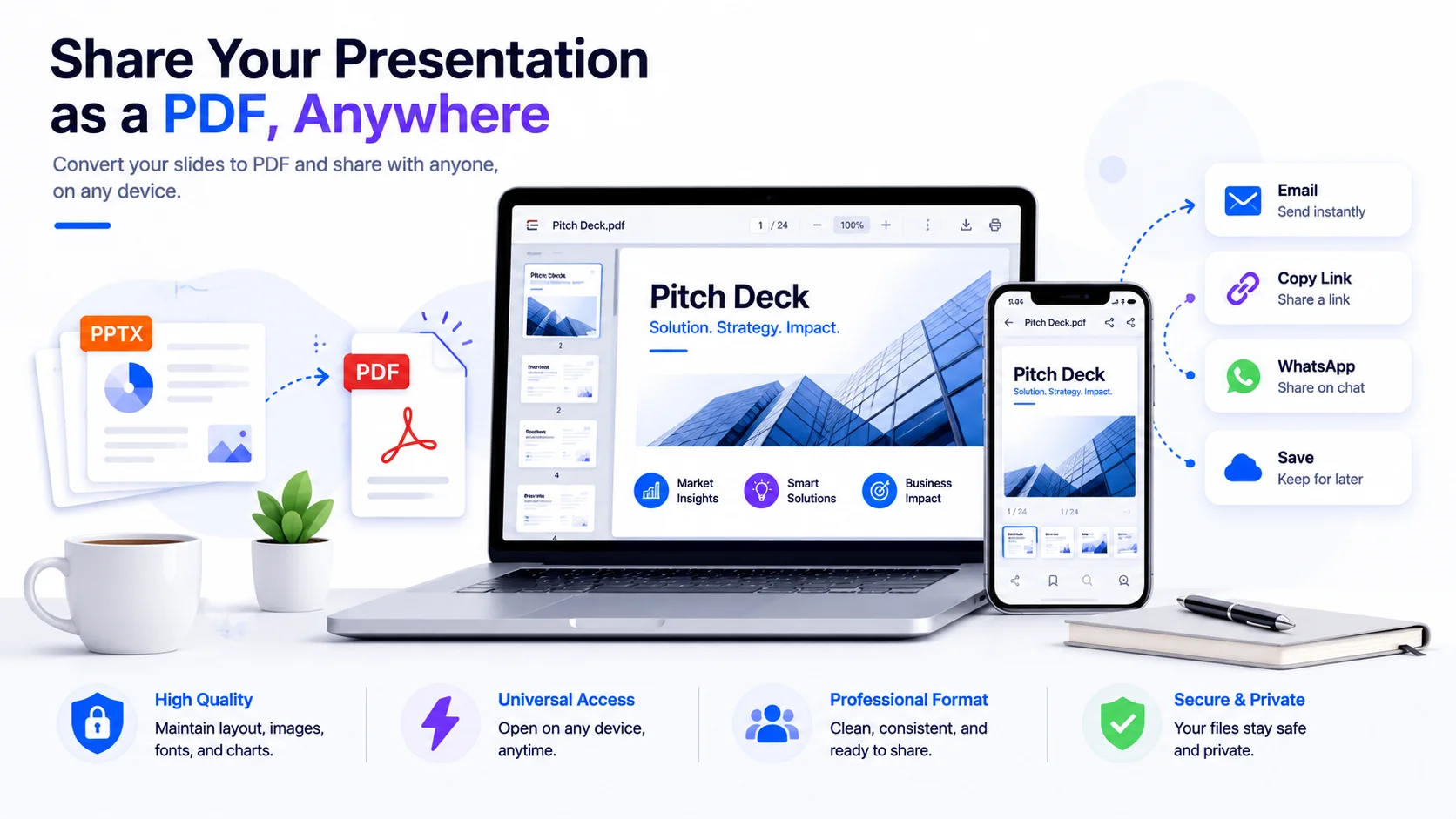
- Students & teachers (India + global): turn lecture slides into a PDF to submit or hand out.
- Office & business: share a deck as a PDF that opens anywhere.
- Anyone without PowerPoint: produce a quick PDF to send or print.
How to convert PowerPoint to PDF (step by step)
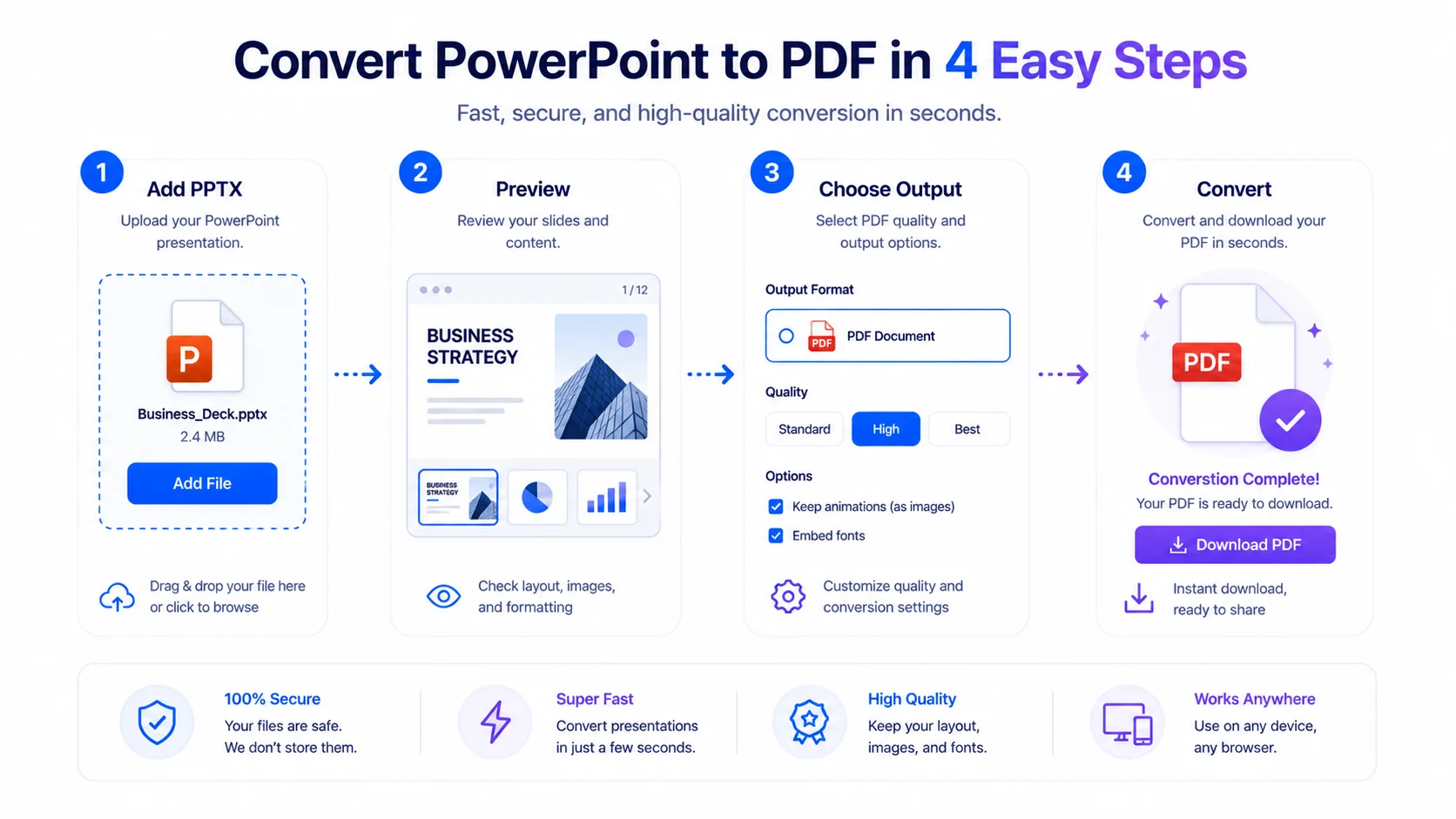
Step 1 — Add your files. Drag PPTX files onto the box or click “Browse.”
Step 2 — Preview. Open a file to see how the slides will render.
Step 3 — Choose output. One PDF per file, or merge into a single PDF.
Step 4 — Convert. Download each PDF or all at once. Your file downloads when done.
Quick reference
- Input: PPTX (PowerPoint).
- Best for: simple, text-and-image slides.
- May differ: custom fonts, charts, SmartArt, animations, embedded media.
- Most accurate alternative: PowerPoint → File → Export → PDF.
- Privacy: nothing is uploaded; it all runs locally.
Tips for the best result
- Keep slides simple (text + images) for the closest match.
- Standard fonts render more reliably than custom ones.
- Check the preview before downloading, especially for chart-heavy slides.
- For a client-ready, exact PDF, export from PowerPoint itself.
Frequently Asked Questions
Q: Is this PowerPoint to PDF converter free? Yes – completely free, with no signup and no watermark.
Q: Is my presentation uploaded to a server? No. You convert PowerPoint to PDF without uploading – it’s processed in your browser, so your file never leaves your device.
Q: Will the PDF look exactly like my slides? It’s best-effort. Simple text-and-image slides convert well, but custom fonts, charts, SmartArt, animations, and embedded media may not match exactly. For pixel-perfect output, export from PowerPoint (File → Export → PDF).
Q: Which files can I convert? Modern PowerPoint files (.pptx).
Q: Can I convert several files or merge them? Yes – convert one PDF per file, or merge multiple presentations into a single PDF.
Q: Does it keep animations or transitions? No – a PDF is static, so animations and transitions aren’t included (this is true of any PPT-to-PDF conversion).
Q: Does it work on mobile? Yes – though large decks convert faster on a computer.
When you need a quick, private PDF of your slides, this tool lets you convert PowerPoint to PDF without uploading — free, in your browser. Add your PPTX above, check the preview, and download your PDF. For exact fidelity on complex decks, pair it with PowerPoint’s own export.
External reference : link “PDF (Portable Document Format)” to Wikipedia (https://en.wikipedia.org/wiki/PDF).